
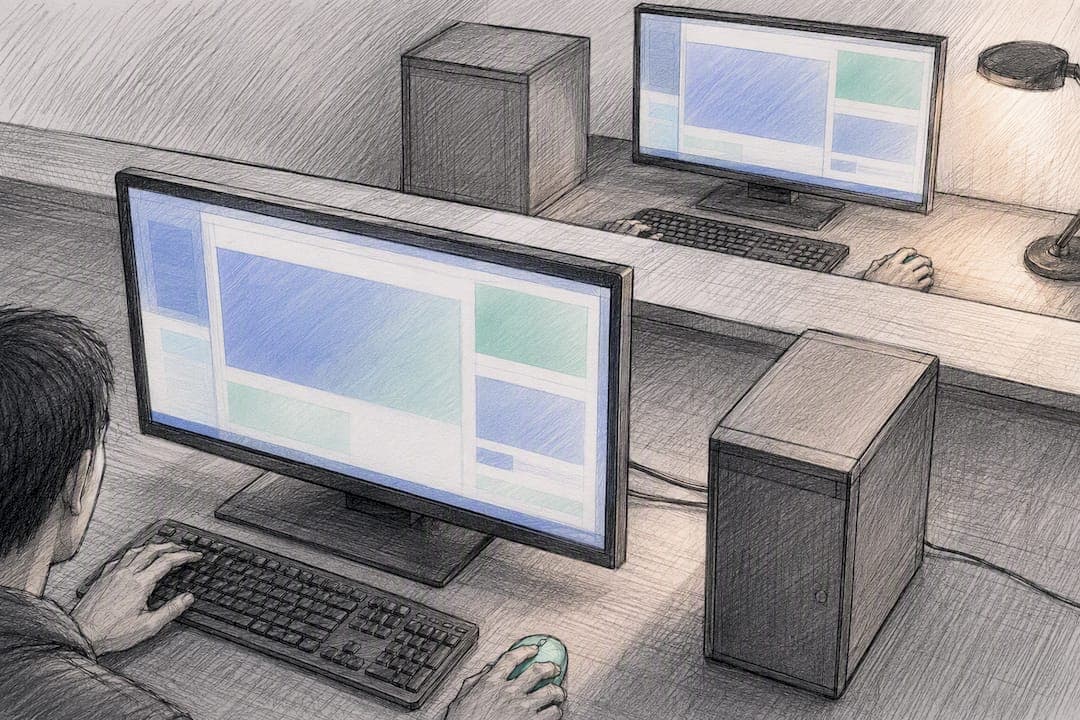
The fastest Windows-to-Windows WebRTC remote desktop pipeline runs DXGI desktop duplication into GPU color conversion, into a hardware encoder like NVENC, QSV, or AMF, over a low-latency UDP or QUIC transport, then straight to GPU decode and present. On a wired LAN, that combination typically lands around 50 ms at the median, with well-tuned setups pushing 120 to 240 Hz once every stage stays GPU-resident. The rest of this guide shows you how to get there.
TL;DR:
- Using a wired Ethernet connection with support for NVENC, QSV, or AMF is essential for achieving sub-60 ms latency in Windows remote desktop sessions.
- Enabling GPU-based capture, hardware encoding, and GPU-accelerated decode significantly reduces latency compared to traditional CPU-based screen grabs.
- Network conditions such as packet loss and latency above single digits on LAN indicate potential switch or driver issues that need addressing before tuning software.
- Disabling power-saving features, prioritizing UDP traffic, and setting Windows to high-performance mode improve stability and refresh rates.
- For best results, start with DXGI desktop duplication, ensure drivers are current, and match encoder presets to your target resolution and frame rate.
Table of Contents
- How Does WebRTC Remote Desktop Work for Local Screen Sharing?
- Hardware and Network Checklist for High-Refresh LAN Sessions
- How Do You Tune and Troubleshoot WebRTC Screen Sharing Latency?
- Quick Setup Steps to Get a Low-Latency Session Running
- How Kinodesk Applies This Pipeline for Windows Users
- When Should You Build Your Own Pipeline Instead of Buying One?
- Ready to Try a 240 Hz Local Connection?
- Sources
How Does WebRTC Remote Desktop Work for Local Screen Sharing?
Every millisecond in a remote desktop session comes from one of five stages: capture, convert, encode, transport, and decode. Understanding where time actually goes is the difference between guessing at settings and fixing the real bottleneck.
Capture starts the clock. Windows offers two paths: legacy GDI mirror drivers, which are sluggish and largely obsolete, and DXGI Desktop Duplication, which hands the capture pipeline a GPU texture directly. Done right, that's roughly 10 ms per 4K frame. Fall back to a naive screen grab like QScreen.grabWindow, and you're looking at closer to 96 ms per frame, which alone kills any hope of high refresh rates.
Once you have the frame, color conversion matters more than people expect. Keeping the frame GPU-resident from capture through encode, without a round trip back to CPU memory, avoids the readback penalty entirely. Zero-copy pipelines that skip CPU handling cut real milliseconds off every single frame, which adds up fast at 240 Hz.
Encoding is where hardware acceleration earns its keep. NVENC, Intel QSV, and AMD AMF all offload H.264 or H.265 encoding to dedicated silicon, freeing the CPU and shaving latency versus software encoding. The configuration matters as much as the hardware:
- Disable B-frames entirely; they force the encoder to reorder frames, adding queuing delay.
- Use a small VBV buffer and constrained CBR instead of variable bitrate.
- Request IDR frames only on demand, not on a fixed interval.
Transport is the next fork in the road. UDP and QUIC tolerate a dropped packet far better than TCP does, because TCP's retransmission and ordering guarantees introduce exactly the kind of stall you can't afford at 4 ms per frame. Small jitter buffers paired with adaptive forward error correction, rather than blocking retransmits, keep the pipeline moving even when a packet goes missing.
Decode and present close the loop. GPU decode with immediate presentation avoids an extra buffering stage that software decoders often add.
Latency benchmark: Tuned NVENC and UDP with FEC pipelines on wired LAN have reported p50 around 53 ms and p95 around 71 ms end-to-end. Distance and pipeline depth, not bandwidth, drive that number: round-trip light in fiber alone costs about 5 ms per 100 km, which is why staying on a local network rather than routing through a cloud relay is the single biggest latency lever you have.
Hardware and Network Checklist for High-Refresh LAN Sessions
None of the pipeline theory matters if your GPU driver is three versions stale or your switch is throttling UDP traffic. Run through this before touching any software settings.
- Confirm your GPU actually exposes a hardware encoder. Most modern NVIDIA, Intel, and AMD GPUs support NVENC, QSV, or AMF respectively, but check driver versions specifically. An outdated driver can silently disable duplication support or encoder availability.
- Use wired Ethernet. Gigabit is the floor; 2.5G or 10G gives you comfortable headroom at 4K and high frame rates. Wi-Fi introduces jitter that no amount of encoder tuning will fix.
- Disable network adapter power-saving features (Energy Efficient Ethernet, selective suspend) on both machines. These introduce microsecond-to-millisecond wake delays that show up as intermittent stutter.
- On managed switches, set QoS to prioritize the UDP ports your session uses if other LAN traffic competes for bandwidth.
- Set Windows to High Performance power mode on both PCs, and check that the display refresh rate is actually set to the target Hz in Windows display settings, not defaulting to 60.
- Watch for exclusive fullscreen applications; some games and creative apps grab the display in ways that interfere with duplication-based capture.
- Allow the app through Windows Defender Firewall on the private network profile, and confirm UDP discovery (often via mDNS) isn't blocked by a third-party security suite.
Pro Tip: If Windows keeps prompting you to choose a network profile as "Public" on a new router, switch it to "Private" manually. Public profiles block the local discovery broadcasts most LAN screen-sharing tools rely on.
How Do You Tune and Troubleshoot WebRTC Screen Sharing Latency?
Getting the pipeline running is one thing. Getting it stable at 120 or 240 Hz over a full session takes a deliberate tuning pass, not trial and error.
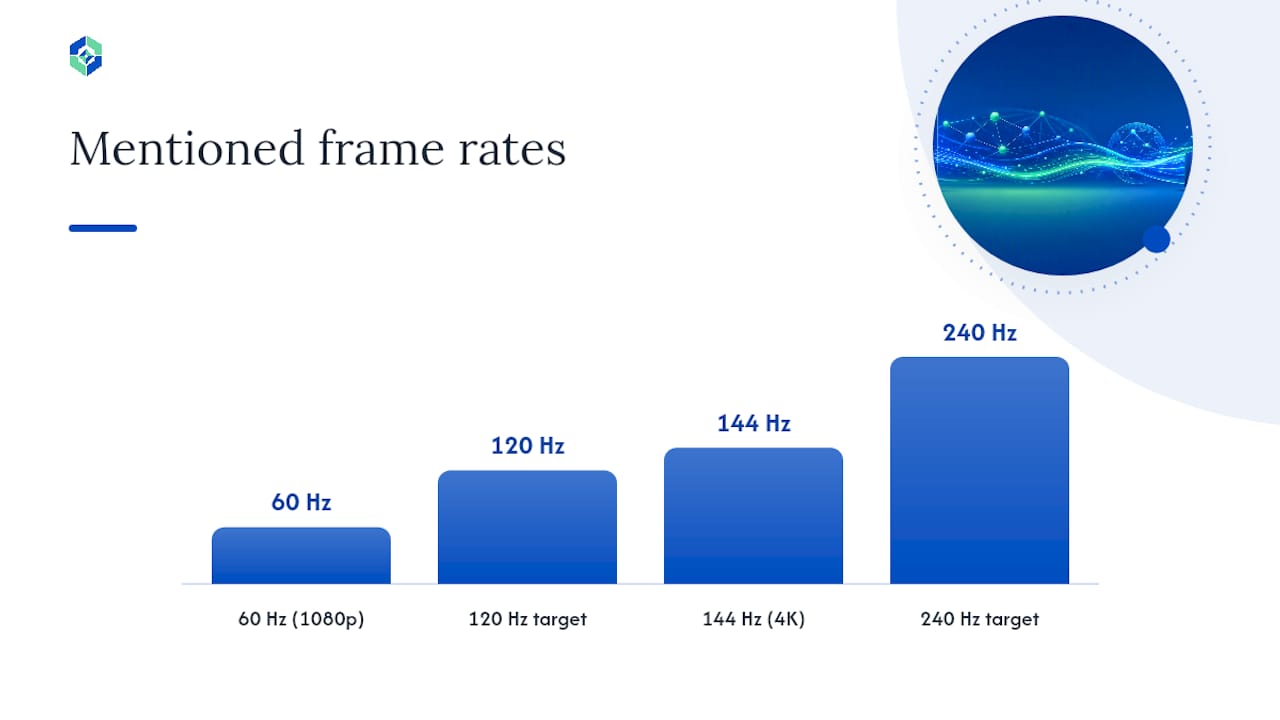
Start with encoder presets scaled to your target. A 1080p session at 60 Hz needs a much lighter bitrate budget than a 4K session at 144 Hz; overshooting bitrate on a constrained CBR setup causes the encoder to queue frames rather than drop bits, which shows up as creeping latency rather than an obvious crash.
Watch for silent capture fallbacks. DXGI duplication can fail on a secure desktop, over an active RDP session, or when a GPU driver blocks it outright, and when that happens, some tools quietly drop to a much slower screen-grab fallback without telling you. If your session suddenly feels sluggish for no reason, check whether capture silently degraded before touching anything else.
For network issues, measure before you tune:
- Ping between the two machines to get a baseline RTT; anything meaningfully above single digits on a LAN suggests a switch or driver problem, not a software one.
- Check for packet loss specifically, since even 1 to 2 percent loss can force FEC or retransmit logic to work overtime.
- If stutter persists, widen the jitter buffer slightly before assuming the encoder is at fault.
If problems trace back to the GPU itself, do a clean driver reinstall using the vendor's tool rather than a Windows Update push, and if you have a system with both integrated and discrete graphics, disable the integrated GPU to force duplication onto the card that actually has the encoder you want.
Pro Tip: When you have to cut something under pressure, drop resolution or chroma subsampling before you drop frame rate. For interactive work, motion smoothness matters more than pixel sharpness.
Quick Setup Steps to Get a Low-Latency Session Running
Here's the fastest path from zero to a working high-Hz session, in order.
- Check GPU encoder support first. Confirm NVENC, QSV, or AMF is available and drivers are current on both the source and viewing PC.
- Set the power plan and refresh rate. Switch both machines to High Performance mode and confirm Windows display settings show your target Hz, not a default.
- Install and allow firewall prompts. Accept the private network firewall exception during setup so local discovery and the UDP session ports aren't blocked.
- Enable sharing on the source PC. Turn on remote access on the machine being viewed, and either let autodiscovery find it or enter its LAN IP directly.
- Pick DXGI/Duplication capture explicitly if the software offers a choice, along with a low-latency encoder preset, your target frame rate, a constrained bitrate, and UDP or QUIC transport.
- Verify with a performance overlay. Most capable tools show live RTT and input-to-photon numbers; a quick way to sanity-check by hand is moving the mouse and timing how long the on-screen cursor takes to catch up.
- Have a fallback ready. If GPU encoding or DXGI duplication isn't available on a particular machine, drop to a lower resolution and frame rate rather than fighting a degraded capture path at full settings.
How Kinodesk Applies This Pipeline for Windows Users
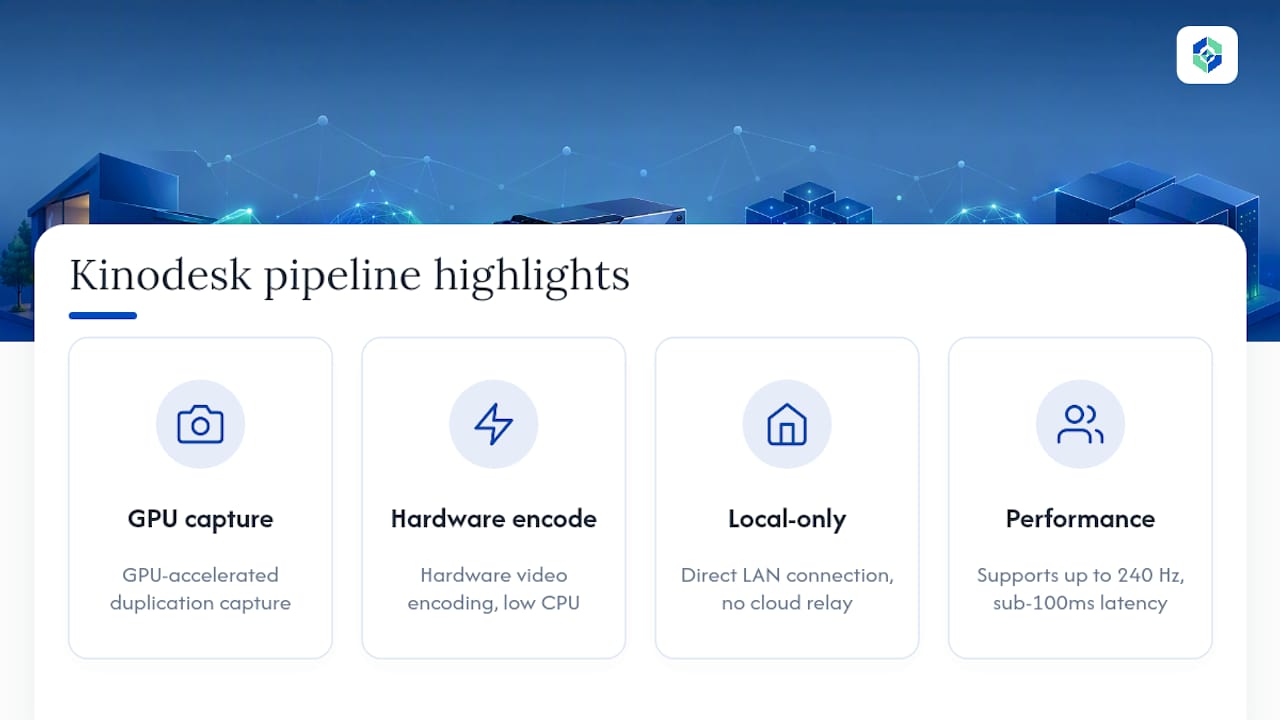
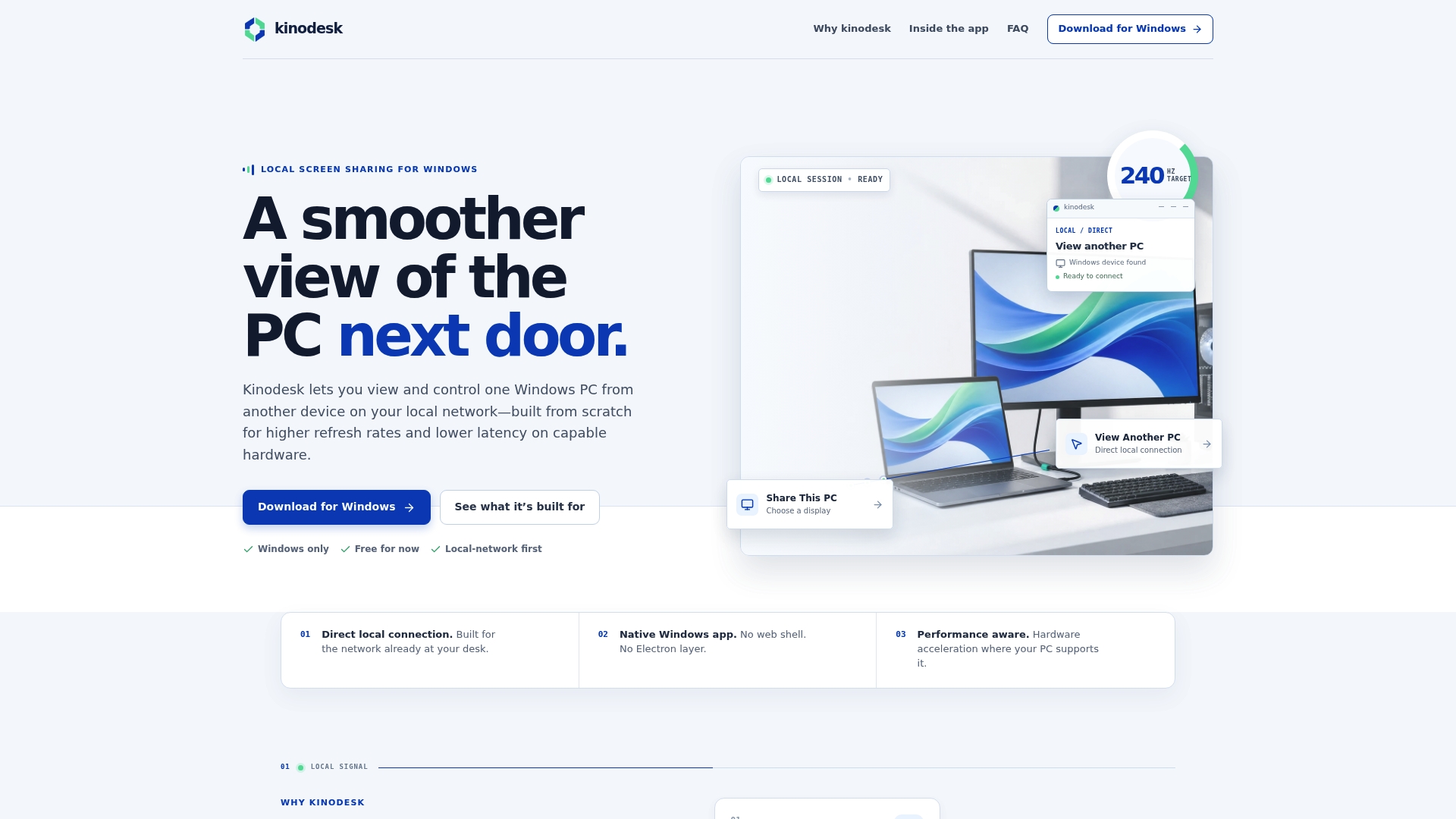
Everything above describes the pipeline; Kinodesk is built around exactly that pipeline. It uses GPU-accelerated capture, hardware video encoding, and a local-only connection model, supporting refresh rates up to 240 Hz between two Windows PCs without routing through a cloud relay.
That combination matters most for home-lab enthusiasts running multi-PC setups, and for designers or developers who need near-real-time feedback while controlling a second machine, the kind of workflow where even a 100 ms delay breaks flow. Some tools include AI-assisted setup to help diagnose driver and capture issues covered in the troubleshooting steps above. After installing, the first thing worth testing is whether duplication capture engaged correctly and how the session holds up at your monitor's native refresh rate.
When Should You Build Your Own Pipeline Instead of Buying One?
Building your own DXGI-to-NVENC pipeline makes sense for research work, custom telemetry, or unusual multi-node topologies no packaged tool supports. For most home labs and studios, buying a polished, local-first tool gets you a stable result faster. Ask yourself honestly: do you have the time, the low-level networking chops, and no need for support? If any answer is no, buy.
— Ian
Ready to Try a 240 Hz Local Connection?
Everything in this guide describes what a well-built local pipeline should do. Kinodesk already does it, out of the box, without you touching an encoder setting or a UDP port config. Setup often involves installing on both PCs, allowing the private network prompt, and toggling refresh rates to see what your GPU and cabling can sustain.
Test the DXGI capture path first, since that's the setting most responsible for whether you get a smooth session or a laggy one. Then try the low-latency preset against your normal workload, whether that's a home-lab dashboard, a CAD session, or a design tool where every frame of feedback counts. If you're working across a remote workstation and a laptop in a mobile setup, the same local-first approach that keeps creative work sharp on the road applies just as well at a fixed desk. Documentation and support notes are available on the Kinodesk site if you hit a driver quirk the troubleshooting steps above didn't cover.