
Yes, a GPU-accelerated, LAN-only remote desktop setup can hit the low-latency, high-refresh targets that Unity work demands, but only under specific conditions. Expect roughly 50 to 60 ms at the p50 mark and 70 to 90 ms at p95 on a wired connection, provided you run a GPU-resident capture-to-encode pipeline, a wired LAN, and a client with matching hardware decode. Skip any one of those, and the numbers slide fast. Kinodesk is built around exactly this combination.
TL;DR:
- Achieving low-latency remote desktop for Unity requires a GPU-resident capture-to-encode pipeline, a wired LAN, and hardware decode on the client, with p50 latency around 50-60 ms.
- Latency increases rapidly if any of the key conditions are unmet or if network jitter and low-quality switches are present, especially beyond 120 Hz refresh rates.
- Using YUV 4:4:4 color sampling, disabling B-frames, and optimizing encoder and network settings are critical for maintaining responsiveness in high-refresh-rate sessions.
- Network setup must include wired Gigabit or higher connections, up-to-date drivers, QoS, and segmentation to minimize jitter and latency spikes.
- Testing with simple latency measurements and adjusting capture modes (normal vs game mode) can help identify bottlenecks and improve responsiveness in remote Unity development.
Table of Contents
- What Latency and Refresh Rate Can You Actually Expect?
- How Does a GPU-Resident Pipeline Actually Cut Latency?
- What Codec and Color Settings Should You Actually Use?
- Which Network and System Settings Actually Reduce Jitter?
- How Do You Set Up and Verify Your First High-Refresh Session?
- Why Is Your Session Laggy, and How Do You Fix It?
- Is Your Connection Actually Secure?
- Does Remote Desktop Change How You Debug in Unity?
- What Other Remote Access Options Exist for Unity Work?
- What Actually Matters Once You Start Testing This Yourself
- Get Up to 240 Hz Local Screen Sharing With Kinodesk
- Sources
What Latency and Refresh Rate Can You Actually Expect?
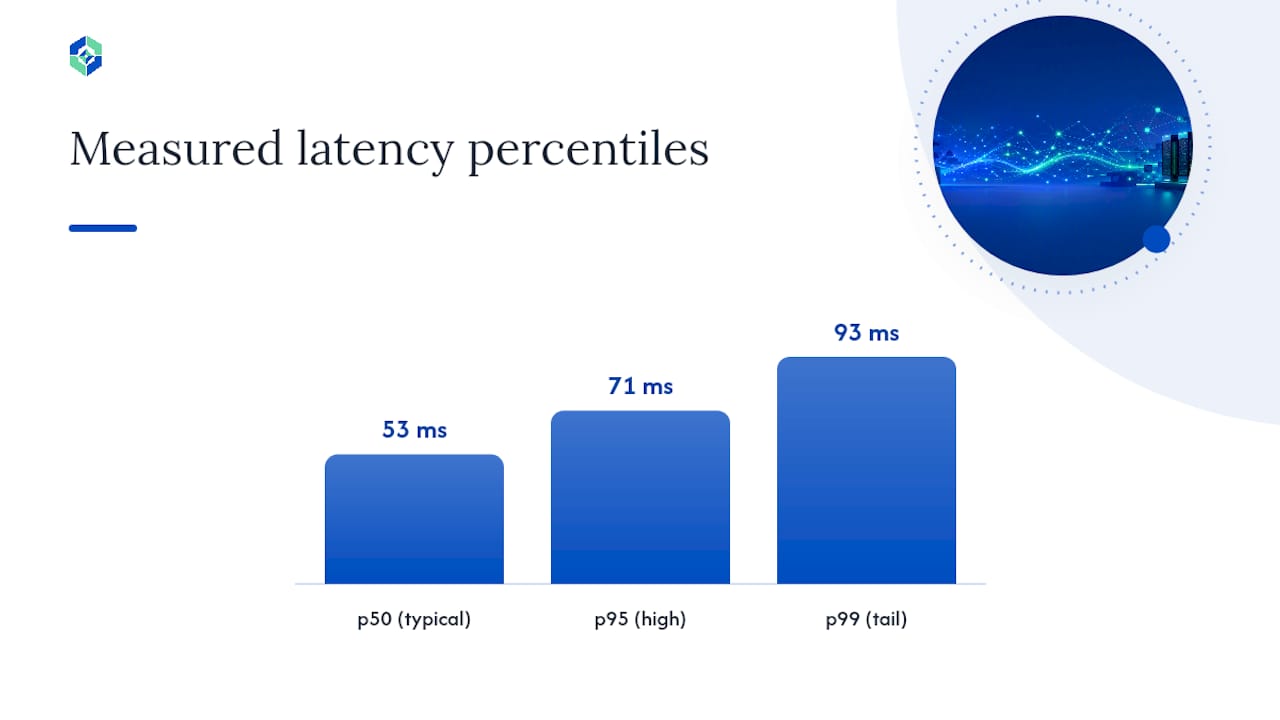
Real-world testing on optimized wired LAN setups running GPU-resident pipelines with NVENC and CUDA has produced p50 latency around 53 ms, p95 around 71 ms, and p99 around 93 ms. That's a responsive desktop feel, not a cloud-gaming compromise.
The math behind refresh rates explains why those numbers matter so much. At 60 Hz, you have a 16.67 ms budget per frame. At 240 Hz, that budget shrinks to 4.17 ms. Every millisecond your pipeline spends on capture, encode, transit, or decode eats directly into that shrinking window, which is why tight latency budgets make zero-copy GPU paths practically mandatory once you push past 120 Hz.
A few things anchor these figures to reality:
- All numbers assume wired LAN, not Wi-Fi.
- GPU-resident encoding and decoding on both ends, not CPU fallback.
- Low-jitter switches. A cheap unmanaged switch under load can add unpredictable spikes that blow past p99.
Latency snapshot: on a tuned wired setup, p50 sits near 53 to 60 ms, p95 near 70 to 90 ms, and p99 stays under roughly 100 ms. Miss any prerequisite and those numbers climb quickly, especially the tail.
How Does a GPU-Resident Pipeline Actually Cut Latency?
The entire trick is keeping pixels inside GPU memory from the moment they're captured to the moment they're transmitted. Every time a frame gets pulled back to system RAM for processing, that round trip costs milliseconds you don't have. A well-built pipeline captures, converts, and encodes without ever leaving GPU memory, with the conversion stage typically costing around 4 ms per 1080p frame on RTX-class hardware.
There are two distinct capture modes worth understanding, and picking the wrong one costs you responsiveness:
- Normal mode uses Windows Graphics Capture, which is compositor-aware. It plays nicely with regular desktop work, multiple windows, and standard productivity tasks.
- Game mode relies on DXGI desktop duplication, scanout-aligned for flip-model rendering. This is the mode that matters most for Unity's Play mode and anything rendering at high, consistent frame rates.
Neither mode is bulletproof on its own. Secure desktop prompts and UAC dialogs can interrupt hardware-accelerated capture entirely, which is why resilient implementations keep a low-overhead software fallback ready to step in. It runs at higher latency than the GPU path, but it keeps the session alive instead of dropping the connection outright. That fallback is not a nice-to-have. Without it, a single Windows security prompt can kill your remote session mid-task.
What Codec and Color Settings Should You Actually Use?
Settings decisions here aren't cosmetic. They directly determine whether your session feels instant or sluggish, and whether text renders crisp or muddy.
- Color sampling. For code editors, the Unity Inspector, and any UI with fine text, use YUV 4:4:4 with no chroma subsampling. It's the only mode that preserves single-pixel lines and sharp text edges, but it costs roughly two to three times the bandwidth of 4:2:0. Reserve 4:2:0 for pure gameplay testing where text sharpness matters less.
- Encoder flags. Set B-frames to zero. B-frames improve compression but introduce reorder delay, which is the last thing you want in an interactive session. Pair that with a tight VBV buffer and QP guidance around Intra 25 / P-frame QP 25 as a starting point. Empirical tuning around these low-latency flags is what actually tightens the p95 and p99 tail, not just the average.
- Pick a preset for your use case.
Pro Tip: Encoding and decoding aren't free. High-quality HEVC encode can run around 6.5 ms with decode adding another 3.5 ms, according to testbed measurements on codec timing. At 240 Hz that's already a third of your entire frame budget before the network even gets involved.
Which Network and System Settings Actually Reduce Jitter?
Most latency complaints trace back to the network layer or driver stack, not the software doing the encoding. Run through this before blaming the app:
- Use wired Gigabit at minimum; 2.5GbE or 10GbE gives more headroom for 4:4:4 or multi-monitor setups. Consumer Wi-Fi is not viable above roughly 120 Hz, and often struggles below that too.
- Jumbo frames can help throughput on some setups but cause fragmentation issues on mixed-MTU networks, so test before committing.
- Update NIC and GPU drivers before troubleshooting anything else. Stale drivers are behind a surprising share of "random" latency spikes.
- Set your GPU to a high-performance power plan. Power-saving modes throttle clocks between frames, adding inconsistent delay.
- On managed switches, enable QoS or DSCP tagging for the remoting traffic if other devices share the link.
Pro Tip: Run a simple throughput and packet-loss test under real load, meaning while your Unity project is actually compiling or rendering, not while the network sits idle. Idle-network tests hide the exact contention that causes stutter during real sessions.
How Do You Set Up and Verify Your First High-Refresh Session?
Getting from install to a working session takes about ten minutes if your hardware checks out:
- Install the server component on the host PC and the client on the viewing device.
- Confirm NVENC and NVDEC availability on both machines, along with current GPU driver versions.
- Choose your capture mode: Normal for general desktop work, Game mode for Unity Play mode testing at high frame rates.
- Apply a low-latency encoder preset, switch to 4:4:4 if text clarity matters, and set your target bitrate based on the presets above.
- Test with a single monitor first before adding others; multi-monitor capture scales encoding load proportionally with each added display.
- Run a real-world check: type in a code editor, drag a window, scrub a timeline. Watch for any visible telemetry showing p50/p95 timing.
If the numbers land near the targets from the performance section above, you're set. Otherwise, the troubleshooting steps below will help isolate where the delay is hiding.
Why Is Your Session Laggy, and How Do You Fix It?
Isolating the bottleneck means testing each stage separately instead of guessing. Add a visible timestamp overlay and watch where the delay actually accumulates: capture, encode, network, or decode.
- If capture itself is slow, try switching between Normal and Game mode. One will usually be dramatically better for your specific workload.
- If bandwidth is the constraint, step down from 4:4:4 to 4:2:2 or 4:2:0 before touching anything else.
- If the tail latency (p99) is the problem rather than the average, check for B-frames sneaking back into your encoder config and disable them.
- Outdated GPU drivers cause a disproportionate share of decode stutter. Update both ends before deeper troubleshooting.
Pro Tip: When network jitter is severe, favor intra-heavy encoding over B-frame-heavy profiles. Intra frames cost more bandwidth but produce deterministic timing, which matters more than average bitrate when you're chasing consistent frame delivery.
Is Your Connection Actually Secure?
Local-network operation changes the security calculus compared to internet-facing remote desktop tools, but it doesn't eliminate the need for real protections. Traffic never leaving your LAN removes an entire category of exposure (no cloud relay, no public-facing port), but a compromised device on the same network segment is still a threat.
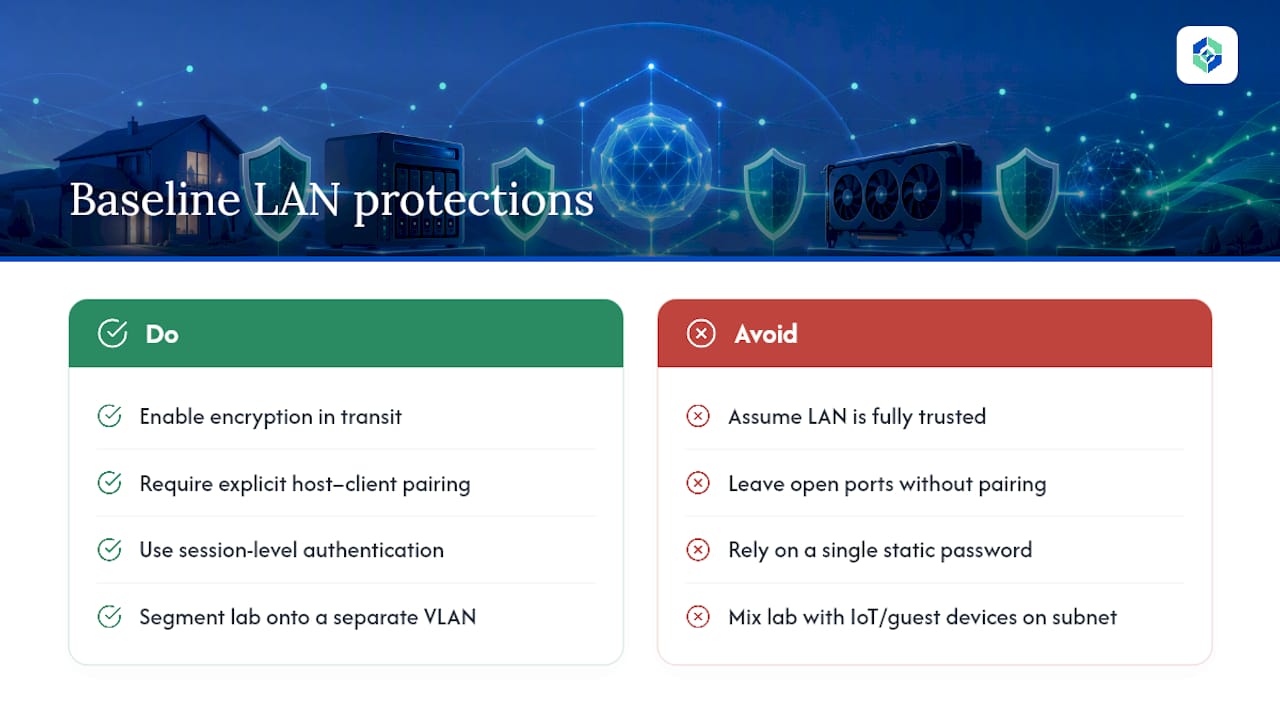
Look for these baseline protections in any tool you run:
Encryption in transit matters even on a trusted LAN, since packet sniffing on a shared switch or a compromised IoT device on the same subnet is a real scenario in home labs with mixed device types. Authentication should require an explicit pairing step between host and client, not just an open port anyone on the network can connect to. Session-level authentication, rather than a single static password, limits damage if one credential leaks.
Segment your home lab if you can. Put your Unity development machine and your client device on a VLAN separate from smart-home gadgets and guest devices. That single step closes off most of the realistic attack surface for LAN-based remoting, since the biggest practical risk isn't the remote desktop protocol itself. It's everything else sharing your network.
Does Remote Desktop Change How You Debug in Unity?
Running Unity through a remote session changes more than convenience. It touches how debugging actually feels. Breakpoint hits, console log scrolling, and Inspector value tweaking all depend on tight round-trip responsiveness between your input and the visual result.
A GPU-resident, low-latency pipeline keeps that debugging loop close to native. You drag a slider in the Inspector and see the object move without a perceptible delay. Push past the latency budgets covered earlier in this guide, and that same slider drag starts to feel rubbery. Small delays compound when you're doing rapid iterative debugging, which is exactly the workflow Unity encourages.
Frame rate testing is the other place this matters. If you're validating whether your game hits 120 or 240 fps on target hardware, a remote session with its own latency and potential frame pacing issues can mask or exaggerate the actual in-game performance. Always cross-check anything performance-critical against a local run before trusting a remote-only benchmark, particularly for anything tied to input latency perception rather than pure rendering throughput.
Multi-monitor debugging setups (code editor on one screen, Game view on another) add proportional encoding load, so budget bandwidth accordingly if your workflow depends on spreading Unity across several displays at once.
What Other Remote Access Options Exist for Unity Work?
Cloud-based remote desktop services solve a different problem: access from anywhere, at the cost of added network hops and variable latency you can't fully control. That trade-off makes sense for occasional check-ins on a build server, but it works against you for the tight, iterative feedback loop Unity development depends on.
Some studios lean on version control and cloud build services instead of live remote screen sharing, letting each developer work locally and sync through source control rather than remoting into a shared machine. That approach avoids latency concerns entirely, but it doesn't help when you specifically need to see and control another PC in real time, whether that's a home-lab render node, a secondary workstation, or a device you want to test builds on without walking across the room.
For LAN-based, real-time control where responsiveness is the whole point, a GPU-accelerated local tool built around the pipeline principles covered in this guide is the more direct fit than a general-purpose or cloud-routed alternative.
What Actually Matters Once You Start Testing This Yourself
The gap between "technically low latency" and "feels instant" comes down to matching your hardware tier to your actual refresh target, not chasing the highest number on a spec sheet. A mid-range GPU with solid NVENC support handles 60 to 144 Hz comfortably. Pushing to 240 Hz demands headroom on both ends, host and client, plus a genuinely clean wired path.
Run your own p50/p95 test in the first five minutes. It tells you more than any spec comparison.
— Ian
Get Up to 240 Hz Local Screen Sharing With Kinodesk
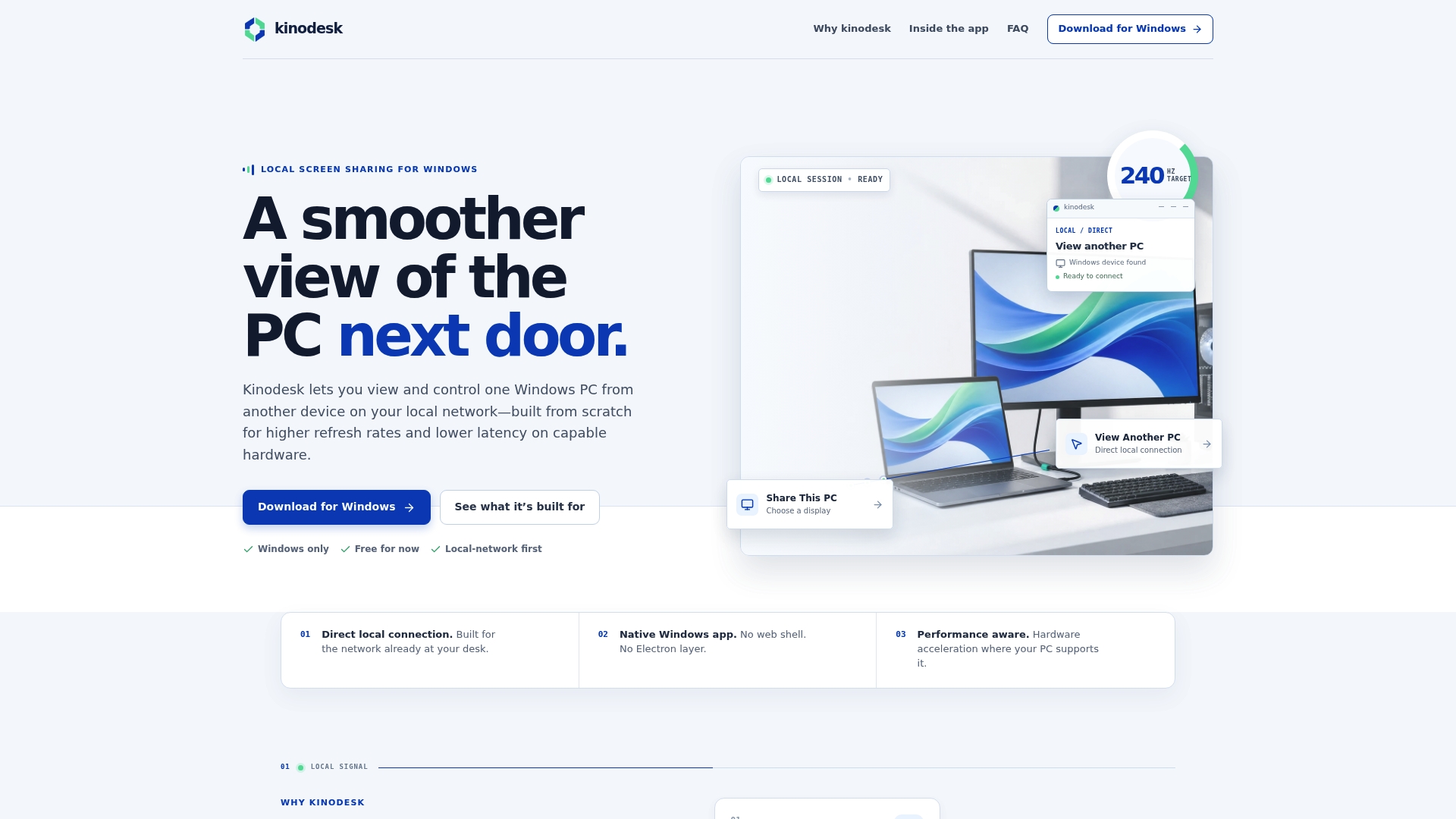
Everything in this guide, the GPU-resident pipeline, the capture mode selection, the encoder tuning, is what Kinodesk is built around by default rather than something you have to assemble from scratch. It connects two Windows PCs directly over your local network, skipping cloud relays entirely, and uses GPU-accelerated capture to support high refresh rates with low-latency responsiveness.
This solution fits home-lab enthusiasts running a secondary render node, developers testing Unity builds on a different machine, and designers who need pixel-accurate color on a second workstation. Setup is meant to be quick, not a lengthy process of encoder tuning, with AI assistance available for configuration steps.
If you've been fighting laggy remote sessions or hunting through encoder settings trying to hit a stable frame rate, download Kinodesk and run the same p50/p95 test on your own network to see where it lands.
Sources
- Under-60ms End-to-End RealTime Remote Desktop on Windows — NVENC/CUDA/FEC - DEV Community
- Choosing the right remoting protocol (NVIDIA whitepaper)
- Arewecooked