
A self hosted remote desktop, in the sense that matters for real-time work, means one Windows PC controlling another over the local network with GPU-accelerated capture instead of a cloud relay. The fastest practical setup keeps every frame GPU-resident: DXGI or Windows Graphics Capture feeds NVENC directly, encoding stays low-latency, and transport runs over wired LAN with a UDP-style protocol. Kinodesk builds this pipeline into a ready application, so you don't have to assemble it from scratch.
TL;DR:
- A GPU-resident capture pipeline with DirectX or Windows Graphics Capture and NVENC encoding is necessary to achieve under 60ms latency over a wired LAN.
- Achieving high refresh rates requires a dedicated NVIDIA GPU, a reliable Gigabit or 2.5GbE wired network, and a mid-range CPU with 16GB RAM, with driver and firmware updates essential.
- Proper setup involves confirming GPU support, ensuring both machines are on the same LAN segment, and incrementally increasing resolution and refresh rate while monitoring stability.
- Network jitter, outdated drivers, and loose Ethernet cables are common causes of stutter or desynchronization, which can be mitigated through hardware checks and network segmentation.
- Cross-platform use over WAN adds significant latency, and VPNs are recommended for remote access, but the system is primarily designed for local, high-refresh, low-latency Windows-to-Windows connections.
Table of Contents
- Who Needs a Local LAN Remote Desktop Setup?
- How Does a Low-Latency, High-Refresh LAN Pipeline Actually Work?
- What Hardware and Network Do You Need?
- How Do You Set Up Windows-to-Windows Remote Desktop Locally?
- Fixing Jitter, Stutter, and Desync
- Securing a Self-Hosted Remote Desktop Setup
- Can You Use This Setup Over WAN or the Internet?
- Can Non-Windows Devices Connect to a Windows Host?
- Self-Hosted LAN Tools vs. Cloud Remote Desktop Services
- Handling Multiple Simultaneous Connections
- What Actually Moves the Needle on Latency
- Try Kinodesk for Your Local High-Refresh Setup
- Sources
Who Needs a Local LAN Remote Desktop Setup?
This setup is built for people who feel every millisecond: a colorist checking grades on a calibrated monitor from another room, a developer running a build on a beefy tower while working from a laptop at the kitchen table, a musician controlling a DAW rig from a tablet-mounted control surface. If your workflow involves fast mouse movement, real-time audio or video feedback, or anything resembling gaming, cloud-based remote desktop tools introduce lag you'll notice within seconds.
The trade-offs are real and worth naming upfront:
- Higher refresh rates demand more bandwidth and more GPU headroom, so a 240 Hz session on a 4K panel isn't free.
- Better image quality (lower compression, higher color depth) competes directly with lower latency for the same bitrate budget.
- This entire approach is Windows-only and effectively requires an NVIDIA GPU on the host for the fastest encode path, which rules out setups built around integrated graphics.
- Wireless networking, even a strong 5GHz connection, adds enough jitter to undercut a high-refresh session; wired LAN is not optional if you're chasing sub-60ms responsiveness.
On a properly wired local network, realistic latency lands in the same range you'd expect from a good gaming monitor, not from a typical remote-support tool. That's the entire point of building the pipeline this way instead of routing through a cloud service.
How Does a Low-Latency, High-Refresh LAN Pipeline Actually Work?
Every stage between "pixel changes on the host" and "pixel appears on the client" eats into your latency budget, and the stages that matter most are the ones most remote desktop tools get wrong.
Capture. Windows offers two paths: DXGI Desktop Duplication and Windows Graphics Capture (WGC). DXGI duplication reads the desktop directly from the GPU's frame buffer and does it fast. One open-source LAN remote desktop project measured roughly 10 milliseconds per 4K frame readback using DXGI duplication, dramatically faster than software-based screen grabbing methods that can run closer to 96 milliseconds per frame for the same resolution. WGC is newer and handles some edge cases (like capturing specific windows) more gracefully, but DXGI duplication remains the workhorse for full-desktop, low-latency capture.
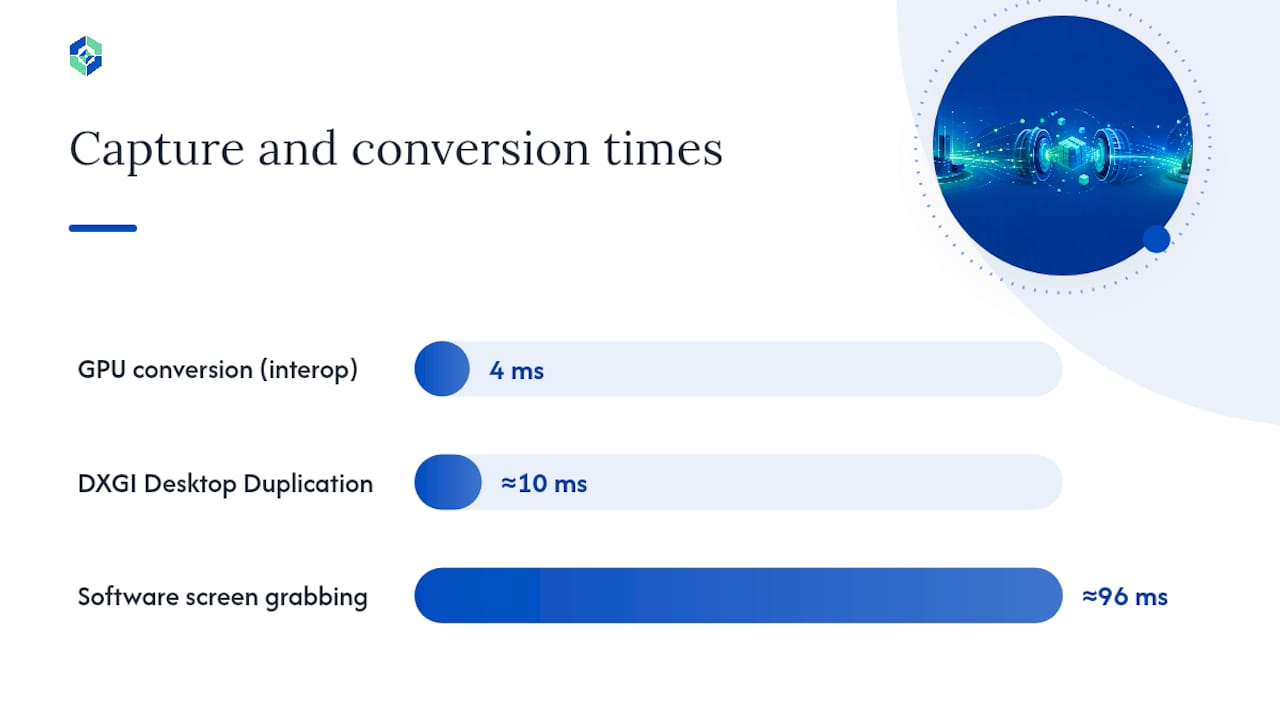
Stay GPU-resident. The single biggest latency killer in amateur remote desktop implementations is pulling a frame off the GPU into system memory, processing it on the CPU, then pushing it back to the GPU for encoding. Every one of those copies costs time. A properly built pipeline uses CUDA or Direct3D interop to keep the frame on the GPU from capture through encode. Engineering writeups on this exact architecture report conversion stages running near 4 milliseconds per frame on typical RTX-class GPUs when zero-copy interop is used correctly.
Encoder tuning. NVENC is the workhorse here, and the settings matter enormously:
- B-frames are disabled to prevent reordering delays and reduce tail latency.
- A low-latency encoder profile with a small VBV (video buffering verifier) window, which keeps bitrate spikes from stalling the pipeline.
- HEVC 4:4:4 when you need full chroma fidelity for text and UI work, since 4:2:0 subsampling blurs fine detail.
Latency check: A wired LAN pipeline using GPU-resident capture and NVENC tuned this way measured p50 latency around 53 milliseconds, with p95 near 71 milliseconds. That's your realistic target band for a well-configured wired setup, not a marketing number.
Transport. Latency-sensitive video wants UDP-style delivery with a small jitter buffer and adaptive forward error correction (FEC), not TCP's retransmission guarantees. Selective retransmit gets disabled in most low-latency designs because waiting for a resend is often slower than just showing the next frame.
Decode and present. NVDEC handles decode on the client, feeding directly into a Direct3D 12 present path. Critically, the cursor gets rendered locally as metadata (shape and position only) rather than baked into the video stream, which is what eliminates the floaty, delayed-pointer feeling that plagues cheaper remote tools.
What Hardware and Network Do You Need?
Getting to high refresh rates without stutter comes down to three checklist items, in order of importance:
- GPU on the host. An NVIDIA GPU with NVENC support is the practical requirement for the low-latency encode path; the client side benefits from NVDEC but has more flexibility since decode is lighter work.
- Network. Wired Gigabit Ethernet is the floor; 2.5GbE gives real headroom for 4K at high bitrates. Use a switch you trust, not an aging unmanaged one pulled from a drawer, and keep the two machines on the same physical segment if at all possible.
- CPU and RAM. Neither needs to be exotic since the GPU carries the load, but a mid-range CPU with 16GB of RAM keeps the rest of the OS from stealing cycles during a session.
Update GPU drivers before your first session, not after troubleshooting a problem, since driver revisions frequently touch NVENC/NVDEC performance directly. Check that NIC offload settings and firmware are current too. A network adapter running outdated firmware can introduce jitter that looks like an encoder problem but isn't.
Pro Tip: If you have a spare NIC on both machines, dedicate a direct LAN link between them instead of routing traffic through your main switch. It removes a hop and a source of contention entirely.
How Do You Set Up Windows-to-Windows Remote Desktop Locally?
Getting from zero to a working high-refresh session takes less time than most people expect if you follow the order below rather than jumping straight to maximum settings.
- Install current NVIDIA drivers on both machines, and confirm NVENC/NVDEC support in your GPU's control panel.
- Install Kinodesk on both the host and client machines.
- Confirm both machines sit on the same LAN segment and can reach each other (a simple ping test works).
- Open the firewall ports Kinodesk requests during setup, or temporarily allow the app through Windows Defender Firewall for the initial connection test.
- Connect at a conservative resolution and refresh rate first, not your monitor's maximum.
- Once the connection is stable, increase refresh rate and bitrate incrementally while watching for stutter or dropped frames.
A few things worth checking along the way:
- Move the mouse in a fast circle during your test session. If the cursor feels detached or laggy compared to the video, the cursor decoupling isn't working correctly.
- Use a simple visible timestamp or a frame counter on the host screen to eyeball round-trip latency without special tools.
- If you run multiple monitors, test each one individually before combining them in a single session.
Fixing Jitter, Stutter, and Desync
When something feels off, work through causes in this order rather than randomly changing settings.
Start with the capture path itself: confirm DXGI duplication is active rather than a software fallback, since fallback capture modes are dramatically slower and will make everything downstream look broken. Check that GPU drivers are current on both ends, since a stale driver is a shockingly common cause of encoder instability.
From there:
- If you're seeing stutter at high bitrate, drop resolution before you drop bitrate. A slightly smaller frame at full quality usually feels better than a full-size frame fighting for bandwidth.
- Packet loss on the network shows up as blocky artifacts or freezes. Isolate the connection on its own switch port or VLAN to rule out contention from other traffic.
- Adaptive FEC settings can be tuned more aggressively on noisy networks, at the cost of a small amount of added latency.
- Multi-monitor setups sometimes desync cursor position between displays. If that happens, test each display separately to isolate whether it's a capture issue or a rendering issue on the client.
Pro Tip: Before touching encoder settings, unplug and reseat the Ethernet cable on both ends. A surprising share of "mystery jitter" traces back to a marginal cable connection, not software.
Securing a Self-Hosted Remote Desktop Setup
Running your own local screen sharing setup means the security burden sits with you, not a cloud provider's infrastructure team, and that's a trade worth making deliberately.
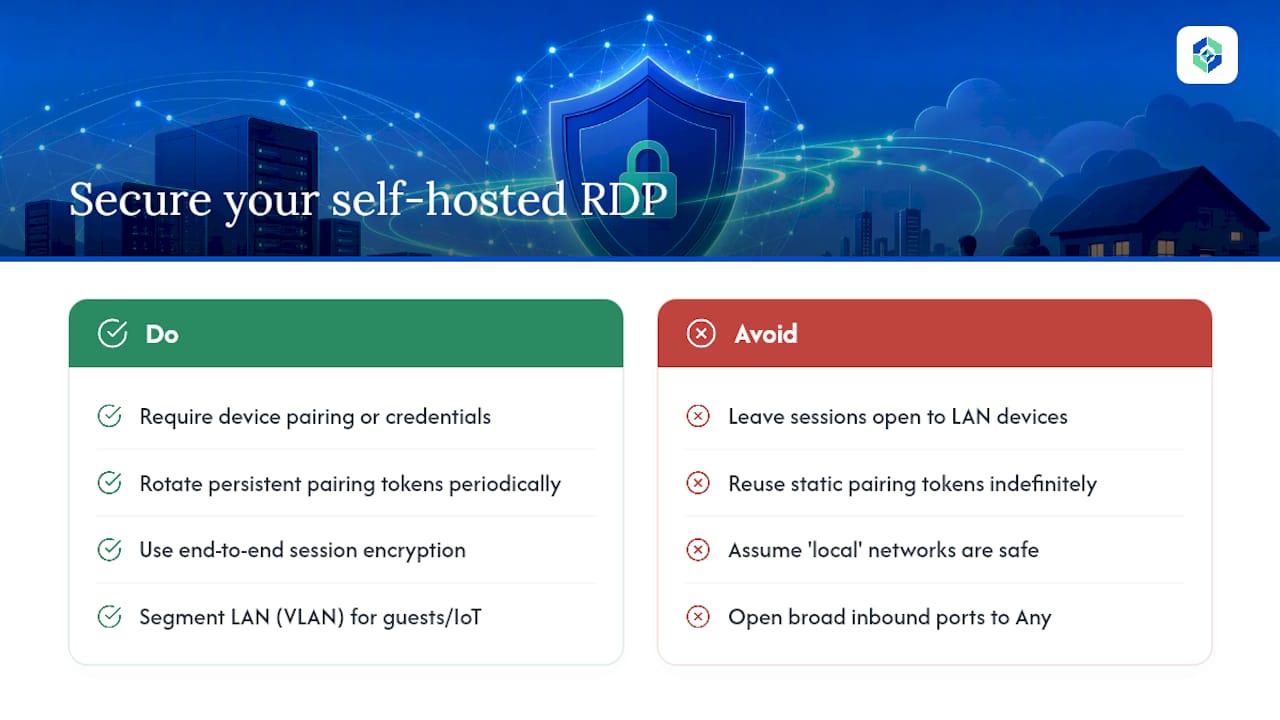
Start with authentication. Never leave a session open to any device that can reach your LAN segment; require a device pairing step or credential check before a client can connect, and treat that pairing step the same way you'd treat a password for any other sensitive system. If the software offers a persistent pairing token, rotate it periodically rather than leaving it static indefinitely.
Encryption matters even on a trusted local network, because "local" doesn't mean "safe from every device on it." If your router or switch is ever compromised, or a guest device joins your Wi-Fi, an unencrypted video stream is trivially easy to intercept. Confirm the tool encrypts the session stream, not just the initial handshake.
Firewall configuration is the part people skip and shouldn't. Rather than opening broad port ranges, restrict inbound rules to the specific ports the application needs and scope them to your LAN's IP range instead of "Any." If your router supports it, segment IoT devices and guest traffic onto a separate VLAN from the machines running remote sessions, so a compromised smart device can't reach your workstation at all.
Finally, keep the host machine's account itself locked down: a strong Windows account password, automatic screen lock when idle, and current OS patches close off the paths that have nothing to do with the remote desktop software itself but everything to do with the exposure it creates.
Can You Use This Setup Over WAN or the Internet?
The pipeline in this guide is built and tuned for local network use, where round-trip time is measured in single-digit milliseconds and bandwidth is abundant. Stretching it over the internet changes the math substantially.
If you need access from outside your home or studio network, a VPN is the safer path compared to opening ports directly on your router. Tools like WireGuard or a router's built-in VPN server let your remote client join your home network virtually, so from the remote desktop software's point of view, it's still talking to a LAN peer. This preserves most of the security model discussed above rather than exposing a listening port directly to the internet.
Port forwarding is the alternative, and it works, but it means opening a hole in your firewall that faces the public internet. If you go this route, forward only the specific ports the application requires, never use default or well-known ports if the software lets you customize them, and pair it with strong authentication since you're now reachable from anywhere.
Either way, expect latency to climb well past LAN numbers. Wide-area routing, ISP congestion, and simple distance all add delay that no amount of encoder tuning fully erases. WAN access is realistic for administrative tasks and checking on a render, but it won't deliver the 240 Hz, native-feel responsiveness this guide is built around. That's a LAN-only achievement.
Can Non-Windows Devices Connect to a Windows Host?
The high-refresh, GPU-accelerated pipeline described throughout this guide is a Windows-to-Windows story, and that's a deliberate scope, not an oversight. NVENC-based encode and NVDEC-based decode on the client side both assume a Windows machine with a compatible GPU on each end.
If you need to check in from a Mac, an iPad, or an Android device, you're stepping outside this pipeline's design target. Some remote desktop tools offer lighter client apps for other platforms, but they typically fall back to software decoding, which brings back exactly the latency and CPU overhead this whole architecture is built to avoid. A tablet checking render progress from across the room is a reasonable use case for a lighter client; a tablet trying to do frame-accurate color grading over the same connection is fighting the laws of physics.
For comparison, Apple's own high-performance screen sharing mode illustrates the same principle from a different angle: it only delivers its best latency and frame rate when both ends run on a sufficiently fast wired network, reinforcing that the network and hardware match matters more than which operating system is involved. The lesson generalizes: cross-platform convenience and top-tier responsiveness are usually a trade-off, not a package deal, regardless of vendor.
If cross-platform access is a hard requirement for your workflow, plan for two separate use cases: a high-refresh Windows-to-Windows session for serious work, and a lighter, lower-expectation connection for quick checks from other devices.
Self-Hosted LAN Tools vs. Cloud Remote Desktop Services
The core difference comes down to where your video stream travels and who controls the pipeline tuning.
Cloud-based remote desktop services route your session through a relay server somewhere on the internet, even when both machines sit ten feet apart on the same desk. That routing adds latency by definition, and it hands control of encoder settings, session logging, and uptime to a third party. The upside is convenience: no local network setup, works from anywhere, no port forwarding to think about.
A local LAN tool skips the relay entirely. Traffic moves directly between the two machines on your network, which is exactly why the latency figures discussed earlier are achievable. Kinodesk falls into this category deliberately: local peer-to-peer connection, GPU-accelerated capture, no dependency on an external service being online. The trade-off is that it requires both machines on the same network and a bit more setup attention than typing a code into a web browser.
Neither approach is universally right. If your priority is checking a render from a coffee shop, a cloud tool's WAN-first design fits better. If your priority is frame-accurate control at high refresh rates between two machines in the same room or building, a local-first tool built around GPU-resident capture is doing a fundamentally different job, and it's the job this entire guide is about.
Handling Multiple Simultaneous Connections
Most home-lab and studio setups involve one client controlling one host at a time, but a few scenarios call for more: a shared workstation accessed by different team members at different hours, or a single powerful rig serving as a jump point for several lighter machines.
Every simultaneous session competes for the same host GPU's encode capacity. NVENC hardware has a real throughput ceiling, and pushing multiple concurrent high-refresh streams off one GPU means dividing that ceiling. Two sessions at 240 Hz will not both get the same headroom as one session alone; expect to trade refresh rate or resolution as connection count rises.
Network capacity matters just as much. A single 4K stream at high refresh and quality can consume a meaningful slice of a Gigabit link's real-world throughput, so multiple simultaneous streams push you toward 2.5GbE or better if you want every session to stay smooth rather than degrading together.
For most home-lab and studio use cases, the practical answer is one active high-performance session at a time, with the option to queue or hand off access rather than run several concurrent 240 Hz streams off a single host GPU. That's less a limitation of any particular software and more a limitation of how much a single GPU's encoder can physically push out in real time.
What Actually Moves the Needle on Latency
The two settings people skip because they sound minor, disabling B-frames and keeping frames GPU-resident, do more for felt responsiveness than any resolution or bitrate tweak. Everything else is refinement. If you want deeper technical grounding before you tune your own setup, the engineering writeups and repository referenced throughout this guide are worth reading end to end.
— Ian
Try Kinodesk for Your Local High-Refresh Setup
The software is built around the exact pipeline this guide describes: a local LAN peer-to-peer connection, GPU-accelerated capture, and refresh rates up to 240 Hz, with no cloud relay sitting between the two machines.
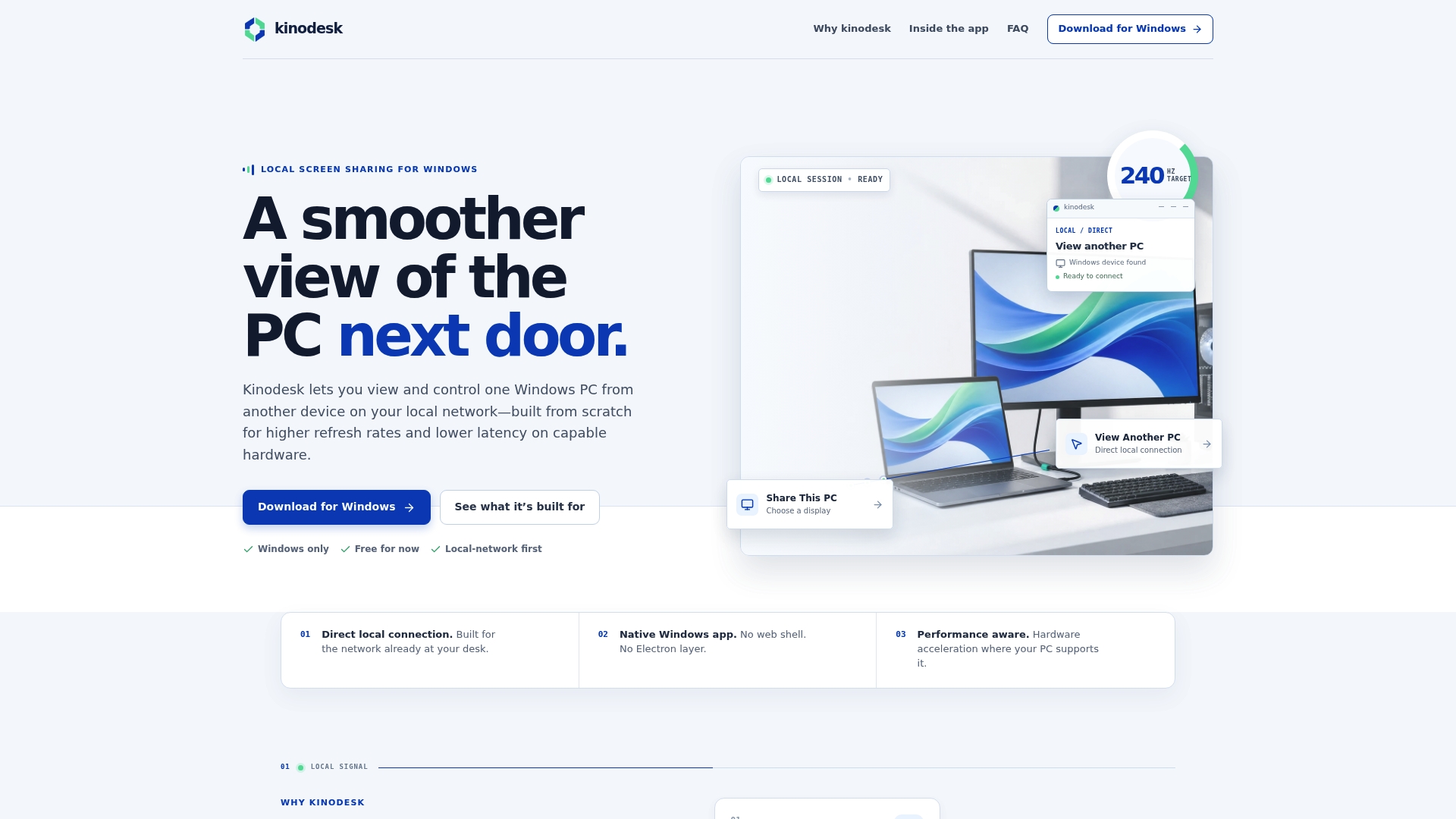
After installation, expect the setup to follow the same checklist covered above: confirm your GPU drivers, connect both machines on the same wired network, and start a session at a conservative refresh rate before pushing toward your monitor's maximum. The software's integrated AI assistance helps flag common issues, like a missing driver or a firewall block, during that first connection instead of leaving you to diagnose them cold. For home-lab builds and studio workstations where every millisecond of input lag matters, this is the part of the checklist Kinodesk handles for you rather than something you assemble from separate tools. Head to the Kinodesk download page to grab the installer and get your first LAN session running today.