
If your LAN remote session feels laggy, try this now: switch to a wired connection, capture the window instead of the full display, and confirm the capture app is running on your high-performance GPU. Those three changes fix the majority of local screen-sharing complaints before you touch a registry key or a driver.
Once you've made those changes, check three numbers to know if they worked:
- Ping on the LAN should sit near 0-1 ms.
- Output Frames/sec should track close to your source frame rate, not stall below it.
- Average Encoding Time needs to stay under 33 ms or the host can't keep pace with your monitor.
Pro Tip: If you'd rather skip this whole diagnostic chain, Kinodesk is built LAN-first with GPU-accelerated capture up to 240 Hz, so most of these failure points never show up in the first place.
Key Takeaways
Fixing laggy LAN remote sessions almost always comes down to three things: a wired connection, correct GPU assignment for the capture pipeline, and Average Encoding Time under 33 ms.
| Point | Details |
|---|---|
| Diagnose before changing anything | Add RemoteFX Graphics counters in Performance Monitor to find whether network, encoding, or capture is the bottleneck. |
| Check the connection profile first | A stale 56 Kbps setting throttles LAN sessions instantly; switch it to LAN (10 Mbps or higher). |
| Match GPU assignment | Force the capture app onto the same high-performance GPU as the source application to avoid black screens and stutter. |
| Raise the frame cap carefully | The DWMFRAMEINTERVAL registry value can lift the protocol's frame ceiling, but only after encoding and network are already healthy. |
| Consider a LAN-first client | Kinodesk targets up to 240 Hz with GPU-accelerated capture built specifically for local Windows-to-Windows sessions. |
Table of Contents
- Remote Desktop Troubleshooting Guide: Start With a Minimal Diagnostic Checklist
- Network Fixes Worth Testing Before Anything Else
- Why Your GPU and Capture Pipeline Might Be the Real Problem
- Does Windows Cap Your Remote Desktop Frame Rate?
- How Do You Know a Fix Actually Worked?
- What To Do When a Session Goes Bad Mid-Meeting
- Stop CPU and GPU Throttling From Wrecking Your Session
- Which Background Processes Are Stealing Your Frame Budget?
- Basic LAN Network Checks Before You Blame the Software
- Author Perspective: What Actually Wastes the Most Troubleshooting Time
- Kinodesk: A LAN-First Way To Skip Most of This Troubleshooting
- Primary Sources for Deeper Reference
- Frequently Asked Questions
- Sources
Remote Desktop Troubleshooting Guide: Start With a Minimal Diagnostic Checklist
Before changing anything, figure out whether you're fighting a network problem, a host encoding problem, a capture pipeline problem, or a client decoding problem. Guessing wastes time and often leads to fixing the wrong layer entirely.
- Open Performance Monitor (
perfmon) and add counters from the RemoteFX Graphics category. - Track Output Frames/sec, Input Frames/sec, Frames Skipped/Second (Insufficient Client Resources), and Average Encoding Time.
- If you're troubleshooting a session by name, run
qwinstato confirm the correct session instance, since counters live on whichever machine is doing the encoding. - Run a quick
pingandtracertbetween the two PCs to rule out switch or Wi-Fi packet loss before blaming the software.
These RemoteFX Graphics counters map almost directly to root cause, which is what makes them worth the five minutes to set up.
| Counter | What a bad reading means |
|---|---|
| Average Encoding Time | Host GPU/CPU can't encode frames fast enough |
| Output Frames/sec | Encoded output is falling behind input |
| Frames Skipped/Second (Network) | Bandwidth or packet loss on the wire |
| Frames Skipped/Second (Client Resources) | Client PC is the bottleneck, not the network |
Always test wired first. Wi-Fi interference is invisible until you remove it as a variable.
Network Fixes Worth Testing Before Anything Else
Packet loss and jitter matter even on a supposedly clean LAN, especially with cheap switches or a router juggling other traffic. A single dropped ARP request or a flaky cable can look identical to an encoding problem on paper, so isolate the network first with a wired connection between both machines if at all possible.
The most overlooked fix in this entire category is what's known as the 56 Kbps trap. Many client connection profiles default to a modem-era bandwidth setting, which throttles the session even with gigabit Ethernet on both ends. Fix it by opening the Experience tab in your remote desktop client and setting the connection speed to LAN (10 Mbps or higher), or by adding connection type:i:6 directly to the .rdp file if you're scripting connections.
- Test wired vs. Wi-Fi on the exact same workload, back to back.
- Watch for jitter, not just average latency. Consistent 2 ms is better than a jumpy 0-8 ms.
- Isolate a test VLAN or a spare switch port if you suspect congestion.
- Avoid touching router-level QoS rules permanently in a home lab. Test, then revert.
Pro Tip: A stale connection profile is one of the easiest things to overlook because everything else about the setup looks correct. Check it before you dig into GPU settings.
Why Your GPU and Capture Pipeline Might Be the Real Problem
Laptops and multi-GPU desktops are the most common source of black screens, stutter, and unexplained lag in local screen sharing. If your capture app runs on the integrated GPU while your actual display output runs on the discrete card, you get exactly the kind of choppy, inconsistent frame delivery that looks like a network issue but isn't.
- Open Windows Graphics Settings (Settings > System > Display > Graphics) and force the capture application to use your high-performance GPU explicitly.
- Double-check the assignment inside your GPU vendor's control panel too. Windows and the driver panel don't always agree.
- Toggle Hardware-accelerated GPU scheduling off, test the session, then toggle it back on and test again. Community reports on OBS forums link HAGS to elevated integrated GPU usage and capture stutter in similar capture-heavy workflows, and the same behavior shows up in remote screen sharing.
- If Display Capture produces a black screen or frozen frame, switch to Window Capture. It bypasses desktop composition overhead that trips up full-screen capture on Windows 11 multi-monitor setups.
- Run the capture app as administrator and confirm it's using a DXGI or Direct3D11 renderer rather than an older fallback path.
Pro Tip: If you've got a laptop with hybrid graphics, assume the GPU mismatch is guilty until proven innocent. It's the single most common cause of "randomly" bad sessions.
Does Windows Cap Your Remote Desktop Frame Rate?
Yes, and this trips up more home-lab users than any other setting on this list. Some remote display protocols enforce a frame-rate ceiling well below what your GPU and LAN can actually deliver, which explains why a session can look smooth but never quite hit the refresh rate your 120 Hz or 240 Hz panel is capable of.
You can raise that ceiling with a registry edit:
- Navigate to
HKEY_LOCAL_MACHINE\SYSTEM\CurrentControlSet\Control\Terminal Server\WinStations. - Add a new DWORD value named
DWMFRAMEINTERVAL. - Set it to
15for roughly 60 FPS, or lower for a higher cap. Microsoft's own troubleshooting documentation confirms this value controls the interval, not a direct FPS number, so smaller equals faster. - Export the key first, or create a system restore point, before editing anything under
Control\Terminal Server.
Raising this cap only removes a software ceiling. If your Average Encoding Time is already sitting above 33 ms or your network is dropping frames, you'll just hit a different bottleneck faster.
How Do You Know a Fix Actually Worked?
Trust the counters, not your gut feel about smoothness, since perceived lag is notoriously unreliable over a five-minute test.
- Record your baseline: Average Encoding Time, Output Frames/sec, and Frames Skipped/Second, during a consistent workload.
- Apply exactly one change. Not three at once.
- Rerun the identical workload and compare the same three counters side by side.
- Confirm Average Encoding Time stays under 33 ms, Output Frames/sec tracks Input Frames/sec closely, and Frames Skipped/Second stays near zero.
| Test workload | What it reveals |
|---|---|
| Dragging a window across the screen | Composition and capture responsiveness |
| Scrolling a long document quickly | Sustained frame delivery under motion |
| Drawing strokes in a painting app | Input latency and encoding lag together |
If a change doesn't move these numbers, it wasn't the fix. Revert it and move to the next candidate.
What To Do When a Session Goes Bad Mid-Meeting
You don't have time for a full diagnostic pass when a client is waiting on you to share a screen. Work through this in order:
- Switch from full display share to window share immediately.
- Drop your shared resolution or color depth one notch.
- Turn off your webcam if it's running alongside the share.
- Plug into Ethernet if you're on Wi-Fi and have a cable within reach.
- Disable a VPN client temporarily if your environment allows it.
- If the capture is black or stuttering, restart the capture app, relaunch as admin, and try switching the renderer or GPU assignment.
- Screenshot the performance counters if you have them open, and jot a one-line note ("black screen after 10 min, switched to window capture, fixed") so you're not re-diagnosing from scratch later.
That single line of notes saves you twenty minutes the next time the exact same thing happens.
Stop CPU and GPU Throttling From Wrecking Your Session
Windows power plans quietly throttle CPU and GPU clocks the moment they think you're idle-adjacent, and a remote desktop session doesn't always register as "active" the way local input does. This is a frequent, invisible cause of sessions that start smooth and degrade ten minutes in.
Open Settings > System > Power & Battery and switch to Best Performance on both the host and client machines during any high-Hz session. On desktops this rarely costs you anything meaningful in noise or heat, and on laptops it matters even more since battery-saving modes aggressively clock down both the CPU and integrated graphics the moment the lid closes or the charger disconnects.
Check your GPU vendor's control panel too. Both major GPU makers ship power-management modes that prioritize efficiency over consistent clocks by default, which is the opposite of what you want when Average Encoding Time is already close to your 33 ms ceiling. Setting the GPU to a maximum-performance or prefer-max-performance mode removes one more variable that can silently push encoding time over the line mid-session.
If you're running this on a laptop unplugged, don't. Plug it in. Battery mode alone can cost you enough clock speed to turn a stable 90 FPS session into a stuttering 45 FPS one, and it's one of the few fixes here that costs nothing and takes ten seconds.
Which Background Processes Are Stealing Your Frame Budget?
Resource contention is sneaky because the offending process is rarely the one you'd suspect. Windows Update running a background scan, a cloud sync client indexing files, or an antivirus doing a scheduled scan can all spike CPU and disk usage right when you need every cycle for encoding.
Open Task Manager and sort by CPU, then GPU, while your session is active. Look for anything unexpected pulling double-digit percentages that isn't your capture app or the application you're actually sharing. Common culprits include browser tabs running background scripts, game launchers checking for updates, and backup software kicking off on a schedule you forgot about.
On the GPU side specifically, check whether another application is quietly using hardware encoding or decoding blocks that your capture pipeline also needs. Streaming a video in a background tab while running a GPU-accelerated capture session is a common way to starve your Average Encoding Time of the hardware resources it needs.
Close what you don't need before a high-Hz session rather than mid-session. It's easier to prevent contention than to diagnose it once frames start dropping.
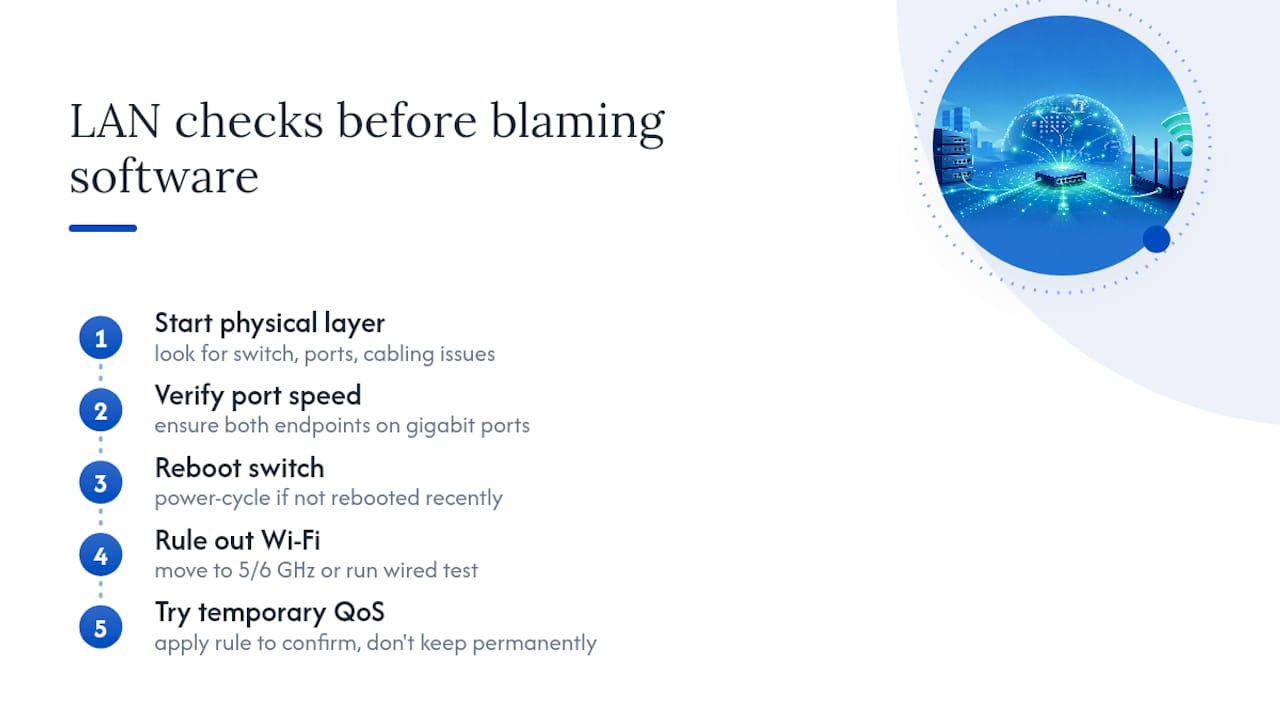
Basic LAN Network Checks Before You Blame the Software
Even a pure local network has failure points that have nothing to do with your remote desktop software. A cheap unmanaged switch under load, a half-duplex port mismatch, or Wi-Fi interference from a neighboring network can all introduce the packet loss and jitter that masquerade as encoding problems.
Start with the physical layer. Check that both machines are actually on gigabit ports, not accidentally plugged into a 100 Mbps port on an older switch. Reboot the switch if you haven't in months. It sounds trivial, but a switch quietly dropping packets under sustained load is a real and common cause of intermittent stutter that no software setting will fix.
If you're on Wi-Fi at all for either endpoint, that's likely your first suspect. Move both machines to 5 GHz or 6 GHz bands if 2.4 GHz is congested, and check for channel overlap with neighboring networks using your router's built-in scanner. Better yet, run a wired test to rule Wi-Fi out entirely before spending more time on it.
Router-level QoS rules can help temporarily during testing but aren't something you should leave permanently tuned around one use case in a home lab. Test with a temporary rule, confirm it's the actual fix, then decide if it's worth keeping.
Author Perspective: What Actually Wastes the Most Troubleshooting Time
The most common misdiagnosis I see is blaming the network first. Nine times out of ten it's a GPU assignment mismatch or a stale connection profile stuck at 56 Kbps, not your switch.
My rule of thumb: measure before you change anything, and don't chase a peaky 240 Hz when a rock-steady 100 Hz feels smoother in practice. Consistency beats a headline refresh number every time.
Kinodesk: A LAN-First Way To Skip Most of This Troubleshooting
Kinodesk is the alternative to fighting registry keys and GPU control panels every time a session stutters. It's built for exactly the scenario this guide covers: LAN-only, high-refresh Windows-to-Windows screen sharing, with GPU-accelerated capture that targets up to 240 Hz without the manual encoding, capture pipeline, and frame-cap tuning described above.
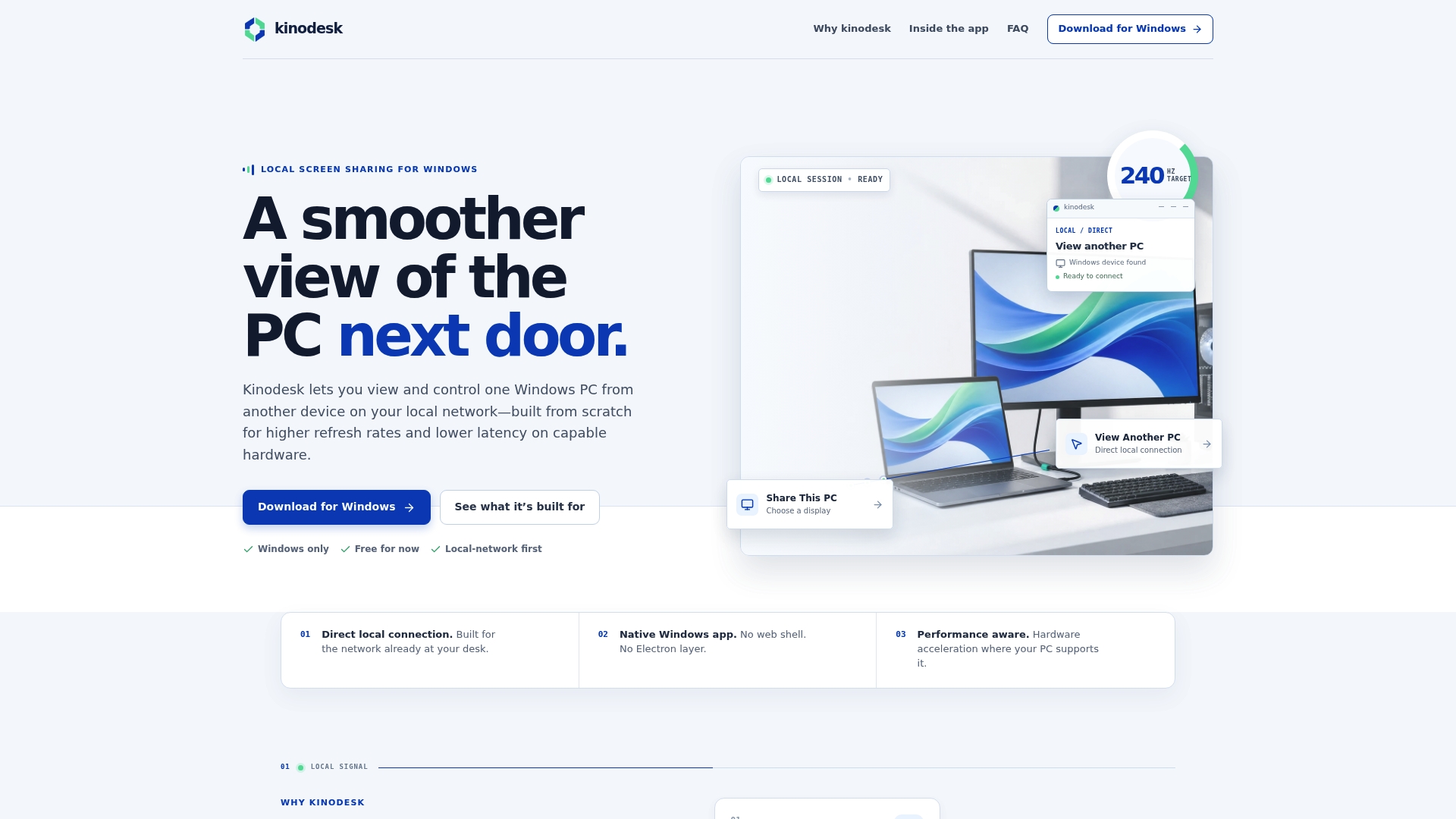
That LAN-first design means it sidesteps the connection-profile traps and protocol-level frame caps that eat up so much of the diagnostic work here, because the capture and delivery path is built around a direct local connection from the start. For home-lab remote control, studio workstation pairing, or real-time work like drawing or media playback where every millisecond of encoding lag is visible, that's a meaningfully smaller troubleshooting surface than piecing together a fix from performance counters and registry edits. Kinodesk also includes integrated AI assistance for setup, which catches common GPU assignment and capture issues before they turn into a support ticket.
If you're tired of rebuilding this checklist every few months, download Kinodesk and see how much of it disappears entirely.
Primary Sources for Deeper Reference
- Frame rate limited to 30 FPS in remote sessions — the DWMFRAMEINTERVAL registry fix.
- Diagnose graphics performance issues in Remote Desktop — RemoteFX counter breakdown.
- The Remote Desktop 56 Kbps trap — the connection-profile fix.
- OBS laptop troubleshooting wiki — GPU assignment guidance for capture apps.
Frequently Asked Questions
Why does my remote desktop connection show a black screen on a fast LAN? A black screen almost always points to a GPU or capture pipeline mismatch, not the network. Check that your capture app is assigned to the same GPU as your display output, and try switching from Display Capture to Window Capture to bypass composition conflicts.
What causes remote desktop connection errors even when ping is near zero? Low ping only rules out latency. Frame-rate problems usually trace back to Average Encoding Time exceeding 33 ms on the host, a stale 56 Kbps connection profile, or a software frame cap unrelated to raw network speed.
How do I fix remote desktop lag without upgrading hardware? Start with the free fixes: set the connection profile to LAN (10 Mbps or higher), switch to window capture, and confirm GPU assignment. Most common remote desktop problems on a local network trace back to configuration, not hardware limits.
Is the DWMFRAMEINTERVAL registry tweak safe to use? Yes, if you back up the registry key or set a restore point first. It only raises the protocol's frame-rate ceiling. It won't fix encoding or network bottlenecks sitting underneath it.
Does Kinodesk require the same troubleshooting as standard remote desktop tools? Kinodesk's LAN-first, GPU-accelerated design is built to avoid the connection-profile traps and frame caps covered in this guide, which shrinks the list of things you'd normally need to troubleshoot.
Sources
- Diagnose graphics performance issues in Remote Desktop
- RDP slow on LAN? Fix the Remote Desktop 56 Kbps trap