
Most Remote Desktop Protocol sessions run comfortably on far less bandwidth than administrators assume: idle sessions use almost nothing, light office work needs roughly 1 to 2 Mbps, moderate use runs 3 to 5 Mbps, and heavy multitasking or power users can climb to 15 Mbps or more in bursts. The bigger issue is rarely raw throughput. Latency and packet loss are what actually make a session feel sluggish, even on a connection with plenty of headroom.
TL;DR:
- Most remote desktop sessions require far less bandwidth than assumed; light office work typically needs 1 to 2 Mbps.
- Display resolution heavily impacts bandwidth, with 4K sessions potentially demanding 15 Mbps or more, especially with video or CAD workloads.
- Actual bandwidth usage depends on pixel changes, codec efficiency, and additional device redirection, not on screen size alone.
- Reducing visual effects, enabling compression, and applying QoS settings can significantly improve performance without extra bandwidth.
- Latency and packet loss often cause sluggish sessions, making network quality more critical than raw throughput for a smooth experience.
Table of Contents
- Estimating Remote Desktop Bandwidth by Workload and Resolution
- What Actually Drives Remote Desktop Bandwidth Usage
- How to Reduce Remote Desktop Bandwidth Without Killing the Experience
- Measuring and Load-Testing Real Session Bandwidth
- Where IT Teams Get Bandwidth Planning Wrong
- When Local Screen Sharing Beats Remote Desktop Over a Network
- Sources
- FAQ
Estimating Remote Desktop Bandwidth by Workload and Resolution
Microsoft's own network guidelines break workloads into four tiers: light activity (email, basic document editing) at around 1.5 Mbps, medium activity at 3 Mbps, heavy activity at 5 Mbps, and power users running graphics-heavy or multi-app workflows at up to 15 Mbps. Push past those conditions and the numbers stop applying.
Display resolution drives a big chunk of that variance. A session running at 1024×768 needs roughly 1.5 Mbps, while 1920×1080 at the same frame rate requires around 5 Mbps. Ultra HD sessions at 3840×2160 may demand bandwidth in the range of 15 Mbps or higher, even before you factor in video playback or CAD rendering.
| Resolution | Recommended bandwidth (~30 fps) | Typical use case |
|---|---|---|
| 1024×768 | ~1.5 Mbps | Light office work, terminal sessions |
| — | ~3 Mbps | Standard business applications |
| 1920×1080 | ~5 Mbps | Full HD desktop, moderate multitasking |
| 3840×2160 | ~15 Mbps | 4K displays, design or engineering work |
These are averages, not ceilings. Video playback and CAD workflows can spike to dozens or even hundreds of Mbps for short bursts, which is why capacity planning built purely on averages tends to underestimate real-world link saturation during peak moments.
What Actually Drives Remote Desktop Bandwidth Usage
RDP doesn't stream your whole screen continuously. It only transmits the pixels that change, which is why a session sitting on a static spreadsheet uses almost no bandwidth while a full-motion video call chews through it fast. Understanding what pushes usage up (and what doesn't) makes capacity planning far less guesswork and far more math.
A few mechanics explain most of the variance you'll see across sessions:
- Idle time costs almost nothing. A minimized or inactive RDP session sends little more than a heartbeat, roughly 20 bytes every 5 seconds, according to Microsoft's bandwidth documentation.
- Resolution and frame rate scale non-linearly. Doubling either one doesn't just double bandwidth, it can multiply it, since more pixels changing more often means more data to encode and send.
- Codec choice matters enormously. An uncompressed 1080p stream at 30 fps would need roughly 237 Mbps, but RDP's dynamic compression and codec selection (including H.264/AVC modes) bring that down to the single-digit Mbps range in practice.
- Device redirection adds its own load. Audio playback, USB passthrough, printer redirection, and clipboard file transfers all add steady background traffic or short bursts independent of screen activity.
That gap between 237 Mbps theoretical and 5 Mbps actual is the entire reason RDP is usable over office-grade internet connections at all.
How to Reduce Remote Desktop Bandwidth Without Killing the Experience
You don't need faster internet to fix a laggy remote desktop connection. In most cases, a handful of client and server settings do more work than a bandwidth upgrade ever will. Tackle these in order:
- Strip visual overhead on the client side. Disable desktop wallpaper, turn off full-window drag, and turn on bitmap caching. Microsoft's session host guidance shows these changes can cut bandwidth and CPU load by a meaningful margin in typical office scenarios.
- Set compression through Group Policy. Server-side RDP compression settings trade a bit of CPU overhead for lower bandwidth. Test both directions since aggressive compression on underpowered session hosts can introduce its own lag.
- Apply QoS to RDP traffic. Tagging RDP's TCP/UDP ports for priority handling on your network keeps interactive sessions responsive even when other traffic spikes.
- Cut visual effects at the host level. Disable animations, limit desktop size, and reduce the number of connected monitors where multi-monitor setups aren't essential.
- Turn on GPU or hardware encoding where the host supports it. This offloads encoding work from the CPU and often improves both frame delivery and effective bandwidth efficiency.
Pro Tip: Build and test every one of these settings on a single reference VM image before rolling anything out fleet-wide. What improves performance for a light-office user can backfire for a power user running dual 4K monitors, so validate under realistic load before you touch production.
Measuring and Load-Testing Real Session Bandwidth
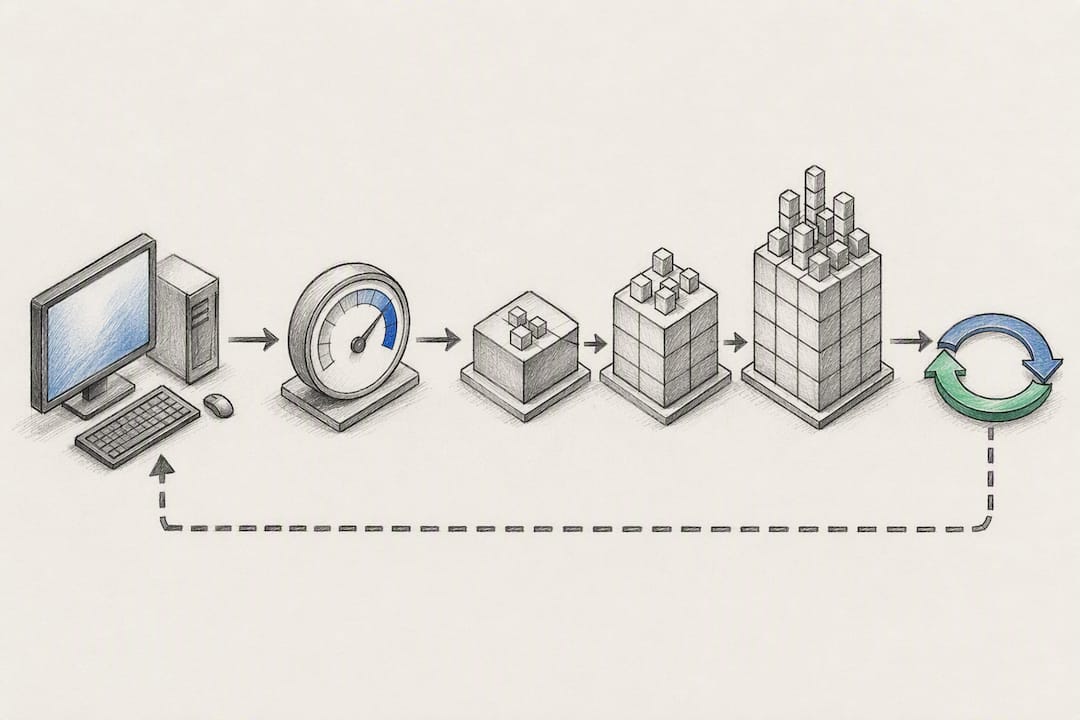
Estimates get you a starting budget. Measurement tells you whether that budget survives contact with actual users. Pull session host performance counters for bytes sent/received per session, along with RemoteFX or graphics-specific counters if your environment uses them, and sample at intervals tight enough to catch spikes rather than smoothing them out.
A few practices separate a real capacity plan from a guess:
- Combine session host counters with network equipment sampling so you can attribute bandwidth to specific sessions, not just aggregate link totals.
- Run load tests with tools like Login VSI or the Azure Virtual Desktop experience estimator, varying resolution and frame rate to mirror your actual user mix rather than a single synthetic profile.
- Plan for peak, not just average. HP Anyware's guidance on workload characterization recommends adding roughly 500 kbps to 1 Mbps of headroom per session and keeping total peak utilization under 80% of link capacity.
Where IT Teams Get Bandwidth Planning Wrong
The instinct when a remote desktop feels slow is to throw more bandwidth at it. That's usually the wrong first move. If your users are complaining about typing lag or cursor drift rather than blurry video, you're looking at a latency problem, and no amount of extra Mbps fixes a 150ms round trip.
My advice: fix the cheap stuff first. Client experience settings and compression GPOs cost nothing and often solve 80% of complaints. QoS tagging comes next, since it protects the RDP traffic you already have rather than adding more of it. Only after those two steps should you consider a genuine capacity upgrade, and even then, run a proof of concept with real users before committing budget. Bandwidth is the easy lever to pull. It's rarely the right one to pull first.
— Ian
When Local Screen Sharing Beats Remote Desktop Over a Network
RDP is built for exactly what this article covers: managing sessions over a network, often across distance, with bandwidth budgets and latency trade offs baked into every decision. That's not what every user needs. If you're driving a second PC that sits three feet away on the same LAN, whether it's a studio workstation, a home lab rig, or a secondary machine for real-time creative review, you're fighting network overhead you don't actually have to accept.
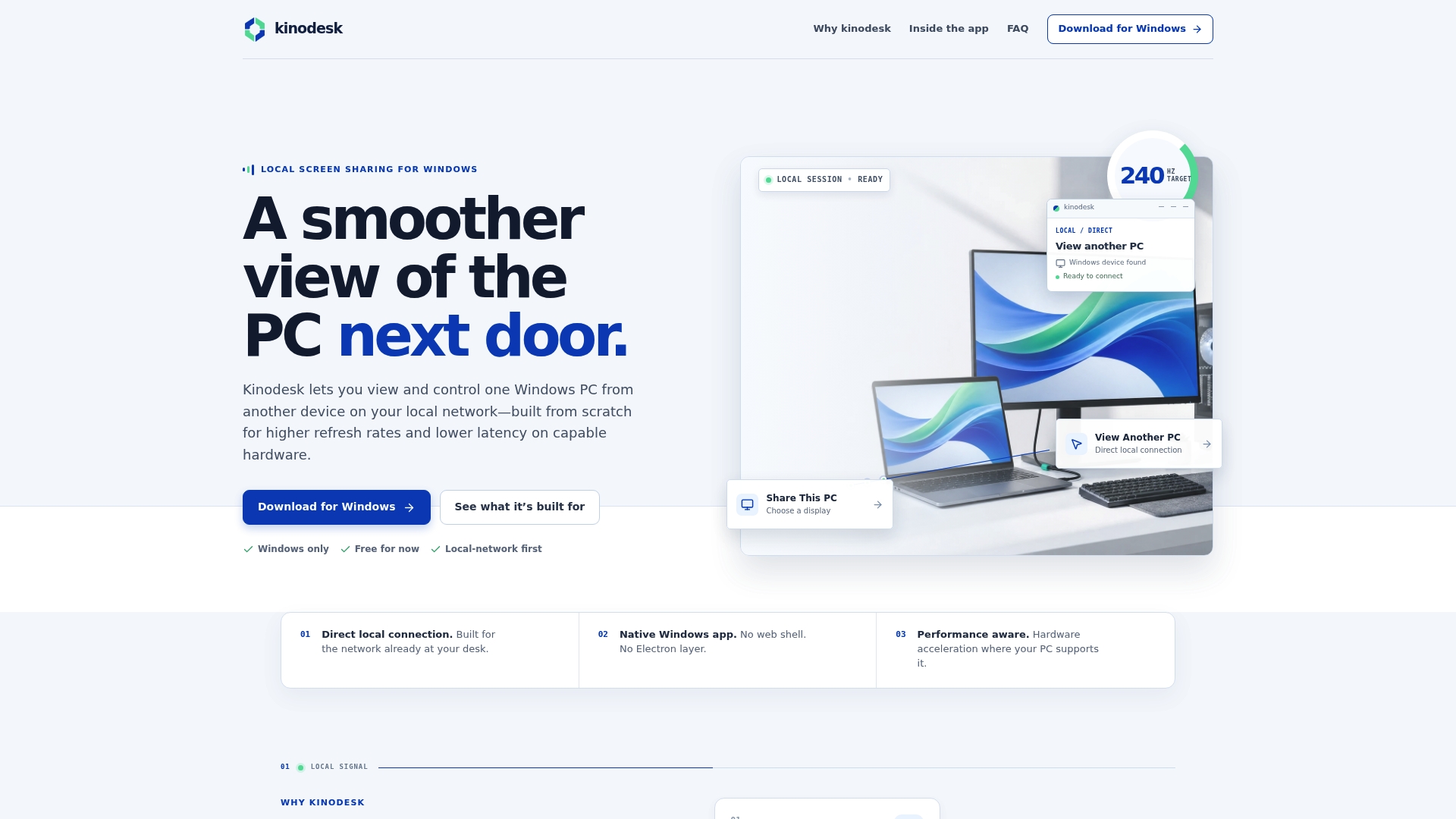
Kinodesk is built for exactly that local scenario. It uses GPU-accelerated capture and hardware video encoding to deliver very high refresh rates between Windows PCs on the same network, with none of the compression trade offs that RDP makes to survive over a WAN link. For real-time feedback tasks, video editing review, CAD work, or controlling a lab machine from your desk, that difference in responsiveness is immediately noticeable. It's not a replacement for RDP's remote-access use case, but for local, high-refresh work, it's a purpose-built alternative worth trying. Download Kinodesk and see how it handles your setup.
Sources
For deeper reference, start with Microsoft's network guidelines and RDP bandwidth documentation, the Azure Virtual Desktop estimator for capacity modeling, and HP Anyware's session planning guide for peak-versus-average workload data. For GPU capture tuning outside the RDP context, CCTV Database's guide to fisheye dewarping covers related GPU calibration techniques.
- Network guidelines
FAQ
Does Remote Desktop Use a Lot of Bandwidth?
Not usually. Idle sessions use almost nothing, and typical office work runs 1.5 to 5 Mbps depending on activity and resolution, well within what most business internet connections handle without strain.
How Much Bandwidth Do I Need for Remote Desktop?
Plan for 1.5 Mbps for light work, 3 Mbps for medium, 5 Mbps for heavy tasks, and up to 15 Mbps for power users, then add 500 kbps to 1 Mbps of headroom per session for safety.
Why Is RDP So Slow Even With Fast Internet?
Slowness is almost always a latency or packet loss problem, not a bandwidth shortage. High round-trip time or an unstable connection makes cursor movement and typing feel delayed regardless of how much raw Mbps is available.
Is 30 Mbps Good for Remote Work?
Yes, 30 Mbps comfortably covers even power-user RDP sessions with room to spare, though a stable, low-latency connection matters more for responsiveness than the extra bandwidth headroom does.
Is Kinodesk a Good Alternative to RDP for High-Refresh Work?
For local network use between two Windows PCs, yes. Kinodesk's GPU-accelerated capture supports very high refresh rates, which suits studio and home lab setups where RDP's network-oriented design isn't the right fit.