
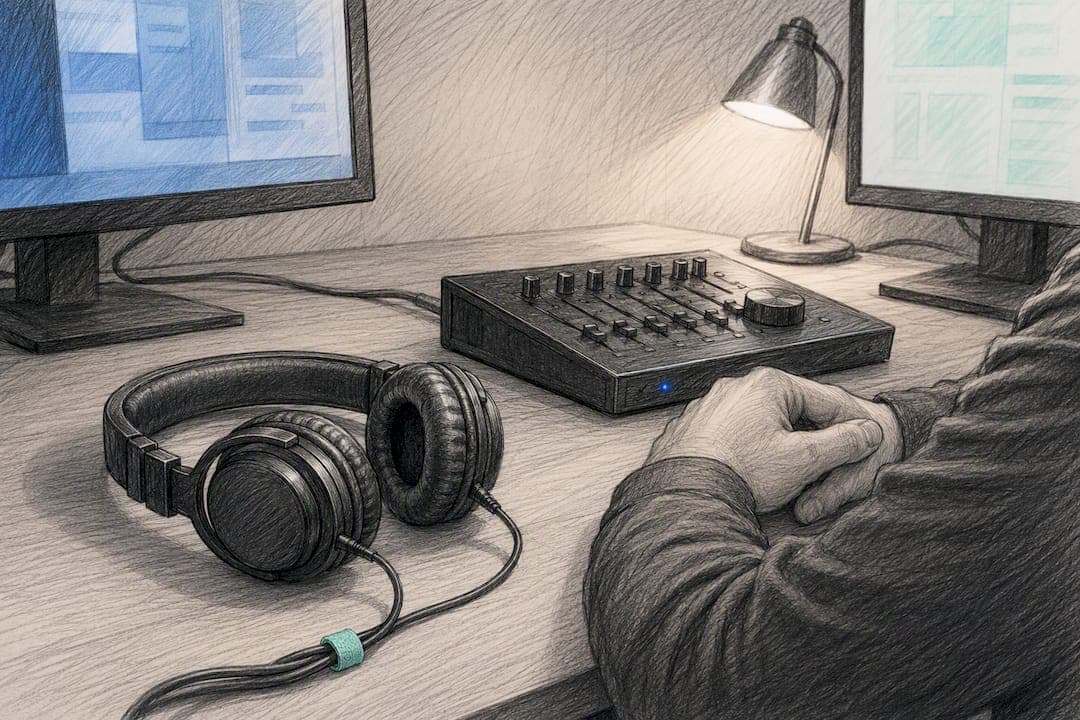
Yes, Remote Desktop supports both audio playback and microphone redirection, but neither turns on by default in every setup. The single most important thing to check first is the client's Local Resources panel, specifically the Remote audio playback and Remote audio recording toggles. If those look correct and sound still doesn't work, the problem usually sits on the server side. Test early, before you assume your hardware is broken.
TL;DR:
- Server-side policies such as Group Policy or Azure Virtual Desktop properties can block audio redirection even if client settings are correctly configured.
- Troubleshooting should start with checking the Windows Audio and Remote Desktop Services status, network conditions, and client toggles before adjusting server policies.
- Different remote desktop clients require specific settings adjustment, with Windows and Mac clients having distinct menus for enabling audio and microphone redirection.
- Audio issues often stem from network bandwidth limits, driver problems, or mismatched default devices inside the remote session.
- For high-latency or real-time audio needs, direct local network solutions like Kinodesk may outperform standard RDP configurations.
Table of Contents
- Quick Checks Before You Touch Any Settings
- Setting Up Audio on Windows, MacOS, and Linux RDP Clients
- When Server Policy Overrides Your Client Settings
- Getting Audio Working on Linux With FreeRDP
- Common Remote Desktop Audio Problems and How to Fix Them
- Tuning Remote Desktop Audio Quality and Cutting Latency
- How to Test and Confirm Audio Redirection Is Working
- When Remote Desktop's Audio Ceiling Becomes the Real Problem
- A Troubleshooter's Honest Take on Remote Desktop Audio
- Kinodesk: A Local-Network Alternative When RDP Audio Isn't Enough
- Sources
Quick Checks Before You Touch Any Settings
Most remote desktop audio problems trace back to one of four things, and you can rule out all four in under a minute.
- Confirm the Windows Audio and Remote Desktop Services services are running on the remote machine (check
services.msc). - Make sure your local speakers or headset aren't muted and that Windows has the correct default playback and recording devices selected.
- Open your RDP client's connection settings and verify Remote audio playback and Remote audio recording are both enabled, not just one.
- Check your network: a wired connection beats Wi-Fi for this, and a saturated home network (someone streaming 4K video, a big cloud backup running) will strangle audio before it strangles your screen refresh.
If all four check out and you still hear nothing, the issue is almost certainly a configuration mismatch further up the chain, which the next two sections cover.
Setting Up Audio on Windows, MacOS, and Linux RDP Clients
Getting remote desktop sound working is mostly a matter of finding the right checkbox, but the checkbox lives in a different place depending on your client.
- Windows Remote Desktop Connection (mstsc): Open the app, click Show Options, go to the Local Resources tab, and click Settings under Remote audio. Choose Play on this computer for playback and check Record from this computer for the microphone. This is the setting most people miss entirely, since the audio section is collapsed by default.
- Windows Remote Desktop app (Microsoft Store / AVD client): The audio options live under the connection's Devices & Audio settings when you edit or add a PC, rather than in a dedicated Local Resources tab. The toggles do the same job, just with different labels.
- macOS Microsoft Remote Desktop: Edit your PC entry, open the Devices & Audio tab in preferences, and enable both playback and microphone redirection there. Apple's client bundles this differently from Windows, so don't go hunting for a "Local Resources" tab that doesn't exist.
- After connecting, check the app-level device: Once you're inside the session, open any audio or video app you plan to use and confirm it's pointed at the Default device rather than a specific named device. Apps that remember a hardware device from a previous local session will silently fail to pick up the redirected audio.
The Lenovo support notes on remote audio walk through this exact Windows sequence with screenshots if you want a visual reference. None of this is complicated once you know where to look, but Microsoft has moved these menus around enough across client versions that muscle memory from one machine won't transfer cleanly to another.
When Server Policy Overrides Your Client Settings
You can enable every toggle correctly on your end and still get silence, because host-side policy always wins. Windows negotiates audio through virtual channels (rdpsnd for playback, audin for microphone capture), and if a server-side policy disables those channels, no client-side flag can force them open.
The priority order runs like this: session host policies (Group Policy or Intune) sit above host-pool RDP properties, which sit above whatever you configured in your own client. For Azure Virtual Desktop environments specifically, two RDP properties for Azure Virtual Desktop control this behavior directly:
audiomode:i:determines where audio plays. A value of0plays it on the client,1plays it on the remote computer, and2disables it entirely.audiocapturemode:i:1enables microphone redirection; leaving it unset or at0blocks mic input regardless of what your client requests.
If you administer the environment, configuring audio and video redirection in Azure Virtual Desktop confirms that the most restrictive setting across Group Policy, Intune, and host-pool properties always wins, even when a user's own client explicitly asks for audio.
A fast way to detect host-side blocking: connect from a different client machine with a fresh, default configuration. If audio still fails there, the problem isn't your PC. It's policy, and no amount of fiddling with local settings will fix it. In that scenario, someone with admin access to Group Policy or the Intune console needs to check the Remote Desktop Services audio redirection settings.
Getting Audio Working on Linux With FreeRDP
FreeRDP handles audio through explicit command-line flags rather than a settings panel, which actually makes troubleshooting more transparent once you know the syntax.
- Enable playback with
/sound:sys:pulseor/sound:sys:alsa, depending on which audio system your distribution runs. - Enable microphone redirection separately with
/microphone:sys:pulse(orsys:alsa). - Confirm the backend actually exists on your system before blaming FreeRDP. Run
pactl infofor PulseAudio oraplay -lfor ALSA to verify the audio subsystem is alive and has a device listed. - Check that your FreeRDP build was compiled with the audio plugins you need. Some minimal or headless Linux builds strip these out to save space, which will silently break both
/soundand/microphoneeven with correct syntax.
Per the FreeRDP audio guide, the default codec is uncompressed PCM, with AAC available as an optional compressed alternative if your build includes codec support. Debug logs (add /log-level:DEBUG to your command) will show the codec negotiation step by step, so if audio silently fails, that log is where you'll see whether the client and server even agreed on a format.
Pro Tip: If FreeRDP connects fine but audio never negotiates, run the connection once with /sound alone before adding /microphone. Isolating the two flags makes it much easier to tell whether the failure is on the playback side or the capture side.
Common Remote Desktop Audio Problems and How to Fix Them
Most remote desktop audio issues fall into four recognizable patterns. Match your symptom to the list below before you start guessing.
- No audio at all. Open the Sound control panel inside the remote session first, not on your local machine. Confirm a redirected device actually shows up as an output option. If it's missing, restart the Windows Audio service on the host and reconnect. If it's present but silent, set it as the default device explicitly.
- Microphone redirected but nothing gets captured. This almost always means
audiocapturemodeisn't enabled server-side, even though your client requested it. Double-check the app you're using inside the session is also pointed at the redirected Default device rather than a stale hardware entry, a mismatch that this Superuser thread on default audio devices covers well. - Stuttering, crackling, or dropouts. This is almost always bandwidth, not a broken setting. Try a lower sample rate in your client's audio settings, or switch to a compressed codec if your platform supports one. A congested Wi-Fi connection is the most common culprit here.
- Audio worked yesterday, doesn't work today. Check for driver updates on the host, and check whether endpoint security or antivirus software updated recently. Some enterprise security tools quietly block virtual audio devices as a precaution, which looks identical to a broken RDP session but has nothing to do with Remote Desktop at all.
Tuning Remote Desktop Audio Quality and Cutting Latency
Audio over remote desktop is a compression problem as much as a settings problem. Codec choice and available bandwidth determine both how good the sound is and how much delay you'll notice between an action and hearing its result.
Uncompressed PCM sounds the best but eats the most bandwidth. A compressed codec like AAC trades a small amount of fidelity for a meaningfully lighter network load, which matters more on congested or long-distance connections than on a local office network. FreeRDP's advanced audio backend options let you specify this explicitly, though enabling AAC requires your client build to include codec support at compile time, not just at the command line.
A few practical network moves help across every RDP client, not just FreeRDP:
- Use a wired connection wherever possible. Wi-Fi introduces variable latency that audio is far more sensitive to than video.
- If your router supports Quality of Service rules, prioritize the RDP traffic over background downloads or streaming.
- Avoid running other bandwidth-heavy applications during a session where audio timing matters, like a video call or a large sync job.
Pro Tip: If you're working on something like a spatial audio mix or a multichannel production session, remote desktop's codec compression will color what you hear enough to matter. Spatial audio production techniques depend on precise stereo and depth cues that lossy compression tends to flatten first.
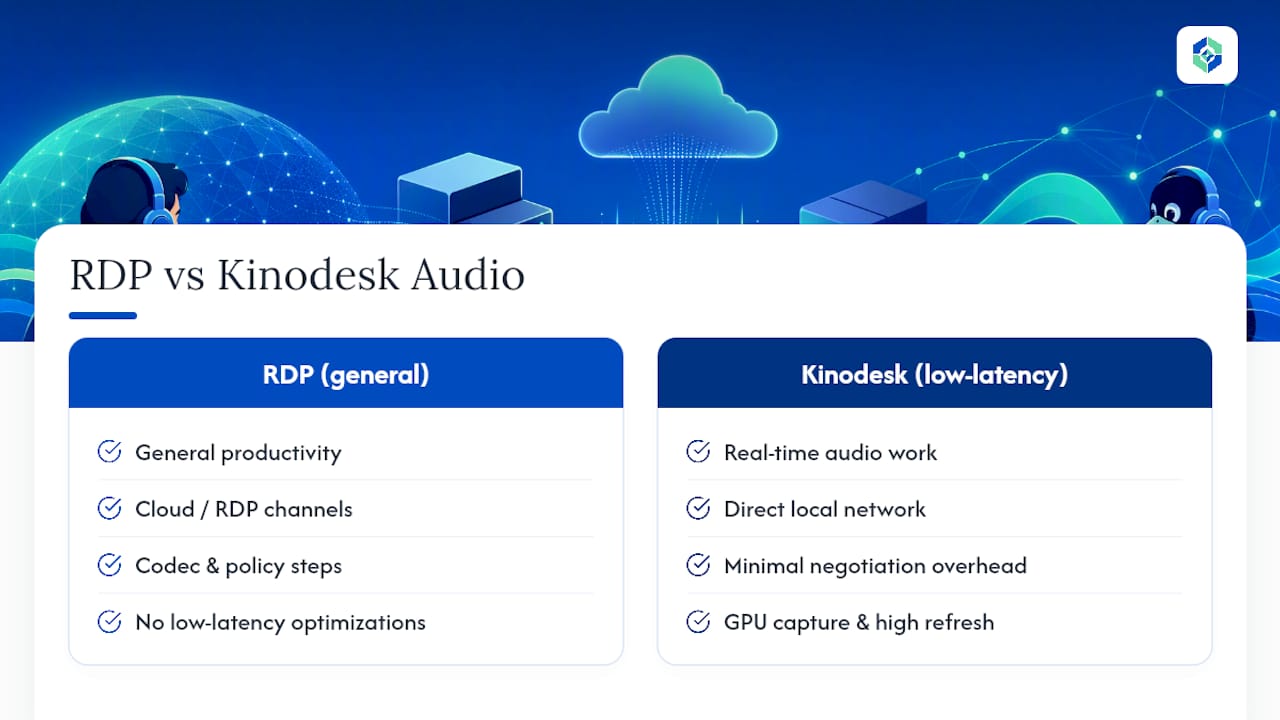
For casual voice chat or the occasional notification sound, RDP's audio redirection is genuinely fine. For latency-sensitive monitoring, live instrument feedback, or anything where you're judging timing by ear, generic RDP audio redirection starts to show its limits, and that's the point where a local, GPU-accelerated capture tool built for direct connections becomes worth considering instead of fighting codec settings.
How to Test and Confirm Audio Redirection Is Working
Don't trust that a setting "should" work. Verify it with a repeatable test, because half of all reported audio failures turn out to be a redirected device that exists but isn't set as default.
- Playback test: Connect to the remote session, then play any local audio file or video on the host. Immediately open the Sound control panel inside the session and confirm the redirected device is both present and selected as default.
- Microphone test: Open Windows Voice Recorder or a tool like Audacity inside the session and watch the input meter while you speak. Moving bars confirm the
audinchannel is negotiating correctly; a flat line means capture never made it through. - Isolation test: If either test fails, try connecting with a different user account, a different client machine, or to a different host. If the same failure follows you across all three, the problem is almost certainly host policy, not your device or your client software.
When Remote Desktop's Audio Ceiling Becomes the Real Problem
RDP's audio redirection was built for general productivity, not for demanding audio or real-time work, and it shows once you push it. Codec compression, virtual channel negotiation, and host-pool policy checks all add processing steps between the sound leaving the remote machine and reaching your ears. For a support call or a quick notification chime, none of that matters. For monitoring a live instrument feed, reviewing a mix, or any workflow where timing between what you see and what you hear needs to line up precisely, those extra steps become audible.
That's the specific gap Kinodesk is built to close. Because it runs over a direct local network connection instead of routing through cloud infrastructure or generic RDP channels, it sidesteps a lot of the negotiation overhead that causes RDP audio hiccups in the first place. High refresh rates and GPU-accelerated capture are designed for environments where standard remote desktop audio latency becomes a real obstacle rather than a minor annoyance.
None of this means RDP is broken. It means RDP is a general-purpose tool doing a job it was never optimized for, and knowing where that ceiling sits helps you decide when to keep troubleshooting versus when to switch tools entirely.
A Troubleshooter's Honest Take on Remote Desktop Audio
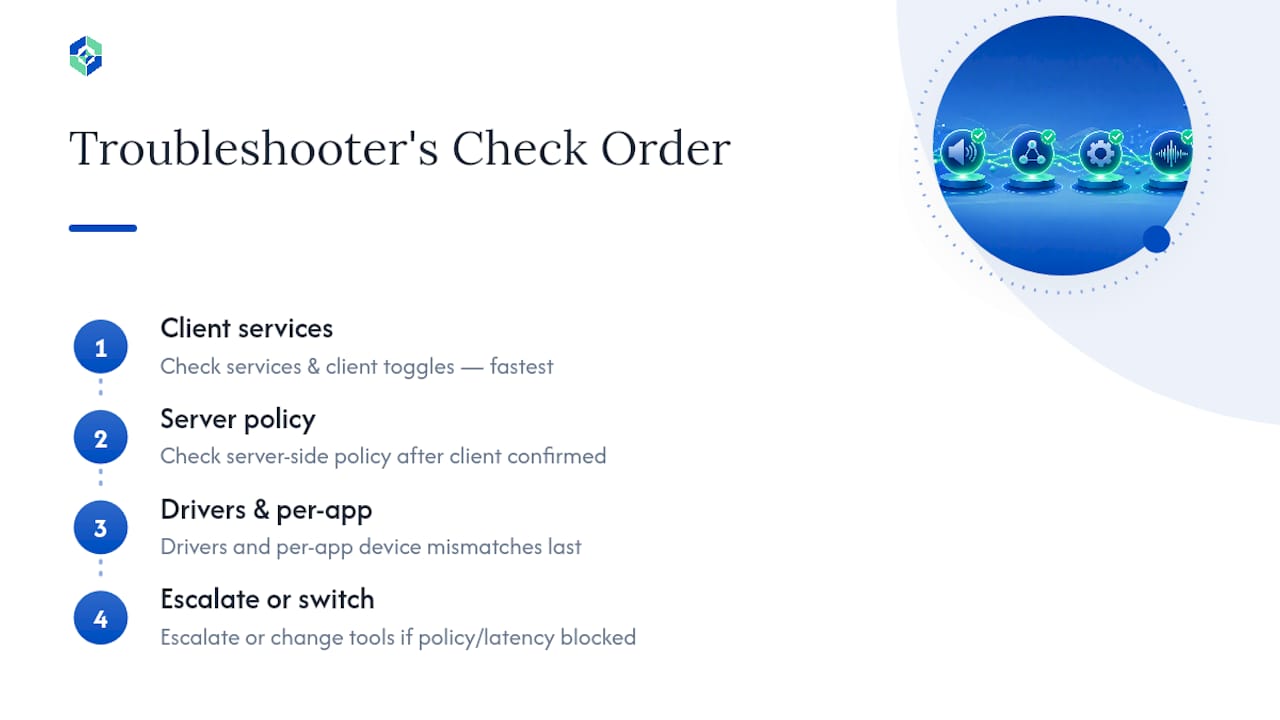
The order you check things in matters more than most guides admit. Start with services and client toggles, because they're the fastest to rule out and the most common actual cause. Move to server-side policy only after you've confirmed the client side is genuinely correct, since checking policy first wastes time on a problem you might not even have. Drivers and per-app device mismatches come last because they're the least common culprit but the easiest to overlook once you've already fixed everything upstream.
Escalate to IT or switch tools entirely when you hit a host policy you can't change, or when the workflow genuinely needs lower latency than compressed RDP audio can deliver. Fighting codec settings past that point wastes more time than it saves.
— Ian
Kinodesk: A Local-Network Alternative When RDP Audio Isn't Enough
If you've worked through every setting above and RDP audio still feels sluggish or thin for what you're doing, the issue may not be a misconfiguration at all. It might just be the ceiling of what generic remote desktop protocols were designed to handle.
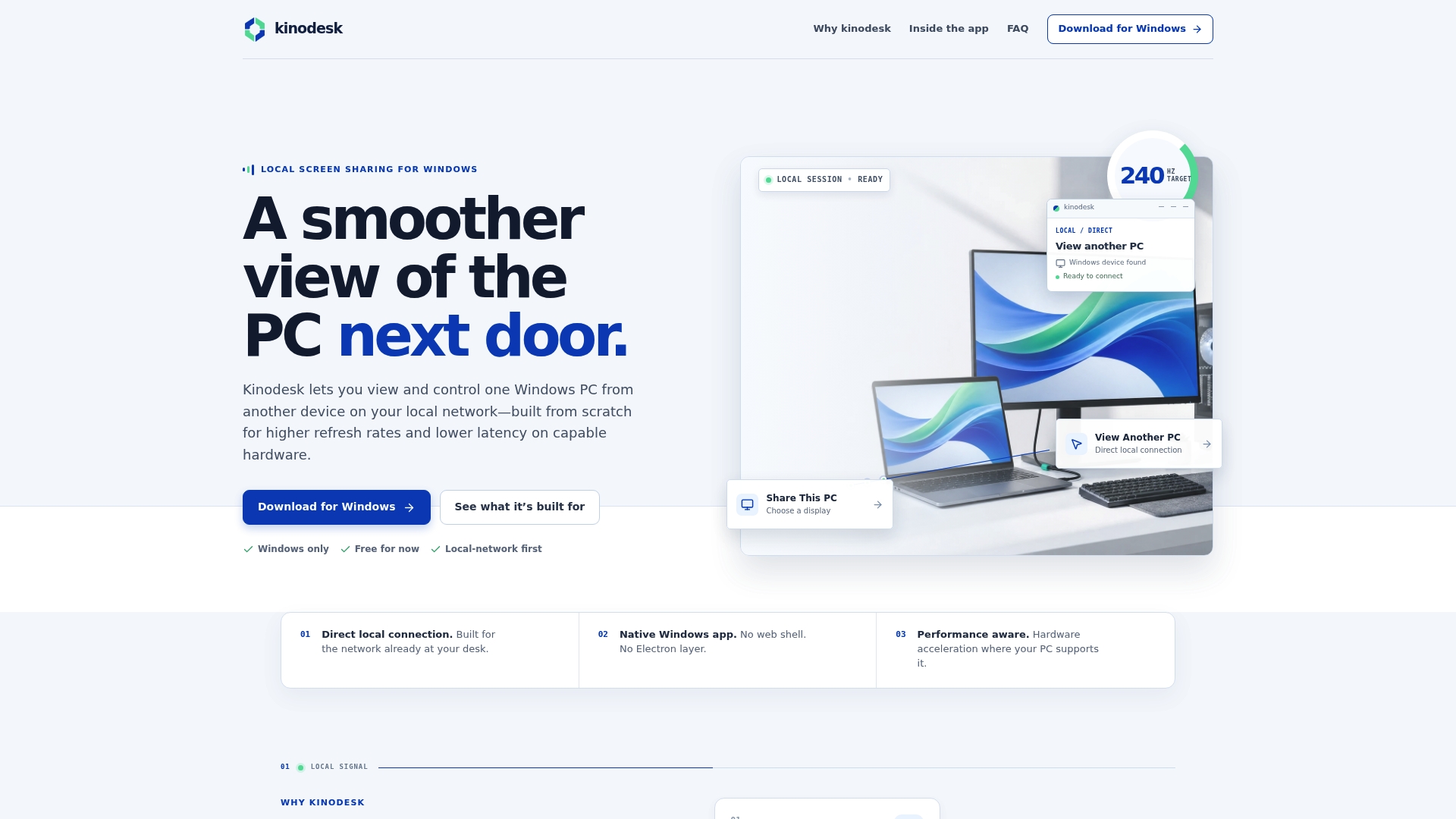
Some local-network screen sharing solutions take an approach that connects two Windows PCs directly over the local network. Such direct connections, combined with GPU-accelerated capture and high refresh rates, can cut out much of the overhead that causes lag or audio drift in typical remote sessions. These tools may also include AI assistance for setup and troubleshooting, reducing the complexity of configuration compared to RDP. If your current setup is fighting you more than helping you, try Kinodesk on your local network and see whether a direct connection solves what RDP configuration alone couldn't.