
The fastest multi user remote desktop setup on a local network combines GPU-accelerated capture with hardware video encoding, not cloud-routed software. That means using DXGI Desktop Duplication or Windows Graphics Capture to grab frames straight off the GPU, feeding them into a hardware encoder like NVENC, QuickSync, or AMF running HEVC or H.264, then pushing that stream over UDP or QUIC on a wired connection with encoder settings tuned specifically for latency instead of file size.
TL;DR:
- GPU hardware encoding like NVENC, Quick Sync, or AMF is essential for sustaining high frame rates, especially at 240Hz, on a local network.
- Maintaining a LAN ping below 2-3 milliseconds is critical, as higher latency can negate the benefits of hardware acceleration and high refresh rates.
- Using wired Ethernet and ensuring hardware decode support on the client prevents the fall back to software processing that can introduce lag.
- Proper encoder settings such as constant bitrate, zero B-frames, and region-aware capture significantly reduce latency and prevent stuttering.
- Kinodesk is designed to simplify high-refresh, low-latency remote desktop setups by default, relying on GPU capture and hardware encoding for optimal performance.
Table of Contents
- What Do You Need for Multi User Remote Desktop Access?
- What Hardware and OS Setup Does 240Hz Remote Control Need?
- Which Capture and Codec Choices Actually Cut Latency?
- How Do You Tune the Network for Stable Frame Delivery?
- Why Doesn't a High-Hz Monitor Guarantee Smooth Control?
- Ian's Priority Order for Diagnosing a Sluggish Session
- Kinodesk: Built for High-Refresh, Low-Latency LAN Control
- Sources
- FAQ
What Do You Need for Multi User Remote Desktop Access?
Getting a working session up in under fifteen minutes is realistic if you follow the setup in the right order. Skip a step, and you will spend an hour chasing a stutter that a firewall rule would have fixed.
- Run Windows 10 or 11 on both the host and client machine. Older builds lack the full Windows Graphics Capture API surface that modern remote tools rely on.
- Update GPU drivers on both ends. An outdated driver on the client is the single most common reason HEVC decode silently falls back to software.
- Confirm DXGI Desktop Duplication or WGC is enabled on the host. Most local screen-sharing apps, including Kinodesk, use this by default, but a security policy or virtualization layer can block it.
- Allow the app through Windows Defender Firewall on the private network profile, not just the public one.
- Pick your GPU encoder path in the app's preferences: NVENC for NVIDIA cards, Quick Sync for Intel, AMF for AMD.
- Set the encoder to constant bitrate (CBR), zero B-frames, and a small VBV buffer as a starting point.
- Use wired Ethernet for the first test, not Wi-Fi. Isolate variables before you troubleshoot.
- Run a plain
pingbetween machines and note the round-trip time before you even open a remote session, so you have a baseline to compare against once video is flowing.
That baseline ping matters more than people expect. If your idle LAN ping sits above 2 or 3 milliseconds on gigabit Ethernet, something on the network path (a cheap switch, a misconfigured NIC) is already working against you before encoding overhead even enters the picture.
What Hardware and OS Setup Does 240Hz Remote Control Need?
High refresh rate LAN sharing is not a software trick alone. It depends on specific hardware capabilities lining up on both sides of the connection, and skipping this check is where most home-lab setups quietly cap out at 60 or 90Hz without knowing why.
- Check your GPU's hardware encoder. NVIDIA GPUs from the Pascal generation onward expose NVENC with HEVC support; Intel's integrated GPUs from roughly 6th generation Core onward carry Quick Sync; AMD's Polaris and later cards support AMF. All three approaches offload frame processing from the CPU, which is what makes sustained high frame rates possible without pegging a CPU core.
- Verify HEVC hardware decode on the client. Windows needs the HEVC Video Extensions available (often free, sometimes a small Microsoft Store purchase depending on OEM licensing), and the client GPU needs a hardware HEVC decoder. Without it, the client falls back to software decode, and that alone can introduce enough delay to erase every millisecond you saved on the encode side.
- Match your network interface to your resolution target. A standard 1GbE connection is fine for 1080p at high refresh rates. Push into 4K or run multiple simultaneous sessions, and you want 2.5GbE or 10GbE, since a single uncompressed 4K frame stream can saturate gigabit Ethernet even before encoding headroom is factored in.
- Confirm hardware encoding is actually active, not just enabled in a menu. Azure Virtual Desktop documentation shows how to verify GPU-accelerated encoding through connection information and event logs, and the same principle applies locally: check the app's connection stats panel or Windows Event Viewer for encoder initialization entries rather than assuming the setting took effect.
Which Capture and Codec Choices Actually Cut Latency?
The capture method matters as much as the codec. DXGI and WGC pull frames directly from GPU memory, a zero-copy path that avoids the CPU readback step older capture APIs required. That CPU round trip, copying a frame from GPU memory to system memory and back, was where a lot of legacy remote desktop lag came from, and it is largely why older tools felt sluggish even on fast networks.
Codec choice is a real trade-off, not a default setting. HEVC (H.265) delivers roughly 25 to 50 percent better compression than H.264 at equivalent visual quality, and NVIDIA's own testing puts the bandwidth savings at around 20 percent in hardware-encoded scenarios. The catch is client-side decode support. If your remote client is an older laptop without hardware HEVC decode, H.264 is the safer default even though it costs you bandwidth efficiency.
A few settings and techniques consistently separate a smooth session from a choppy one:
- Set CBR instead of variable bitrate, so the encoder doesn't spike and cause queueing during busy frames.
- Zero out B-frames. They improve compression for stored video but add encode and decode latency you don't want in an interactive session.
- Reserve YUV 4:4:4 chroma sampling for color-critical work like photo or video editing. It costs meaningful bandwidth and most everyday desktop use doesn't need it.
- Look for region-aware or "dirty rectangle" capture in your software. Encoding only the screen areas that actually changed cuts encoder workload substantially, since most desktop use involves small, localized updates rather than full-frame changes.
Pro Tip: Test your encoder settings while scrolling a text-heavy webpage, not just moving a mouse cursor. Text scrolling stresses region-aware capture algorithms in ways that cursor movement alone never reveals.
How Do You Tune the Network for Stable Frame Delivery?
Wired Ethernet beats Wi-Fi for this use case, full stop, and if you're chasing 240Hz there's no real argument for wireless as your primary link. If Wi-Fi is your only option, use 5GHz on the 802.11ax standard and put your remote desktop traffic on a dedicated SSID or QoS priority tier, since contention from other devices on a shared 2.4GHz network introduces exactly the kind of jitter that ruins a high-refresh session.
Transport protocol matters more than most people assume. TCP's head-of-line blocking means a single dropped packet stalls every packet behind it, waiting for retransmission, which is brutal for real-time video. UDP-based or QUIC-style transports avoid that stall, delivering frames as they arrive rather than holding the whole stream hostage for one late packet. Adaptive forward error correction (FEC) and small jitter buffers help absorb the occasional dropped packet without visible stutter, and engineering writeups building sub-100ms LAN remote desktop pipelines consistently point to this combination as the reason wired UDP setups outperform TCP-based tools on the same hardware.
Watch these indicators once a session is running:
- Round-trip time (RTT) via ping as your network floor
- p50, p95, and p99 latency, since averages hide the tail spikes that actually feel like lag
- Packet loss percentage, which should sit near zero on a healthy wired LAN
- Jitter, or the variance in delay between consecutive packets
On a properly tuned wired LAN, practical low-latency remote desktop implementations report p50 latency in the 50 to 80 millisecond range end to end, capture through display. If you're consistently seeing numbers well above that on a gigabit wired connection, the bottleneck is almost always encoder settings or client-side decode, not the network itself.
Why Doesn't a High-Hz Monitor Guarantee Smooth Control?
A 240Hz panel only helps if frames actually arrive every 4.2 milliseconds like clockwork. Refresh rate is a ceiling, not a guarantee, and chasing the number on a spec sheet while ignoring frame pacing is the most common mistake in home-lab remote desktop setups. A monitor's headline Hz rating says nothing about jitter, and inconsistent frame arrival is often more disruptive to the feel of a session than a slightly lower but stable frame rate.
- Enable input-triggered capture if your software supports it. Capturing a new frame the instant a mouse or keyboard event fires, rather than waiting for the next scheduled capture tick, can shave 10 to 16 milliseconds off perceived latency, which is very noticeable during fast cursor movement or drawing tasks.
- Disable encoder lookahead. Lookahead improves compression by analyzing future frames first, but it adds a delay that interactive sessions can't afford.
- Tighten the VBV buffer and test multiple bitrates. A buffer set too loose lets the encoder queue frames during motion-heavy content, introducing exactly the stutter you're trying to eliminate.
- On the client, minimize the decode queue depth and confirm GPU decode is actually engaged. A queue set for smoothness over latency will buffer several frames deep, adding delay that has nothing to do with your network or encoder.
Pro Tip: If a session feels laggy despite a clean network graph, check whether the client is decoding on the GPU or falling back to software. This single setting change fixes more perceived-lag complaints than any network tweak.
Ian's Priority Order for Diagnosing a Sluggish Session
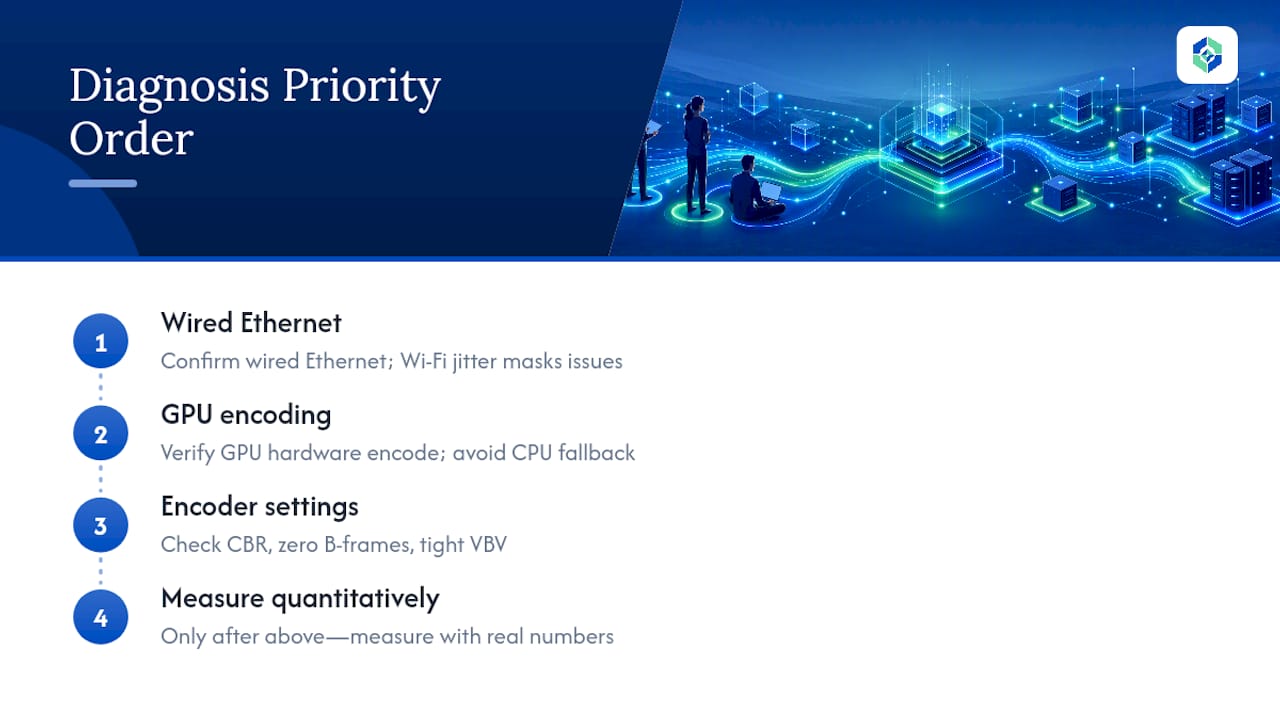
When a home-lab remote session feels off, work through causes in a fixed order instead of guessing. First, confirm you're on wired Ethernet, since Wi-Fi jitter masquerades as every other kind of problem. Second, verify GPU hardware encoding is genuinely active, not silently falling back to CPU encode after a driver update. Third, check your encoder settings: CBR, zero B-frames, tight VBV. Fourth, and only fourth, measure with real numbers instead of feel.
Most "my 240Hz setup feels laggy" complaints trace back to one of three things: a driver mismatch after a Windows update, Wi-Fi jitter someone assumed was fine because the ping looked okay, or nobody actually confirmed which encoder path was running. Fix those three before touching anything else.
— Ian
Kinodesk: Built for High-Refresh, Low-Latency LAN Control
Everything covered above, GPU capture, hardware encoding, wired transport tuning, is exactly what Kinodesk handles by default rather than as an advanced setting buried three menus deep. It's software built specifically for local network screen sharing, using GPU-accelerated capture to support high refresh rates with low-latency encoder behavior.
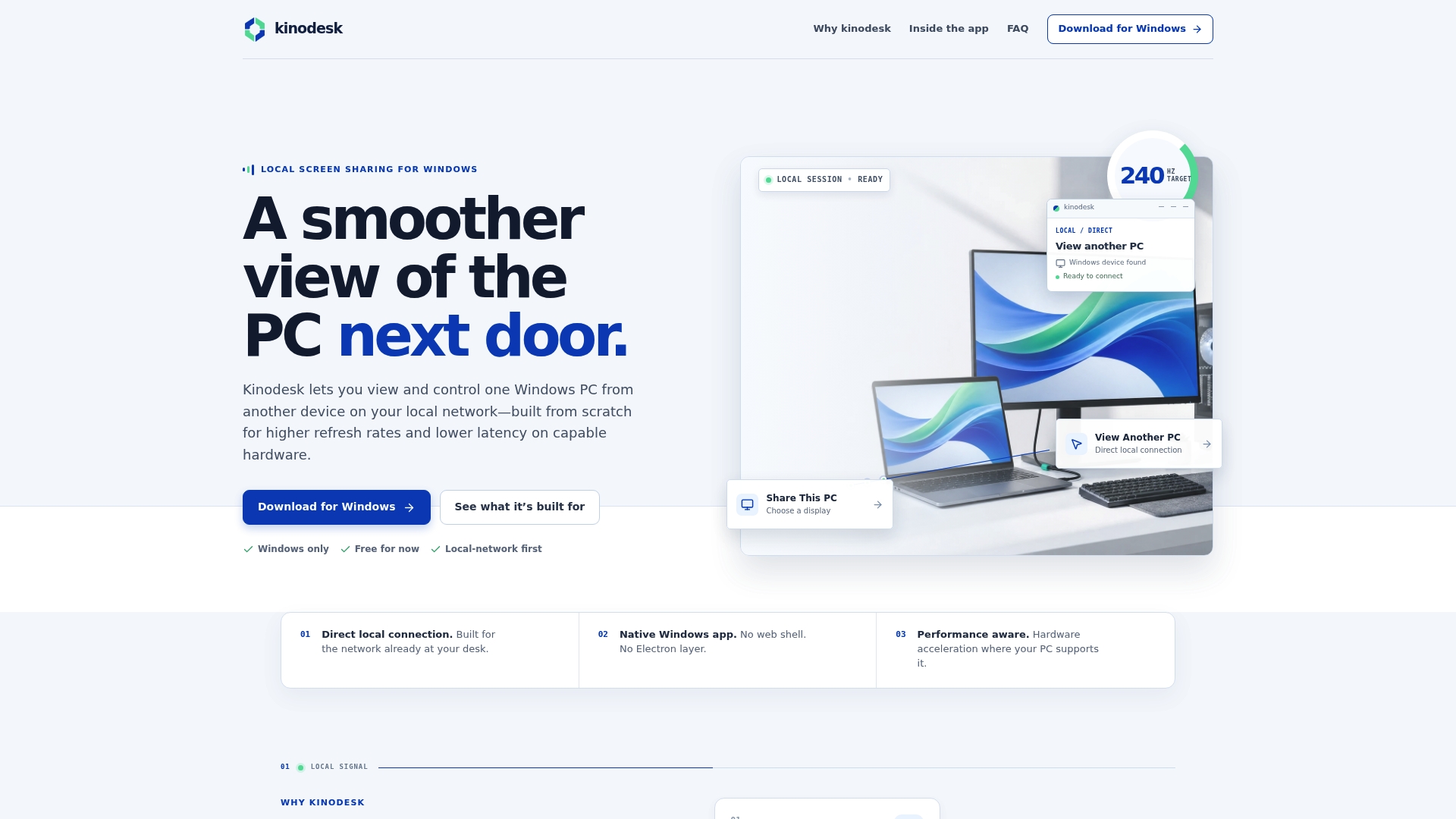
After installing it on both machines, you get a direct connection with responsive control and high frame-rate display when your hardware supports it, without routing anything through a cloud relay. The interface is designed to facilitate quick session setup and includes assistance to help flag configuration issues, such as missing codecs or driver mismatches. If you've been tuning capture and network settings by hand and want a packaged version of a GPU-accelerated approach, download Kinodesk and connect your first pair of PCs on your own network.
Sources
- Graphics encoding — Azure Virtual Desktop
- NVIDIA whitepaper: choosing the right remoting protocol
- Layered screen coding & region-aware rendering (ACM)
FAQ
What Is Multi User Remote Desktop on a Local Network?
It's software that lets one Windows PC view and control another over a local network using GPU-accelerated capture, rather than routing the session through a cloud server, which keeps latency low enough to support high refresh rates.
Does HEVC or H.264 Give Better Performance for LAN Streaming?
HEVC offers 25 to 50 percent better compression than H.264 at the same quality, but it requires hardware decode support on the client, so H.264 remains the safer default on older machines.
Why Does My Remote Session Feel Laggy Even on a Fast Network?
A clean ping doesn't guarantee smooth video; the usual culprits are the encoder falling back to software instead of GPU hardware, a Wi-Fi connection introducing jitter, or B-frames and lookahead adding delay in the encoder settings.
What Bitrate and Encoder Settings Work Best for Low Latency?
Use constant bitrate (CBR), set B-frames to zero, tighten the VBV buffer, and disable lookahead. This combination is what practical low-latency implementations rely on to hit 50 to 80 millisecond typical latency on wired LAN.
Can Kinodesk Reach 240Hz Refresh Between Two Windows PCs?
Kinodesk is built for scenarios using GPU-accelerated capture over a local network connection to support high refresh rates when hardware capabilities allow.