
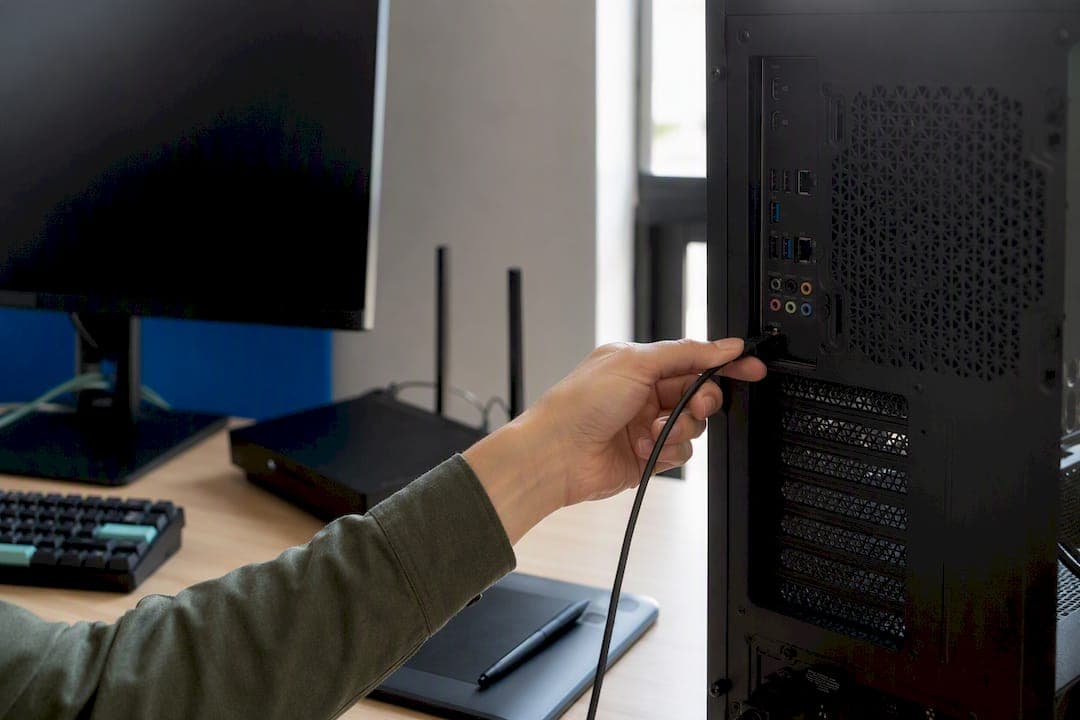
For most Windows users, Kinodesk is the best local remote desktop option when you want high refresh rates and near-zero lag between two machines on the same network. Windows' built-in Remote Desktop (RDP) is the right call when you just need basic host-to-client control and don't care about frame rate.
Pick the LAN-first route (Kinodesk) if you're doing anything visually demanding: multi-monitor design work, live coding with fast scrolling, or driving a home lab workstation at high refresh. Pick RDP if you just need to grab a file or run a quick admin task and Windows already has you covered.
Two things to do right now:
- Confirm both devices sit on the same private network, not separate guest SSIDs or VLANs.
- Either flip on Remote Desktop in Windows Settings, or download and run Kinodesk on both machines.
Key Takeaways
Local remote desktop performance depends far more on wired networking and GPU-accelerated capture than on any single software setting.
| Point | Details |
|---|---|
| Choose the right base tool | Use Kinodesk for high-refresh, GPU-accelerated local sessions; use Windows RDP for basic host/client control. |
| Confirm host edition | Windows Pro, Enterprise, or Education can host Remote Desktop; Windows Home can only act as a client. |
| Fix network path first | Test same-switch or direct Ethernet connections to rule out VLAN or guest network isolation before troubleshooting software. |
| Lock down access | Enable NLA, restrict allowed accounts, and keep Remote Desktop limited to the Private firewall profile. |
| Tune for frame rate over color depth | Wired gigabit Ethernet plus GPU-accelerated capture, as used in Kinodesk, cuts latency more than any resolution tweak. |
Table of Contents
- How Do You Set Up Local Remote Desktop on Windows?
- Why Won't My PC Find the Other Device on the Network?
- What Security Settings Should You Check First?
- How Do You Cut Lag on a Local Remote Desktop Connection?
- What Do You Do When Local Remote Desktop Won't Connect?
- Why Kinodesk Fits Windows-Focused Home Labs and Studios
- What Actually Matters More Than Most Guides Admit
- Get Full-Speed Local Screen Sharing With Kinodesk
- Frequently Asked Questions
- Sources
How Do You Set Up Local Remote Desktop on Windows?
Before anything else, confirm three prerequisites: the host machine needs Windows Pro, Enterprise, or Education (Windows Home cannot act as a Remote Desktop host, only a client), you need admin rights on that PC, and both devices need to be on the same local network.
For Windows RDP:
- On the host PC, go to Settings → System → Remote Desktop and toggle it on.
- Confirm the prompt, then click "Select users that can remotely access this PC" to add specific accounts.
- Check that Windows Firewall lists Remote Desktop as allowed under the Private profile.
- On the client device, open the Remote Desktop app and enter the host's local IP address.
For a LAN-first app like Kinodesk:
- Install it on both the host and the client machine.
- On the host, enable sharing (often labeled "Server" or "Share This PC").
- Open the viewer on the client. It should list the host automatically if discovery works.
- Approve the first connection request on the host side.
Before you try to connect, run through this quick check:
- Host's IP address is visible in
ipconfig - Network profile is set to Private, not Public
- Firewall allows the app or RDP through
- Network discovery is turned on in Windows' network settings
Getting these four right eliminates most first-time connection failures before they happen.
Why Won't My PC Find the Other Device on the Network?
Most LAN-first tools rely on autodiscovery: the host broadcasts a UDP packet announcing itself, and the client listens for those broadcasts to build a list of available machines. This is why some apps can autopopulate a "available PCs" list while others require you to type an address manually.
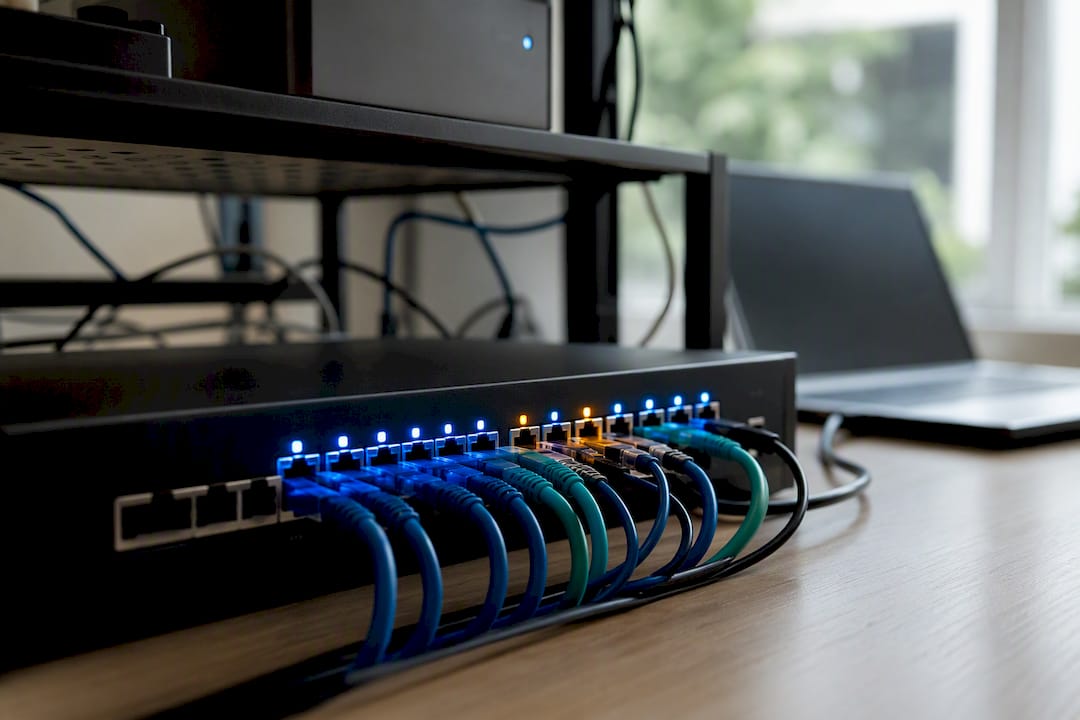
Autodiscovery breaks down for a specific set of reasons. Guest Wi-Fi networks, VLANs, and access point isolation all block the broadcast traffic that discovery depends on, even when two devices show the same Wi-Fi name on your phone's settings screen. Network segmentation is designed to stop exactly this kind of cross-device visibility, and it's the most common reason a device is technically "on the network" but invisible to discovery.
When broadcasts fail, skip discovery entirely and type the host's IP address into the client. Find it with ipconfig on the host, then confirm reachability from the client with ping and check the ARP table if the ping fails.
Pro Tip: If discovery isn't working, plug both machines into the same physical switch (or connect them with a single Ethernet cable) as a fast test. If they connect that way but not over Wi-Fi, the problem is network segmentation, not your remote desktop software.
What Security Settings Should You Check First?
Local doesn't mean unguarded. A few settings determine whether your LAN remote desktop setup is reasonably safe or an open door:
- Turn on Network Level Authentication (NLA), which requires credentials before the session even starts. Microsoft recommends this as a baseline for any Remote Desktop setup.
- Restrict the allowed-users list to specific named accounts. Skip the built-in Administrator account for day-to-day connections.
- Set strong, unique passwords on every account permitted to connect remotely, not shared or reused passwords.
- Verify Windows Firewall only allows Remote Desktop on the Private network profile, never Public.
- If you need unattended access (walking away and reconnecting later), use a LAN-only unattended mode with session approval rather than exposing RDP directly to the internet. If remote access absolutely must cross the internet, put it behind a VPN rather than opening ports.
None of this is complicated, but skipping even one item is how a "local only" setup quietly becomes reachable from outside your house.
How Do You Cut Lag on a Local Remote Desktop Connection?
Latency on a LAN comes down to three things: your network path, your capture method, and how much data you're pushing per frame.
- Use wired gigabit Ethernet for the host and, ideally, the client. Wi-Fi contention is the single biggest source of jitter on an otherwise fast network.
- Turn on GPU-accelerated capture and hardware encoding on the host if your software supports it. Desktop duplication methods that only send changed pixel regions can process a 4K frame in around 10 milliseconds in optimized setups, which is what makes 120Hz and 240Hz remote sessions feel real instead of theoretical.
- If the network or CPU is struggling, lower resolution scaling before you lower frame rate. A slightly softer image beats a stuttery one for anything interactive.
- Test round-trip time with
ping. On the same switch, you should see sub-10ms responses; anything higher points to a network problem, not a software one.
Direct LAN sessions also just start with an advantage: they skip internet relay entirely, which is why local sessions routinely feel snappier than cloud-routed ones even on identical hardware.
Pro Tip: If your goal is a genuine 240Hz workflow, you need to skip anything that assumes a cloud relay. Only LAN-first apps built around GPU-accelerated capture and a direct local transport can push frame rates that high without introducing the encode delay that kills responsiveness.
What Do You Do When Local Remote Desktop Won't Connect?
Match your symptom to the fix instead of guessing:
- No devices show up in discovery: Check that inbound UDP isn't blocked by the firewall, confirm the network profile is Private, and verify Network Discovery is enabled in Windows' network settings.
- Connection refused or times out: Confirm the account is on the host's allowed-users list, double-check the Remote Desktop toggle is actually on, then test basic reachability with
pingbefore retrying the RDP client using the raw IP address. - Choppy or laggy sessions: Look at link speed first, then host-side CPU and GPU usage, and confirm traffic isn't being routed through a cloud broker instead of staying local.
- Devices are on "the same" network but still can't see each other: Test with both machines on the same physical switch or a direct Ethernet cable. If that fixes it, your VLAN or guest network setup is isolating them.
Why Kinodesk Fits Windows-Focused Home Labs and Studios
Kinodesk is built specifically for local-only connections, so there's no cloud relay adding delay to something that should be instant. Its core capabilities line up directly with what performance-sensitive setups need:
- Local-only connections, no cloud dependency
- GPU-accelerated capture with hardware encoding
- Refresh rates up to 240Hz
- A simple interface for setup and connection management
- Integrated AI assistance for configuration and troubleshooting
That combination matters most in specific situations: a home lab where you're managing a headless workstation from a laptop across the room, a design studio pushing color-accurate 4K frames between machines, or live-coding sessions where scroll lag actively breaks your concentration. If you're evaluating options for a Windows-only setup, the product page covers setup requirements and download details directly.
What Actually Matters More Than Most Guides Admit
Most local remote desktop advice treats every setting as equally important, and that's the wrong frame. Network path and capture method matter far more than any individual software toggle. A perfectly configured app on a congested Wi-Fi network will feel worse than a mediocre setup running over wired gigabit Ethernet.
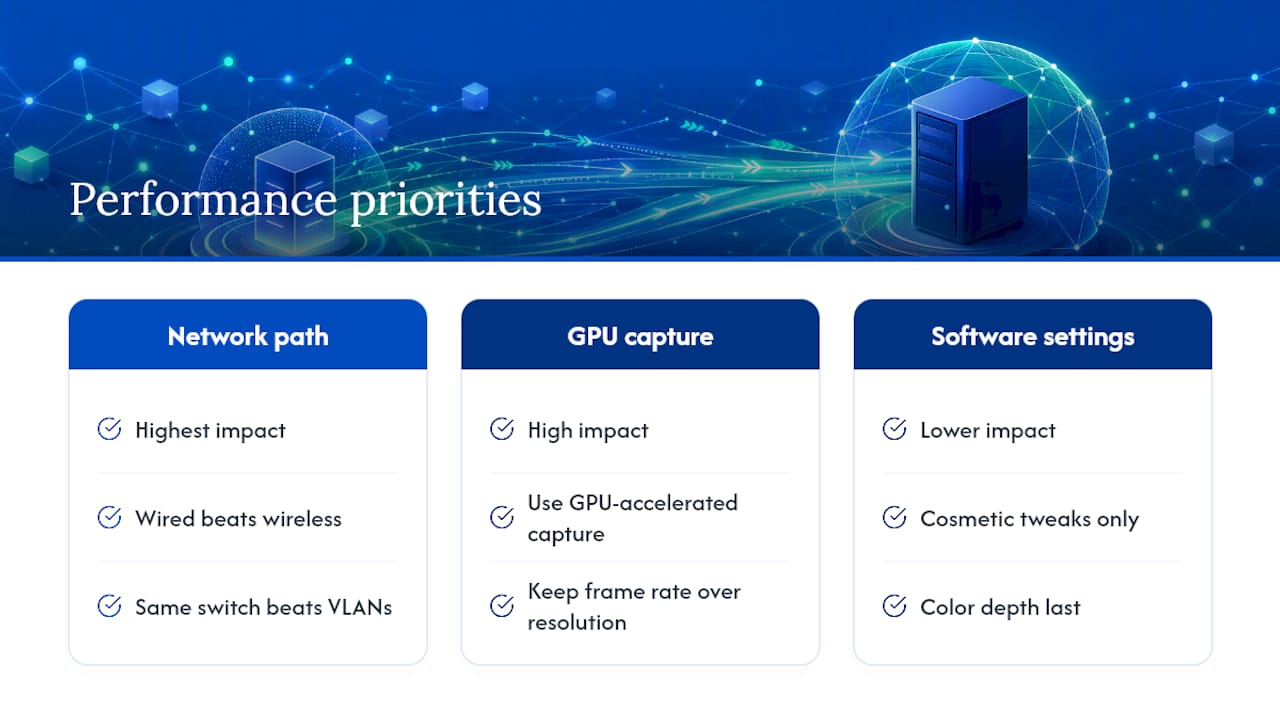
The conventional advice also underweights GPU-accelerated capture. Plenty of guides treat color depth and resolution as the main levers for smoothness, when frame rate is usually what determines whether a session feels "live" or feels like watching a slightly delayed recording. If you're doing anything interactive, drop resolution before you drop frame rate.
Prioritize in this order: fix your physical network path first (wired beats wireless, same switch beats segmented VLANs), then pick software that actually uses your GPU for capture, and only then start tweaking cosmetic settings like color depth. Skipping straight to software tweaks while ignoring a congested Wi-Fi link is the most common way home lab setups end up feeling laggy for no obvious reason.
Get Full-Speed Local Screen Sharing With Kinodesk
If you've read this far, you already know the real bottleneck in most remote desktop setups isn't the software feature list. It's the gap between what RDP was built for (basic remote access) and what home labs and studios actually need (real-time, high-refresh control with zero cloud lag). Kinodesk was built to close that gap directly: it skips the cloud relay entirely, uses GPU-accelerated capture to push refresh rates up to 240Hz, and includes integrated AI assistance so setup and troubleshooting don't eat your afternoon.
It's a fit for anyone running a multi-monitor workstation, managing a headless home lab machine, or doing color-sensitive design work where every dropped frame is visible. If that's your setup, download Kinodesk and connect your first PC in the same time it would take to finish reading another comparison article.
Frequently Asked Questions
Is local remote desktop faster than internet-based remote access?
Yes, in most cases. Direct LAN sessions skip the internet relay that cloud-based tools depend on, which cuts latency and reduces the bandwidth overhead that causes stutter during fast on-screen movement.
Can Windows Home be used for local remote desktop?
Windows Home can act as a Remote Desktop client but cannot host a session. If your host PC runs Windows Home, you'll need a LAN-first app like Kinodesk instead of built-in RDP.
Why can't my devices find each other even though they're on the same Wi-Fi?
Guest networks, VLANs, and access point isolation frequently block the broadcast traffic that autodiscovery relies on, even when both devices connect to the same Wi-Fi name. Testing on the same physical switch quickly confirms whether segmentation is the cause.
Do I need a VPN for local remote desktop?
No, not if both devices stay on the same private network. A VPN becomes necessary only if you need to reach the host from outside that network, which shifts the setup from local remote desktop into remote access territory with different security requirements.
What's the biggest factor in remote desktop lag on a LAN?
Wired versus wireless networking, followed closely by whether the host uses GPU-accelerated capture. A wired gigabit connection paired with hardware encoding, the approach Kinodesk takes, consistently outperforms Wi-Fi setups running software-only capture.