
The fastest route to smooth, high FPS screen sharing is a local, GPU-accelerated capture path over a wired LAN, with hardware encoding and a bitrate that matches your resolution. Conferencing apps like Zoom and Teams cap frame rates for compatibility, not performance, so anything past 30fps usually means switching to a dedicated local tool. Expect a trade-off: higher bandwidth use and less universal compatibility in exchange for real motion smoothness.
TL;DR:
- Wired Ethernet is essential to eliminate jitter and ensure consistent high FPS, especially when sharing at 60fps or higher resolutions.
- GPU-accelerated capture and hardware encoding on devices like NVIDIA NVENC, Intel VA-API, or Apple VideoToolbox are critical for offloading processing and achieving smooth streaming.
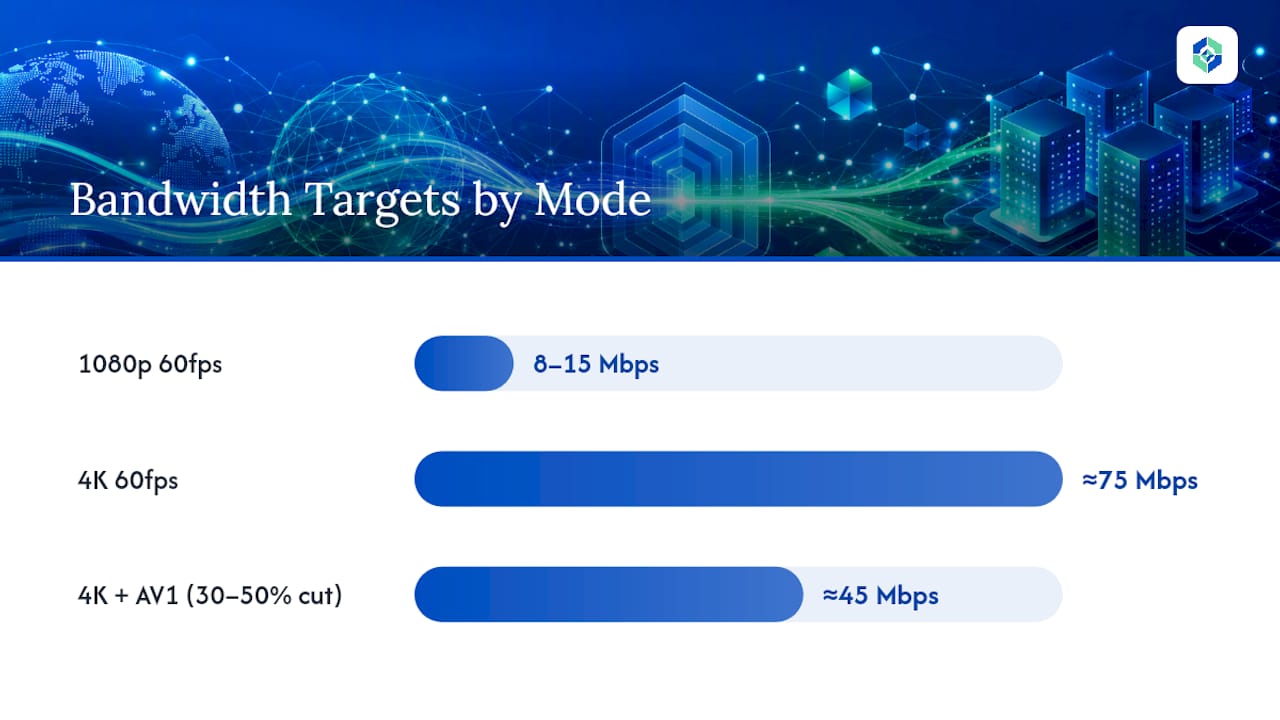
- Maintaining a bandwidth of at least 8 to 15 Mbps for 1080p60 and around 75 Mbps for 4K60 is necessary, with AV1 encoding reducing these needs by nearly half.
- Using full-screen or GPU/direct capture instead of window capture significantly improves frame rate by avoiding slower compositing paths.
- For motion-intensive tasks requiring high refresh rates, dedicated local screen sharing tools surpass conferencing applications in speed, responsiveness, and visual clarity.
Table of Contents
- Quick Checklist: Immediate Changes to Try for Better FPS
- What GPU, Encoders, and OS Features Matter for High-FPS Sharing
- Network Setup and Bandwidth Targets for High Frame Rates
- Capture Choices and Encoding Settings That Preserve Clarity
- Exact App and OS Settings to Change by Use Case
- A Diagnostic Flow for Lag, Drops, and Blurriness
- How a Local, GPU-Accelerated Tool Puts These Steps Into Practice
- When High FPS Screen Sharing Is Actually Worth the Trouble
- Try Local, GPU-Accelerated Screen Sharing With Kinodesk
- Sources
- FAQ
Quick Checklist: Immediate Changes to Try for Better FPS
Before touching encoder settings or buying hardware, run through these changes. Most take under five minutes and several will fix the problem outright.
- Switch to wired Ethernet. Wi-Fi introduces jitter that drops frames even when your raw bandwidth looks fine on a speed test.
- Close background apps, especially anything using the GPU (games, video editors, other capture software) that competes for encoder resources.
- Use entire-screen or GPU/direct capture instead of window capture. Window capture in many apps runs through a slower compositing path.
- Enable hardware acceleration and raise the app's FPS limit if one exists, rather than leaving it on an auto or default setting.
- Raise your bitrate or switch to constant quality encoding. If bandwidth is genuinely limited, drop resolution before you drop frame rate.
- Test locally first. Share your screen with a device on the same network to rule out your internet connection entirely.
Pro Tip: Run the local test before you touch a single setting. If FPS is already choppy on the same LAN with no internet involved, the problem is your host machine or capture method, not your connection.
What GPU, Encoders, and OS Features Matter for High-FPS Sharing
The GPU does most of the real work in high frame rate streaming, and the CPU should barely be involved. Screen capture and video encoding are separate jobs, and pushing both onto the CPU is exactly why laptops choke at 20fps while trying to share a simple desktop.
Hardware encoders offload that work almost entirely:
- NVENC on NVIDIA GPUs handles encoding without touching CPU cycles, which is why it's the default choice for gaming-adjacent capture tools.
- VA-API does the equivalent job on Intel and AMD GPUs under Linux.
- Apple VideoToolbox provides hardware encode on Mac hardware, which is part of what makes High Performance screen sharing possible on macOS.
A 144Hz or 240Hz monitor does not automatically mean a 144 or 240fps stream. Your display's refresh rate only matters if your encoder and network can actually keep pace with it. A high refresh panel with a weak encoder pipeline just means you're staring at a smooth desktop while streaming a stutter copy of it.
Operating system capture APIs matter more than most people realize. Apple's High Performance screen sharing mode, built into Remote Desktop, unlocks higher frame rates and better color handling specifically because it bypasses the standard compression path. Windows has its own capture API differences between the legacy GDI method and the newer Desktop Duplication API, and picking the wrong one silently caps your frame rate.
Integrated GPUs handle basic screen sharing capture fine, and for a single 1080p meeting stream at 30fps, an integrated chip like Intel Iris or AMD's onboard graphics is usually enough. Discrete GPUs become necessary once you're pushing 60fps at higher resolutions, running GPU-direct capture tools, or doing anything simultaneously demanding, like gaming while you stream your desktop to a second machine.
Network Setup and Bandwidth Targets for High Frame Rates
Bandwidth requirements scale fast once you combine resolution and frame rate, and most people underestimate by a wide margin.
- 1080p at 60fps typically needs somewhere in the range of 8 to 15 Mbps depending on encoder efficiency and content complexity.
- 4K at 60fps is a different tier entirely. Apple recommends roughly 75 Mbps for a single 4K display using High Performance screen sharing, and that number climbs fast if you're sharing more than one display.
- AV1 encoding can cut those numbers by roughly 30 to 50% compared to HEVC at similar visual quality, where the capture tool supports it.
Wired Ethernet beats Wi-Fi for one specific reason: jitter, not raw throughput. A Wi-Fi connection can report plenty of bandwidth on a speed test and still drop frames constantly, because jitter and inconsistent packet delivery break the steady timing a smooth stream depends on. Wi-Fi also suffers from channel congestion in apartment buildings or offices with dozens of overlapping networks, which a cable simply doesn't experience.
To isolate the actual bottleneck, test on your local network before blaming your internet provider. If frame timing is inconsistent even on a same-room LAN test with zero internet traffic involved, the issue lives in your capture setup, not your connection. Where Wi-Fi is unavoidable, prioritizing screen sharing traffic through router QoS settings and shutting down other bandwidth-heavy devices (streaming boxes, backups, other video calls) narrows the gap considerably.
Capture Choices and Encoding Settings That Preserve Clarity
Full-screen or compositor-level capture nearly always beats window capture for frame rate, because window capture in many applications routes through a slower rendering path designed for compatibility across window managers rather than speed. If your app offers a choice, capturing the entire display or using a direct/GPU capture mode skips that overhead entirely.
Encoding mode matters as much as resolution. Constant QP (CQP) or constant-quality modes keep a fixed level of detail across the whole frame, which is exactly what text and UI elements need to stay legible. Variable bitrate (VBR) encoding, by contrast, allocates bits dynamically and tends to under-serve static content like a code editor or spreadsheet, smearing text edges to save bandwidth for the small area with actual motion. Increasing FPS without fixing this doesn't help. A blurry 60fps stream is still blurry, just updating more often.
For text-heavy sessions, coding, terminal work, design software, favor CQP or constant-quality encoding with a slightly elevated bitrate and more frequent keyframes, rather than letting a VBR encoder decide what to compress. Projects like zerocast illustrate this well: pairing GPU-direct capture with a CQP-style hardware encode path preserves frame timing and text clarity simultaneously, which is much harder to achieve with a software encoder juggling both jobs on the CPU.
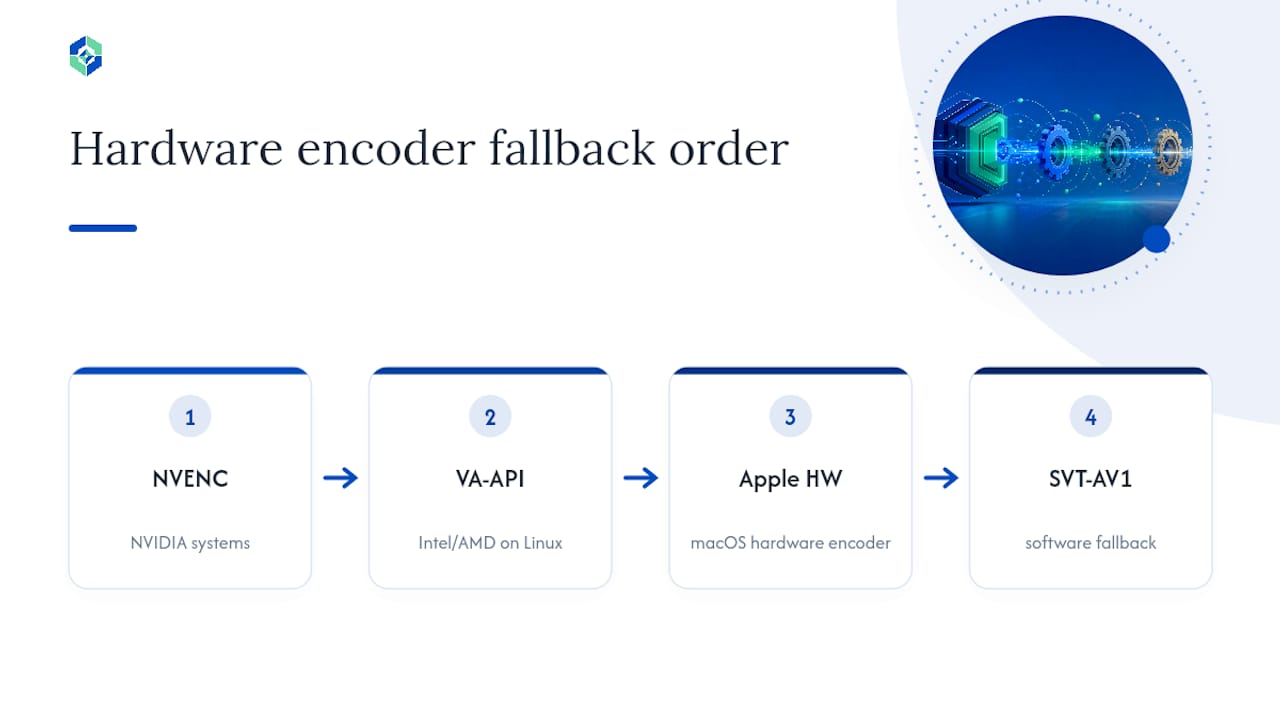
Hardware encode fallback order generally runs NVENC first on NVIDIA systems, VA-API on Intel or AMD under Linux, and Apple's hardware encoder on macOS, with software encoding like SVT-AV1 as a last resort when no hardware path is available.
Pro Tip: If your shared screen looks blurry during fast scrolling or window drags, don't just raise the frame rate. Check whether the app is using VBR encoding first. That's almost always the actual culprit.
Exact App and OS Settings to Change by Use Case
Where you go digging for these settings depends entirely on what you're using, and the menus are rarely where people expect.
- Zoom: advanced screen share settings include an FPS limit toggle and hardware acceleration options buried in the advanced sharing preferences, not the main video settings panel.
- Microsoft Teams: FPS is often capped by default for compatibility, and Microsoft's own troubleshooting guidance points to disabling specific features and enabling hardware acceleration to recover lost frame rate.
- Browser-based tools: entire-display capture generally performs better than a single browser tab capture, since tab capture often runs through additional compositing layers inside the browser itself.
- macOS: High Performance screen sharing requires enabling it explicitly in Remote Desktop's connection settings, and it only activates when both machines meet the color and bandwidth requirements Apple documents.
- Remote control and gaming setups: disable background blur, virtual camera effects, and any beautification filters. These run continuously on the GPU and directly compete with your encoder for the same resources.
For workflows built around real-time feedback, live coding sessions, design reviews, or controlling a second machine, these settings changes often matter more than the raw specs of either machine involved.
A Diagnostic Flow for Lag, Drops, and Blurriness
Work through these in order rather than guessing at a fix, since each step eliminates a whole category of possible cause.
- Run a local loopback or same-LAN test. Share your screen to a device on your own network with the internet connection unplugged or disabled. If it's still choppy, the internet was never the problem.
- Check real-time stats. Most apps and dedicated tools expose live bitrate, packet loss, and FPS counters. Packet loss above roughly 1 to 2% will visibly break frame continuity, and a bitrate that keeps dropping mid-session usually points to network congestion, not your source machine.
- Force hardware encode if it isn't already active. Many apps silently fall back to software encoding when a hardware encoder isn't detected correctly, and this is one of the most common invisible causes of choppy sharing.
- Switch capture methods. Move from window capture to full-screen or direct capture and see if frame rate improves immediately, which tells you the compositor was the bottleneck.
- Adjust resolution or bitrate as a last resort, and switch to a wired connection if you haven't already.
Pro Tip: Keep a screenshot of your stats panel from a "good" session. When something breaks later, comparing against that baseline takes minutes instead of hours of guessing.
If none of this resolves it, gather logs (encoder type, resolution, bitrate, and network stats) before contacting support. Vague "it's laggy" reports are far harder to diagnose than a session with actual numbers attached.
How a Local, GPU-Accelerated Tool Puts These Steps Into Practice
Everything covered so far, wired connections, hardware encode, GPU capture, adequate bitrate, is exactly what a purpose-built local screen sharing tool does by default instead of leaving you to configure it manually. Some local screen sharing tools connect two Windows PCs directly over a local network, using GPU-accelerated capture and hardware video encoding to achieve high refresh rates, well beyond what typical conferencing apps target.
This approach fits certain setups particularly well:
- Home lab management, where you're controlling a headless server or NAS from a laptop across the room and need the interface to feel instant, not delayed.
- Studio workstations, where a second machine handles rendering or audio processing and you need real-time visual feedback without compression artifacts.
- Any workflow involving fast visual feedback, live code execution, design tweaks, real-time control, where even a quarter-second of lag breaks your rhythm.
Deciding between a dedicated local tool and your existing meeting platform comes down to three questions: do both machines sit on the same network, does the workflow demand real interactivity rather than passive viewing, and are you comfortable installing Windows software rather than relying on a browser tab. If the answer to all three is yes, a local-first tool with integrated setup assistance and AI help for troubleshooting connection issues will outperform anything cloud-routed by a wide margin.
When High FPS Screen Sharing Is Actually Worth the Trouble
Not every use case needs 60fps or higher. A weekly status meeting with a shared slide deck is perfectly fine at 15 to 30fps. Nobody notices the difference when the content barely moves. Where high frame rate genuinely earns its complexity is anything involving motion or real-time reaction: watching a game render live, controlling a second PC's cursor precisely, reviewing video edits frame by frame, or pair programming where scroll lag breaks your train of thought.
The trade-off is real. Higher FPS means more bandwidth, more setup complexity, and often installing something beyond your browser. Before committing to a high-performance workflow, ask yourself four things: does the task actually involve fast visual motion, is your network wired or at least strong Wi-Fi, are both machines capable of hardware encoding, and are you willing to install a dedicated app rather than stay inside a meeting link. If you answer no to the network or hardware questions, fix those first. No amount of software tuning fixes a router problem.
— Ian
Try Local, GPU-Accelerated Screen Sharing With Kinodesk
If you've made it this far, you already know the honest trade-off: conferencing apps are convenient but capped, while a dedicated local tool gets you the frame rate but asks you to install something. Some dedicated local tools connect two Windows PCs directly over a local network, skip cloud routing entirely, and use GPU-accelerated capture with hardware encoding to reach very high refresh rates, well past anything a meeting platform will offer you.
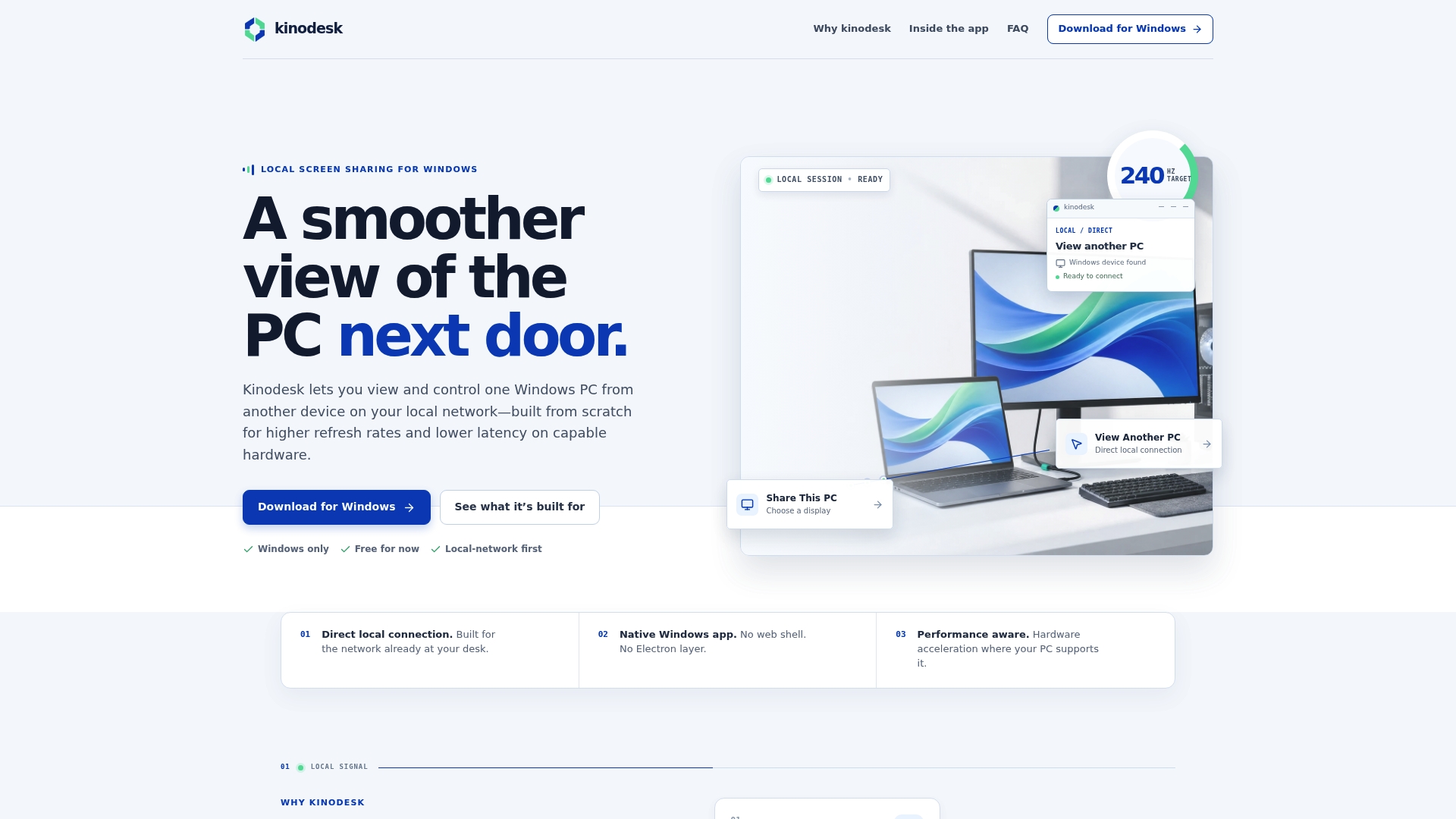
Such tools can be a good fit for home lab control, studio workstation monitoring, or other situations where seeing and controlling a second PC with minimal delay is desired. Setup aims to be simple, with AI assistance handling many troubleshooting steps automatically, matching encoder settings and network conditions without requiring deep manual configuration. If workflows like remote AI tool collaboration matter to you, the same clarity and responsiveness principles from productivity-focused workflows apply directly here.
Download Kinodesk and connect your first PC in a few minutes.
Sources
- Use High Performance screen sharing - Apple Support
- Increase FPS in Teams Screenshare - Microsoft Q&A
- danielbodart/zerocast
FAQ
How do I fix laggy screen sharing?
Start with a local network test to rule out your internet connection, then check whether hardware acceleration is enabled and whether you're using full-screen capture instead of window capture. If those don't help, switch to a wired connection and force hardware encode if your app supports it.
Is 30fps or 60fps better for streaming?
It depends on the content: 30fps is fine for static presentations or slide decks, but 60fps makes a real difference for anything with motion, like gaming, video review, or live coding with fast scrolling. Higher FPS also demands more bandwidth and a stronger encoder path, so it's not automatically the better choice for every session.
How do I use High Performance screen sharing on macOS?
Enable it in Apple Remote Desktop's connection settings between two Mac devices; it requires both machines to support the feature and a wired or strong network connection to hit Apple's recommended bandwidth, roughly 75 Mbps for a single 4K display.
What causes blurry screen sharing even at high FPS?
Aggressive VBR compression, not low frame rate, is usually the cause, since it under-allocates detail to static content like text. Switching to constant QP or constant-quality encoding fixes this without needing to raise FPS at all.
Do I need a dedicated tool instead of Zoom or Teams for high FPS?
If your workflow needs consistent 60fps or higher with real interactivity, like controlling a second PC or reviewing motion-heavy content, a local tool like Kinodesk generally outperforms meeting apps, which are optimized for broad compatibility rather than maximum frame rate.