
Use DXGI Desktop Duplication when you need full-monitor, low-latency, high-FPS capture with accurate hardware cursor rendering. Prefer Windows Graphics Capture when you need secure, window-specific capture with user consent, or when you're capturing across GPUs. For streaming and remote control where every millisecond counts, DXGI wins almost every time.
TL;DR:
- DXGI Desktop Duplication provides the highest performance with over 240 FPS on 1080p systems but requires manual rotation handling and careful resource management.
- Windows Graphics Capture ensures security and window selection through user consent, making it more suitable for applications that require user approval or cross-GPU capturing.
- Proper implementation involves handling timeouts as normal, releasing resources immediately after use, and detecting display rotation at startup to prevent visual errors.
- Common issues include driver or display settings causing color distortions or black frames, which should be diagnosed by checking HDR and content protection states.
- For low-latency, high-refresh screen sharing, GPU-accelerated solutions like Kinodesk harness DXGI's capabilities without the complexity of custom development.
Table of Contents
- DXGI Capture Windows Requirements: DXGI vs Windows Graphics Capture
- How to Capture DXGI Frames: AcquireNextFrame and Metadata
- Timeouts, Resource Cleanup, Rotation, and Color Handling
- Fixing Common DXGI Capture Errors
- Building a High-FPS, Low-Latency Capture Pipeline
- Where GPU-Accelerated Capture Fits Into Local Screen Sharing
- When to Optimize for Throughput vs. Robustness
- Get High-Refresh Local Screen Sharing Without the DXGI Debugging
- Sources
DXGI Capture Windows Requirements: DXGI vs Windows Graphics Capture
The choice comes down to what you're capturing and who needs to approve it. DXGI Desktop Duplication hands you a raw monitor buffer, no picker, no consent dialog, just a texture representing the entire output. Windows.Graphics.Capture instead routes through a system picker where the user selects a specific window or display, then delivers frames through a GraphicsCaptureSession.
That architectural difference cascades into everything else:
- Throughput: DXGI backends report over 240 FPS on 1080p in tuned setups; WGC's frame pool and compositor involvement typically add overhead.
- Security posture: WGC requires explicit user consent through its picker UI, which anti-cheat systems and security-conscious apps generally trust more than a raw duplication handle.
- Cursor rendering: DXGI preserves the hardware cursor plane when the GPU supports it; WGC can force a software-rendered cursor through DWM, which sometimes introduces a slight lag between pointer and video.
- Rotation handling: DXGI returns the surface in it sun-rotated native orientation, forcing you to rotate manually; WGC generally normalizes this for you.
For a remote-control app where cursor precision determines whether clicking actually lands where the user expects, that cursor behavior alone tips the decision toward DXGI.
How to Capture DXGI Frames: AcquireNextFrame and Metadata
The core DXGI loop revolves around one function: IDXGIOutputDuplication::AcquireNextFrame. Call it, check the HRESULT, and process what comes back in the right order or your frames will look corrupted.
Here's the sequence that actually works:
- Call
AcquireNextFramewith a timeout value. ADXGI_ERROR_WAIT_TIMEOUTisn't a bug, it means nothing changed since the last frame, which happens constantly on an idle desktop. - Read
DXGI_OUTDUPL_FRAME_INFOto get the accumulated frame count and metadata sizes before touching pixel data. - Process move regions first. These describe blocks of the desktop that shifted position (dragging a window, for example) and must be applied before anything else or you'll paint stale pixels into the wrong spot.
- Then apply dirty regions, the actual pixel-level changes, on top of the corrected buffer.
- Query the pointer separately with
GetFramePointerShapeto get cursor position and shape data, since DXGI doesn't composite the cursor into the frame buffer itself.
That metadata-driven approach exists for a reason: full-frame copies at 240 FPS would saturate GPU-to-CPU bandwidth almost instantly. Processing only the changed rectangles is what makes high-refresh capture viable at all.
One detail trips up a lot of first-time implementers: DXGI always hands you DXGI_FORMAT_B8G8R8A8_UNORM surfaces. That's a straightforward 8-bit-per-channel BGRA layout, but if your encoder or shader pipeline assumes RGBA or a different bit depth, you'll get swapped color channels that look like a driver bug but aren't.
Timeouts, Resource Cleanup, Rotation, and Color Handling
Getting the happy path working is the easy part. The stuff that breaks in production is timeout logic, memory lifetimes, and orientation.
Timeout and retry strategy: Treat DXGI_ERROR_WAIT_TIMEOUT as the normal case, not an exception path. A static desktop can go seconds without producing a new frame, and treating that as an error rather than a pacing signal is one of the most common mistakes in DXGI code. Set a reasonable timeout (often 15 to 50 milliseconds for real-time apps), and on timeout, just reuse the last frame or skip the render tick.
Resource lifetimes: Every successful AcquireNextFrame call gives you an IDXGIResource. You must release it by calling ReleaseFrame before the next AcquireNextFrame call, or the duplication interface will eventually stall. If you convert that resource into an ID3D11Texture2D, track that reference separately and release it once you've copied or encoded the pixel data, not before.
- Release the
IDXGIResourceimmediately after extracting the texture reference. - Call
ReleaseFrameon the duplication interface every single iteration, even on error paths. - Don't hold onto a texture reference across frame boundaries; copy what you need and let it go.
Rotation: DXGI returns the desktop image in its native, un-rotated form. If the display is rotated 90 or 270 degrees in Windows display settings, your captured buffer won't match what the user sees on screen. You need to detect the output's rotation state and apply a matching transform, either in a pixel shader or during the copy step.
Pro Tip: Check the output's rotation state once at startup and cache it. Querying rotation on every frame adds unnecessary overhead, and rotation rarely changes mid-session unless the user physically rotates a monitor.
Driver-level color correction is a separate headache. Some GPU drivers apply automatic brightness or HDR tone-mapping that DXGI captures faithfully, meaning your output looks washed out even though nothing is wrong with your code.
Fixing Common DXGI Capture Errors
Most DXGI bugs fall into four buckets. Here's how to triage them fast.
- Whitewashed or overly bright frames. This is almost always a driver or display setting issue, not a code bug. Check whether HDR is enabled on the display and whether the GPU driver's color management settings are applying tone mapping before the frame reaches your buffer. Developer reports on this exact symptom point to disabling automatic color enhancement or handling the conversion explicitly in your own pipeline.
DXGI_ERROR_ACCESS_LOST. This fires when the desktop session changes state, a user locks the screen, switches GPU output, or a driver resets. The fix isn't a retry loop on the same duplication object. You need to fully recreate theID3D11Device, re-queryIDXGIOutputDuplication, and rebuild your capture pipeline from scratch.- Protected or DRM content. DXGI will return black frames for content flagged with output protection (streaming video players, some DRM-locked windows). Detect the black-frame pattern and degrade gracefully rather than treating it as a capture failure.
- No frame updates. Distinguish a genuinely static desktop, which produces timeouts, from an actual capture stall. If timeouts persist for many seconds even when you know the desktop is changing, that usually signals a lost duplication handle, not a slow screen.
Building a High-FPS, Low-Latency Capture Pipeline
The difference between a DXGI implementation that hits 240 FPS and one that chokes at 60 almost always comes down to how much unnecessary copying happens per frame.
- Lean on the metadata. Move and dirty rectangles exist specifically so you avoid full-frame copies on every tick. Skipping this and blotting the entire surface every frame is the single biggest performance killer in naive implementations.
- Pool your textures. Allocating a new
ID3D11Texture2Devery frame at high refresh rates generates garbage collection and driver overhead that adds up fast. Reuse a fixed set of buffers instead. - Do color and scale work on the GPU. Pulling pixel data to the CPU for format conversion or resizing, then pushing it back, wastes bandwidth you don't have room for at 240 Hz. Benchmarked capture libraries consistently show GPU-side pipelines outperforming CPU roundtrips by a wide margin.
- Set a fallback policy. If a target machine can't sustain your desired frame rate with DXGI (older GPU, driver quirks), drop to a lower capture rate or fall back to WGC rather than forcing a backend that's fighting the hardware.
Where GPU-Accelerated Capture Fits Into Local Screen Sharing
Kinodesk's local screen sharing runs on GPU-accelerated capture specifically to hit up to 240 Hz between two Windows machines on the same network, which is exactly the throughput ceiling DXGI is built for. That kind of performance only matters when latency has a real cost, home lab management, live studio monitoring, remote design work where a half-second of pointer lag ruins the feel.
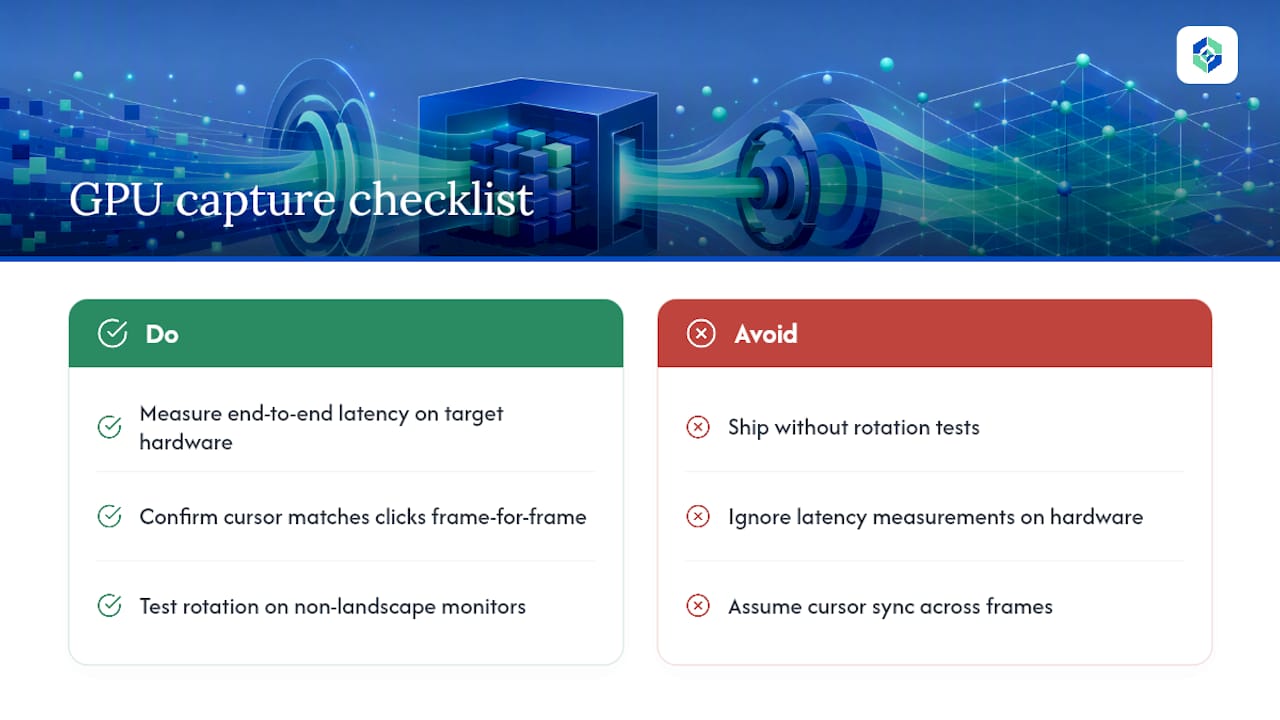
If you're building your own capture pipeline and evaluating whether DXGI belongs in it, run a short checklist first: measure end-to-end latency on your actual target hardware, confirm cursor position matches pointer clicks frame for frame, and test rotation handling on any monitor that isn't in landscape default. Skipping that last check is how rotated-desktop bugs make it to production.
When to Optimize for Throughput vs. Robustness
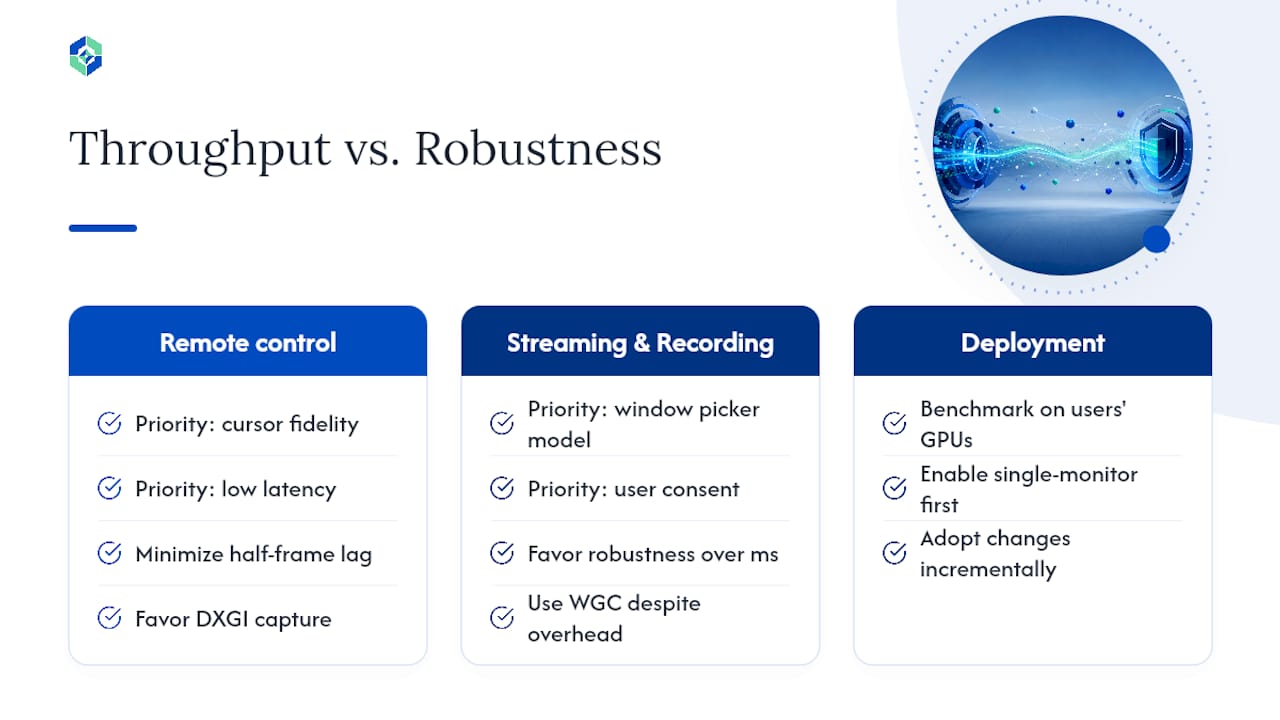
Streaming and remote-control apps have different priorities, and conflating them leads to the wrong architecture. If you're building a remote-control tool, prioritize DXGI's cursor fidelity and low latency over almost everything else, since a half-frame of pointer lag breaks the whole interaction. If you're building a general streaming or recording tool where window-specific capture and user consent matter more than shaving off milliseconds, WGC's picker model is worth the overhead.
Before committing either way, benchmark on the actual GPUs your users run, not just your dev machine, and adopt incrementally: get DXGI working reliably on one monitor configuration before you chase multi-GPU or multi-monitor edge cases.
— Ian
Get High-Refresh Local Screen Sharing Without the DXGI Debugging
If everything above sounds like a lot of plumbing to build just to get smooth, low-latency screen sharing between two Windows PCs, that's because it is. Kinodesk already does that work for you.
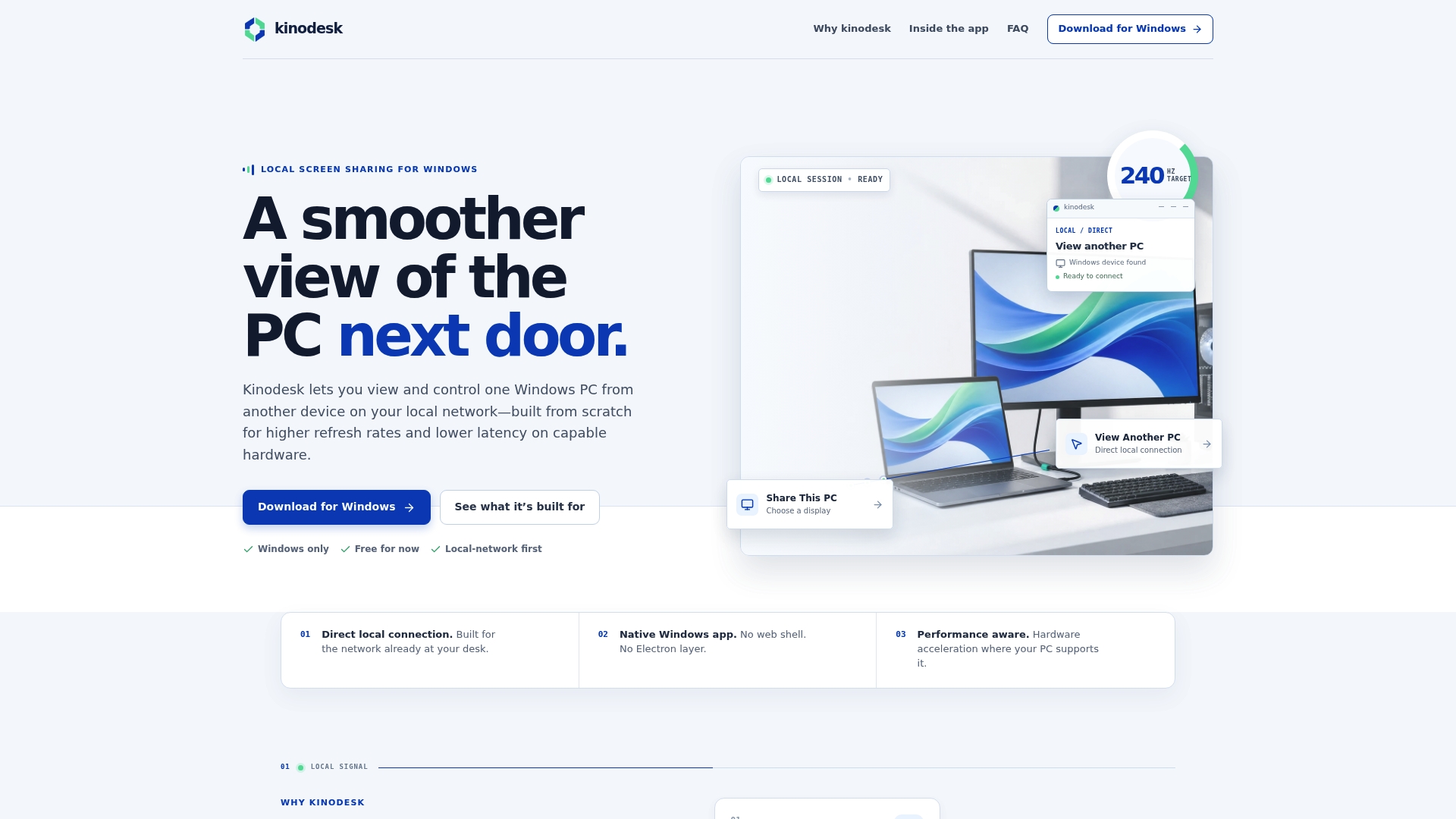
Some local screen sharing tools connect two Windows machines directly over the local network and skip cloud relays entirely to reduce latency. Such tools can use GPU-accelerated capture to deliver up to 240 Hz refresh rates, harnessing the throughput ceiling that makes DXGI a suitable technical choice for developers. For home lab setups, studio workstations, or any workflow requiring frequent switching of control between machines, responsiveness is a key goal. Some solutions bundle integrated AI assistance for setup and troubleshooting to simplify the process of achieving a stable connection. If you're weighing whether to build a custom DXGI pipeline or just need reliable, high-speed control between two PCs on your network, download Kinodesk and get it running in a few minutes.