
For high-refresh local Windows screen sharing, skip the physical dummy plug and use a virtual display adapter paired with GPU-accelerated DXGI capture and a UDP or QUIC based transport. That combination is what actually preserves native resolution and refresh rates between two Windows PCs on the same network. Kinodesk builds this exact stack into one downloadable app, which makes it a practical starting point if you'd rather not assemble the pieces yourself.
TL;DR:
- Virtual display adapters maintain GPU driver activity and desktop composition, enabling high refresh rates and hardware acceleration without physical monitors.
- Using a dedicated capture stack with DXGI Desktop Duplication and hardware encoders like NVENC or QSV reduces latency compared to older methods, supporting 120 to 240 Hz.
- Long-term remote sessions require either autologon with firewall restrictions or running the capture as a Windows Service to ensure persistent GPU and desktop initialization.
- Proper setup involves verifying driver status, display resolution, encoder activity, and network connections, with a focus on UDP or QUIC transport to minimize latency and jitter.
- Kinodesk simplifies this process by packaging the stack into an app that automates driver checks, session management, and network configuration for high-refresh remote Windows display sharing.
Table of Contents
- Why virtual display adapters beat a dummy HDMI plug on Windows
- Keeping the session alive: autologon, services, and driver setup
- Choosing your capture, encoder, and transport stack
- How do you set up and verify a virtual display for high refresh?
- Why is my dummy HDMI plug Windows setup not hitting full refresh?
- What actually works in headless Windows setups
- Kinodesk: built for this exact stack
- Where to go deeper on this stack
- Sources
Why virtual display adapters beat a dummy HDMI plug on Windows
A dummy HDMI plug tricks a graphics card into thinking a monitor is attached, but it does nothing for the software layer that actually renders and streams your desktop. A virtual display adapter solves a different problem: it registers a persistent display surface with Windows so the GPU driver stays fully initialized, even with zero physical monitors connected. That distinction matters for anyone building a headless Windows workstation for remote control.
Without one, Windows often falls back to the Microsoft Basic Display Adapter the moment no monitor is detected. That fallback driver disables hardware acceleration, kills desktop composition, and quietly caps you at low resolutions. It's the single most common reason a "headless" Windows box feels sluggish over remote access.
With a proper virtual display driver installed, two things happen:
- The GPU vendor driver (NVIDIA, AMD, or Intel) stays active instead of handing control to a generic fallback driver.
- Desktop Duplication API, part of the DXGI framework, gets a real composited frame to capture, straight off the GPU with minimal copying.
That second point is why capture method matters as much as the driver. Virtual display adapters exist specifically to let GPU-accelerated rendering and capture work without a monitor attached, and DXGI Desktop Duplication is the API built to pull frames off that pipeline at native refresh rates rather than at some throttled software-rendered pace.
Keeping the session alive: autologon, services, and driver setup
A headless Windows machine that reboots into a locked login screen is a machine with no GPU acceleration and no capture. Windows only fully initializes the desktop compositor and hardware encoding paths after a user session logs in, so persistence is not optional.
You have two real options here. Autologon signs a user in automatically at boot, which is simple to set up but means anyone with physical or network access to that boot sequence has a live, unlocked session. Registering your capture server as a Windows Service running in Session 0 is more resilient. Practitioners running long-lived remote desktop servers generally prefer the service pattern because it survives reboots without exposing an interactive desktop session the way autologon does.
To get the driver side right:
- Install a virtual display driver before you ever unplug the physical monitor.
- Open Device Manager and confirm the display adapter listed is your GPU vendor's driver, not "Microsoft Basic Display Adapter."
- Check that the virtual display shows up under Settings > System > Display at its intended resolution and refresh rate.
- If running on Windows Server or a VDI host, apply Microsoft's RDS optimization settings to expose hardware encoding and desktop composition to the session.
Pro Tip: If autologon is your only option, bind your capture server to local network interfaces only and add a firewall rule limiting inbound connections to your subnet. It cuts the exposure window without giving up persistence.
Choosing your capture, encoder, and transport stack
DXGI Desktop Duplication is the capture method to use on modern Windows. Older approaches, like GDI-based screen scraping or mirror drivers, poll the desktop instead of grabbing a GPU-composited frame directly, and they fall back hard whenever the display topology changes, like when a virtual display disconnects and reconnects.
Encoder choice determines how much of that captured frame actually costs you in latency:
- NVENC (NVIDIA) offloads encoding to dedicated hardware blocks, leaving the CPU and shading units free for the actual workload.
- QSV (Intel Quick Sync) does the same on integrated and discrete Intel GPUs, useful on lighter workstations.
- AMF (AMD) fills the same role on Radeon hardware.
All three keep CPU usage low compared to software encoding like x264, which is the difference between hitting 240 Hz and stalling at 60.
Transport is where a lot of setups quietly lose the game. RDP runs over TCP, and TCP's retransmission behavior means a single dropped packet can stall the entire frame delivery pipeline, known as head-of-line blocking. For productivity work that's tolerable. For high-refresh, interactive workflows, like a workstation session you're operating in real time, it isn't. Projects like PRISM build on UDP or QUIC-style transports specifically because they let independent frames arrive and get discarded on their own, without blocking everything behind them.
The bottleneck at 120 to 240 Hz is rarely raw bandwidth. It's capture-to-encode latency and network jitter. Encoder preset choices, like zero lookahead, constant bitrate, and minimal B-frames, tend to matter more for perceived responsiveness than pushing a higher bitrate.
How do you set up and verify a virtual display for high refresh?
Getting from a bare Windows install to a verified 240 Hz remote session takes a specific order of operations. Skip a step and you'll spend an hour troubleshooting something the checklist would have caught.
- Confirm your foundation first. Check your Windows build number, install the latest GPU vendor driver (not Windows Update's generic version), and connect both machines to a wired LAN. Wi-Fi introduces jitter that undermines everything downstream.
- Install the virtual display driver and verify it in Device Manager before removing any physical monitor.
- Set persistence. Enable autologon for a quick test setup, or register your capture application as a Windows Service for anything long-running.
- Configure the capture app to use DXGI Desktop Duplication and select your GPU's hardware encoder, not a software fallback.
- Open the required UDP ports on both Windows Firewall and your router if you're crossing subnets, and set the transport to UDP or QUIC rather than TCP.
- Tune bitrate and buffer settings conservatively at first, then raise them while watching for dropped frames.
- Verify the result: confirm the reported refresh rate in Windows Display settings matches your target, then run an interactive test like rotating a 3D viewport or scrubbing a game timeline to feel for stutter.
| Check | What you're confirming | Tool to use |
|---|---|---|
| Driver status | GPU driver active, not Basic Display Adapter | Device Manager |
| Display output | Correct resolution and refresh reported | Settings > System > Display |
| Capture path | DXGI Desktop Duplication in use | Capture app logs |
| Encoder | Hardware encoder (NVENC/QSV/AMF) active | Task Manager GPU encode graph |
| Transport | UDP/QUIC connection, not TCP fallback | Capture app network stats |
| Latency | End-to-end delay under roughly one frame interval | Manual input-to-display test |
Why is my dummy HDMI plug Windows setup not hitting full refresh?
Most failures trace back to one of four causes, and they're worth checking in order.
- GPU driver reverted to Basic Display Adapter. Check Device Manager first; this alone explains 90% of "why is my remote session so laggy" complaints.
- Encoder not actually engaged. Watch the GPU encode graph in Task Manager. If it's flat while your capture app is running, you're on a software fallback.
- Firewall or discovery blocking the connection. Confirm the required UDP ports are allowed on both machines, especially after a Windows Update resets firewall rules.
- Virtualized or GPU-passthrough hosts need vendor-specific drivers. On virtual machines, standard consumer GPU drivers often won't expose hardware encoding; you may need vendor GRID-style drivers built for virtualized environments.
Pro Tip: Check Event Viewer under Applications and Services Logs before assuming it's a network problem. Driver crashes and encoder initialization failures usually leave a clear trace there, and it saves you from chasing a firewall rule that was never the issue.
What actually works in headless Windows setups
The service-plus-virtual-display pattern wins over autologon for anything you're going to leave running for weeks. Autologon is fine for a weekend test on a machine in your own house. It's a worse idea for a workstation sitting on a shared network, because that unlocked session is available to anyone who reaches it before you've layered on firewall rules.
The security fix isn't complicated: bind your capture service to local interfaces only, restrict inbound traffic to your subnet, and treat the autologon credential like any other privileged account. Most home-lab builders skip this step because it feels like overkill on a private network. It isn't, once that network includes a guest device or a smart TV with its own opinions about what it's allowed to talk to.
— Ian
Kinodesk: built for this exact stack
Everything covered above—the virtual display persistence, DXGI capture, hardware encoding, and a transport that doesn't choke under jitter—is what Kinodesk packages into one Windows app instead of a weekend project.
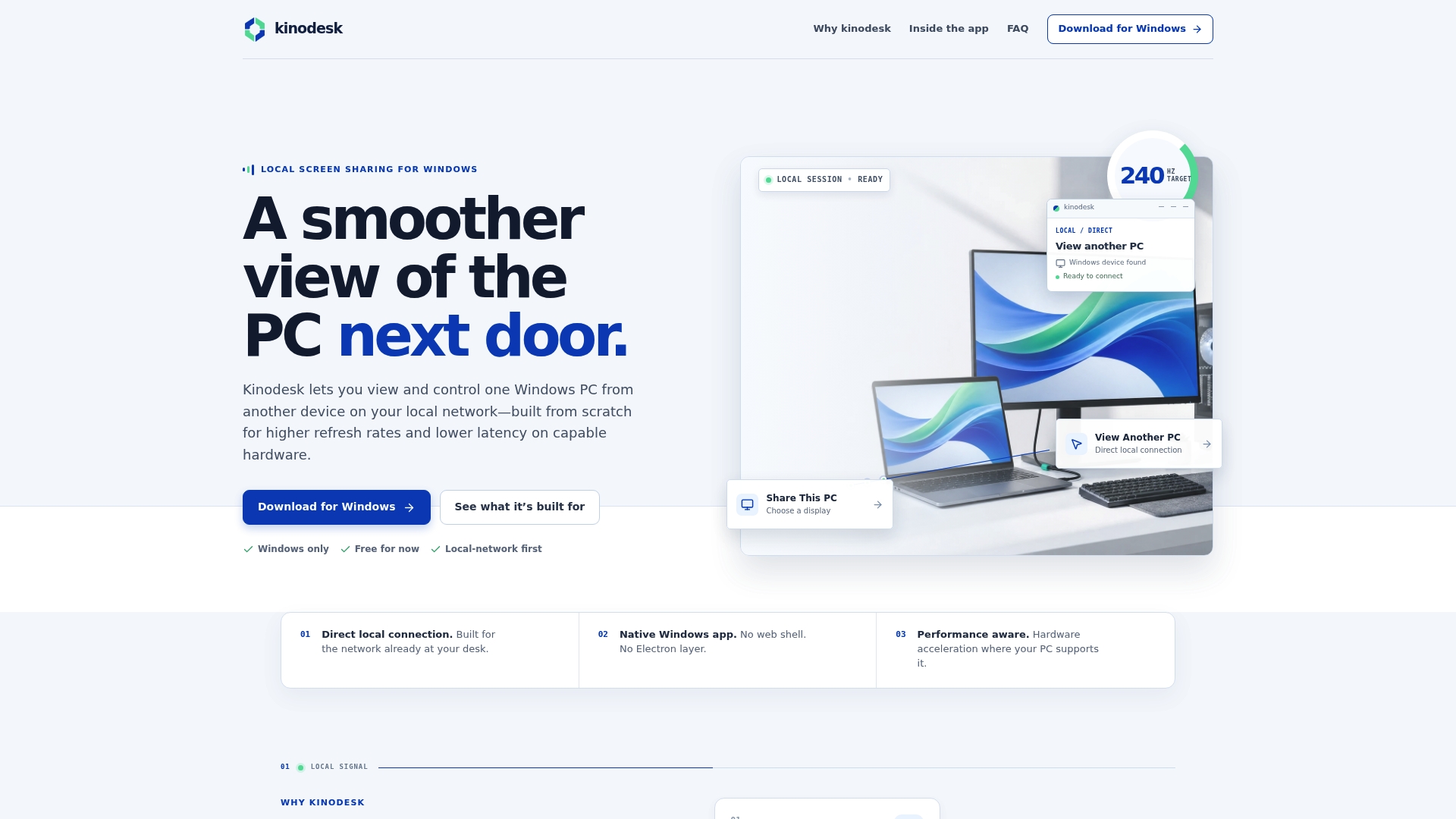
The app delivers GPU-accelerated capture over a local network, with a connection process built around finding and pairing PCs directly instead of configuring ports and services by hand. Its integrated assistance walks you through the driver and setup checks this guide covers, which matters most the first time something doesn't detect correctly. That covers the exact failure points detailed above: driver fallback, encoder selection, and session persistence, without you needing to hand-configure a service or track down a virtual display driver separately. If you're setting up a home lab or studio workstation and want the checklist above already handled, download Kinodesk and connect your first PC pair directly on your network.
Where to go deeper on this stack
Microsoft's RDS and VDI optimization documentation covers the registry and Group Policy settings behind session GPU access in detail. For implementation examples, the PRISM and Phantom GitHub projects show working DXGI-to-NVENC pipelines and Windows Service install patterns you can study directly.