
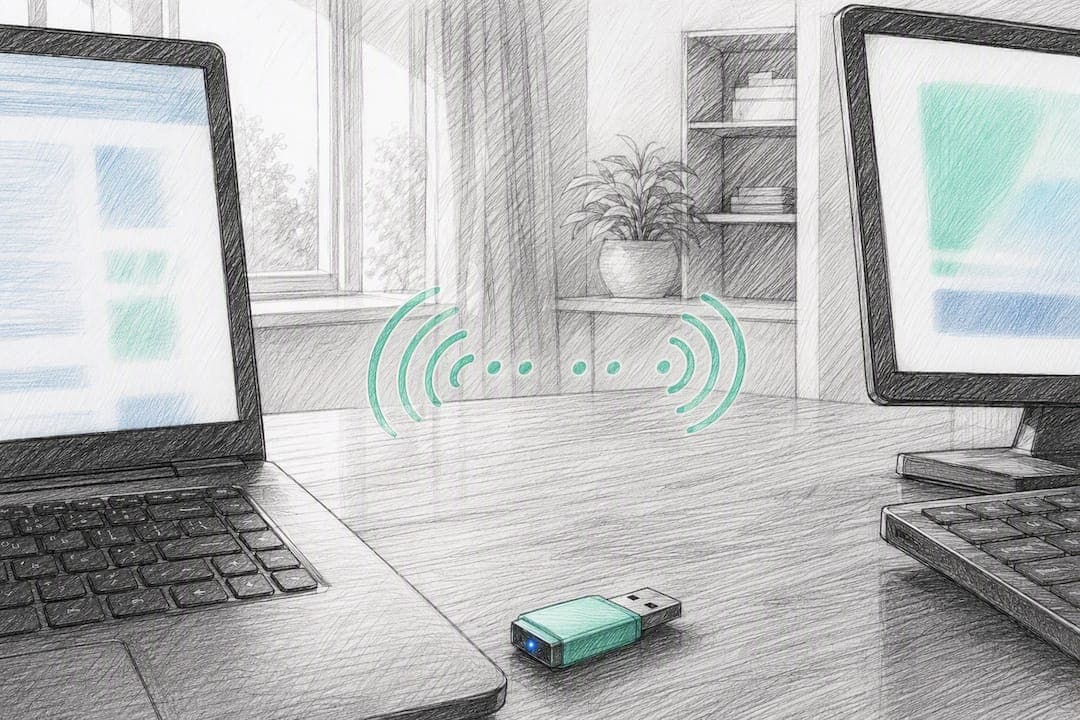
True legacy ad hoc mode is dead on most modern Windows machines, so the practical answer is to skip it and use a Windows hotspot (AP mode) or a USB AP adapter instead. Both give you a router-free, direct Wi‑Fi link that RDP can ride over with static IPs on each side. If you want the same result without wrestling with driver quirks, a supported Windows-first tool like Kinodesk gets you there without the networking homework.
TL;DR:
- Using a Windows hotspot or USB Wi‑Fi adapter is more reliable than legacy ad hoc mode for direct device connections in 2026.
- Verify your Windows edition is Pro, Enterprise, or Education and ensure your wireless adapter supports hosted network or Mobile Hotspot mode before setup.
- A breakdown in connection often stems from driver support issues, incorrect IP configuration, or firewall missettings rather than hardware faults.
- For routine or high-performance remote desktop use, dedicated local tools like Kinodesk can offer more consistent, GPU-accelerated screen sharing without manual network reconfiguration.
Table of Contents
- What You Need Before Setting Up an Ad Hoc Wi‑Fi Remote Desktop Connection
- How to Create a Direct Wi‑Fi Hotspot Between Two Windows PCs
- Setting Static IPs and Picking the Right Adapter for RDP Traffic
- Turning on Remote Desktop and Fixing the Firewall
- Connecting From a Mac or Mixed-OS Setup
- A Fast Troubleshooting Checklist When the Connection Won't Come Up
- Keeping Your Temporary Network and RDP Session Secure
- Why a Supported Local Tool Beats Rebuilding This Every Time
- What I'd Actually Recommend After Testing This Logic Through
- Try Kinodesk for Local Screen Sharing That Doesn't Fight Your Hardware
- Where These Technical Details Came From
- Sources
- FAQ
What You Need Before Setting Up an Ad Hoc Wi‑Fi Remote Desktop Connection
Before touching any settings, confirm three things or you'll waste twenty minutes chasing a problem that isn't really a problem.
First, check the Windows edition on the host machine. Incoming RDP connections only work on Windows Pro, Enterprise, or Education. Windows Home cannot accept RDP sessions, period, no matter how well you configure the network. Open Settings > System > About and check the edition before doing anything else.
Second, confirm the account you plan to use has the right permissions. The user must either be an administrator or be manually added to the Remote Desktop Users group, covered in the firewall section below.
Third, verify your wireless adapter can actually run in AP or hosted network mode. This is the step most guides skip, and it's the one that kills more setups than anything else. An ad hoc network in the strict technical sense is a decentralized, peer-to-peer link with no access point at all, but most built-in Windows adapters no longer support that legacy IBSS mode. What they often do support is a software access point (SoftAP), which is functionally similar for our purposes and far more reliable.
Run this checklist before you start:
- Open Settings > System > About and confirm Windows Pro, Enterprise, or Education on the host.
- Open an elevated PowerShell window and run
netsh wlan show drivers. Look for "Hosted network supported: Yes." - If that line says "No," plan on Windows Mobile Hotspot or a $15 to $25 USB Wi‑Fi AP dongle instead.
- Confirm you have administrator rights on both machines.
- Have
ipconfig,ping, andnetstatready. You'll use all three later.
If the driver check comes back negative, don't fight it. Move straight to the Mobile Hotspot method in the next section.
How to Create a Direct Wi‑Fi Hotspot Between Two Windows PCs
Three methods work in 2026, ranked by reliability rather than nostalgia. Skip straight to whichever fits your hardware.
Method 1: Windows Mobile Hotspot (most reliable)
- On the host PC, open Settings > Network & Internet > Mobile hotspot.
- Set "Share my Internet connection from" to any available option. You don't need active internet. This just triggers the AP radio.
- Toggle Mobile Hotspot on. Windows generates a network name and password automatically. Note both, or click "Edit" to set your own.
- On the client machine (or Mac), open Wi‑Fi settings and join that network using the password shown.
- Confirm the connection shows "Connected" with no yellow warning triangle before moving on.
This method sidesteps the AP-mode driver checks entirely because Windows handles the heavy lifting internally, which is exactly why Microsoft engineers pushed users toward it after legacy ad hoc support started breaking on newer wireless chipsets.
Method 2: netsh wlan hostednetwork (legacy, hit or miss)
If your driver check from the prerequisites section came back positive, you can still use the older command-line method:
netsh wlan set hostednetwork mode=allow ssid=OfficeLink key=YourPassword123
netsh wlan start hostednetwork
Run netsh wlan show hostednetwork afterward to confirm it started. A growing share of modern Wi‑Fi chipsets, particularly Intel AX and Realtek RTL8852 series cards, no longer expose the hosted network driver interface Microsoft deprecated in favor of Mobile Hotspot. So, don't be surprised if this command returns an error even on a fairly new laptop.
Method 3: USB Wi‑Fi AP dongle (best for older or Home-edition-adjacent hardware)
A cheap USB AP-capable dongle, plugged into either machine, bypasses built-in adapter limitations entirely. Most ship with vendor software that creates the SSID directly, and they're worth keeping in a drawer if you set up ad hoc links often.
For any method, prefer the 5 GHz band when your hardware supports it. It has less interference from neighboring networks and typically shaves a few milliseconds off round-trip latency, which matters if you're pushing a high-refresh screen feed over the link. Set WPA2 or WPA3 encryption and a sufficiently strong password. Skip open networks entirely, even for a five-minute session.
Pro Tip: Name your temporary SSID something boring and forgettable, like "svc.setup42," rather than your real network name. It keeps curious neighbors from trying to join, and it makes it obvious later which network was the temporary one when you're cleaning up saved Wi‑Fi profiles.
Setting Static IPs and Picking the Right Adapter for RDP Traffic
Once the hotspot is live, the next failure point is IP addressing, and it trips up almost everyone on their first attempt. Modern networking depends on a router handing out addresses through DHCP and handling device discovery automatically. A direct hotspot link often skips that infrastructure, which is exactly why manual, static IP configuration becomes necessary on two-device setups.
Assign addresses like this:
- Host PC wireless adapter:
192.168.137.1, subnet mask255.255.255.0 - Client PC wireless adapter:
192.168.137.2, subnet mask255.255.255.0
Windows Mobile Hotspot typically assigns the 192.168.137.x range automatically through its built-in DHCP, so you may not need to set these manually at all. If you're using the netsh method or a USB dongle without DHCP, set them by hand in Settings > Network & Internet > Wi‑Fi > [network] > Edit IP settings.
A detail that trips up almost everyone: if both PCs have Ethernet cables plugged in and Wi‑Fi active simultaneously, Windows may report the wired adapter's IP first when you run ipconfig, even though the hotspot link is what's actually carrying traffic. Practitioners troubleshooting exactly this problem on Superuser found the fix is always the same: scroll down to the "Wireless LAN adapter" section in the ipconfig output and use that specific IP in your RDP client, not whatever address appears first.
Bridging the Ethernet and Wi‑Fi adapters together to share one internet connection while keeping the ad hoc link separate sounds appealing, but it routinely introduces routing ambiguity and adds latency. For a low-latency local session, keep the adapters separate. If Windows insists on preferring the wired interface for outbound traffic, temporarily disable the Ethernet adapter in Device Manager while you test the RDP connection over Wi‑Fi.
Turning on Remote Desktop and Fixing the Firewall
RDP has to be explicitly enabled and the firewall has to explicitly allow it. Neither is on by default on most consumer setups.
- On the host, open Settings > System > Remote Desktop and toggle it on. Windows will show the PC name you'll need later.
- Click "Select users that can remotely access this PC" and add your account if it isn't already listed. Administrators are added automatically; standard accounts are not.
- Open Windows Defender Firewall with Advanced Security, go to Inbound Rules, and confirm "Remote Desktop - User Mode (TCP-In)" is enabled for the Private profile. Your hotspot connection usually registers as Private, but double-check under Settings > Network & Internet > Wi‑Fi if you're not sure.
- On the host, open Command Prompt and run
netstat -an | findstr 3389. You should see0.0.0.0:3389listed asLISTENING. If it's not there, RDP isn't running yet, and no firewall fix will help until it is. - From the client, run
ping [host wireless IP]first. Only move to the actual RDP client connection once that ping succeeds.
If you're still stuck after confirming all four checks, temporarily disable Windows Firewall entirely on the Private profile as a diagnostic step, not a permanent fix. If RDP suddenly works, you know the firewall rule was misconfigured rather than missing a network path, and you can re-enable the firewall and adjust the specific rule instead of leaving protection off.
Connecting From a Mac or Mixed-OS Setup
macOS can join a Windows hotspot without any trouble, but it has one hard limit worth knowing up front: a Mac cannot act as an RDP host. RDP is a Windows Remote Desktop Services feature, and there's no equivalent server built into macOS.
For joining the network itself, click the Wi‑Fi icon in the menu bar, select the SSID your Windows PC broadcast, and enter the password. To find your Mac's IP on that network, open System Settings > Network, click the connected Wi‑Fi entry, and read the IP listed there. It should sit on the same subnet as the Windows host, something like 192.168.137.x.
For connecting Mac to Windows, use Microsoft's official Remote Desktop app from the Mac App Store, point it at the Windows host's wireless IP, and log in with the Windows account credentials.
- Mac can be an RDP client, never an RDP host.
- Verify the subnet matches before troubleshooting anything else.
- For pure LAN screen viewing without RDP's overhead, lightweight WebRTC-based tools built for same-network use can be a simpler fallback when RDP compatibility becomes the bottleneck.
A Fast Troubleshooting Checklist When the Connection Won't Come Up
Run these in order. Skipping steps is how people spend an hour on a problem that a two-minute check would have caught. This mirrors the exact diagnostic sequence documented in real-world ad hoc RDP troubleshooting threads: confirm the network exists, ping it, confirm RDP is listening, then attempt the connection.
- Ping the host's wireless IP from the client. If it fails, the network link itself is broken, not RDP. Recheck both IPs with
ipconfigand confirm you're reading the wireless adapter section, not Ethernet or a virtual adapter. - Disable other network interfaces temporarily. VPN adapters, virtual switches, and secondary Wi‑Fi cards can all confuse routing. Disable everything except the hotspot link, then retest the ping.
- Recheck AP/hosted mode support and update drivers. If
netsh wlan show driversstill reports "No" after a driver update, stop pursuing that path and switch to Windows Mobile Hotspot or a USB AP dongle instead. - Verify the firewall rule and test with it temporarily disabled. If disabling the firewall fixes the connection, you've isolated the problem to a specific inbound rule rather than a broader network issue.
- If netsh hostednetwork keeps failing, abandon it. It's a deprecated command path on many newer chipsets. Windows Mobile Hotspot exists specifically because Microsoft moved away from that legacy method.
Pro Tip: Keep a plain text note of your adapter model, driver version, and which method worked. The next time a Windows update breaks your setup, you'll know exactly what changed instead of starting the diagnosis from zero.
Keeping Your Temporary Network and RDP Session Secure
A hotspot you spin up for twenty minutes still deserves real security, not an afterthought.
- Always use WPA2 or WPA3 encryption with a genuine password, never an open network, even briefly.
- Limit RDP access to the specific account you need for the session, and remove any temporary firewall rule or user permission once you're done.
- Never expose port 3389 to the public internet directly from a hotspot setup. If you need remote access beyond your local network, route it through a VPN or a proper tunnel instead.
- Disconnect the RDP session and turn off the hotspot as soon as you finish. Leaving either running overnight is an unnecessary open door.
Pro Tip: If you're setting up ad hoc links regularly, for a home lab or a studio machine you access often, treat the SSID and password like you would a Wi‑Fi router's admin credentials. Rotate them occasionally rather than reusing the same string for months.
Why a Supported Local Tool Beats Rebuilding This Every Time
Manual hotspot setup works, but it's not free. Every Windows update, driver refresh, or new laptop resets your assumptions about AP mode support, and you're back to running netsh wlan show drivers and hoping.
This is where a purpose-built local tool earns its place. A purpose-built local tool is designed specifically for Windows-to-Windows screen sharing over a local network, using GPU-accelerated capture and hardware encoding to hit high refresh rates without the CPU strain software capture creates. For home lab setups and studio workstations where a dropped frame actually matters, that consistency beats reconfiguring adapters every few weeks. It also folds in built-in AI assistance for setup and troubleshooting, which cuts out a lot of the driver guesswork this guide just walked you through by hand.
What I'd Actually Recommend After Testing This Logic Through
Manual hotspot and RDP setup is worth learning once. It teaches you how Windows networking actually behaves, and it's genuinely free. But I'd treat it as a skill for occasional use, not a daily workflow. If you're setting up this connection more than once or twice a month, the driver quirks and adapter mode checks start costing more time than they save.
The honest tradeoff: DIY hotspot setup is the right call for a one-off session or when you're troubleshooting on someone else's hardware. A supported tool makes more sense once the connection becomes routine, especially in a home lab or studio setup where a dropped frame or a re-broken driver actually costs you something.
Try the checklist in this guide first. If your adapter refuses AP mode or netsh keeps failing, that's useful information. It tells you exactly what to check before reaching for something more permanent.
— Ian
Try Kinodesk for Local Screen Sharing That Doesn't Fight Your Hardware
If the hotspot and RDP dance in this guide worked fine for you, great, keep it in your back pocket for the next time you need a quick connection. But if you hit adapter mode errors, driver dead ends, or just want a connection that doesn't need re-diagnosing every time Windows updates, that's exactly where a local network screen sharing tool with GPU-accelerated capture and hardware encoding can help. Such tools run entirely over your local network and can deliver high refresh rates without the lag that comes from routing through a cloud relay.
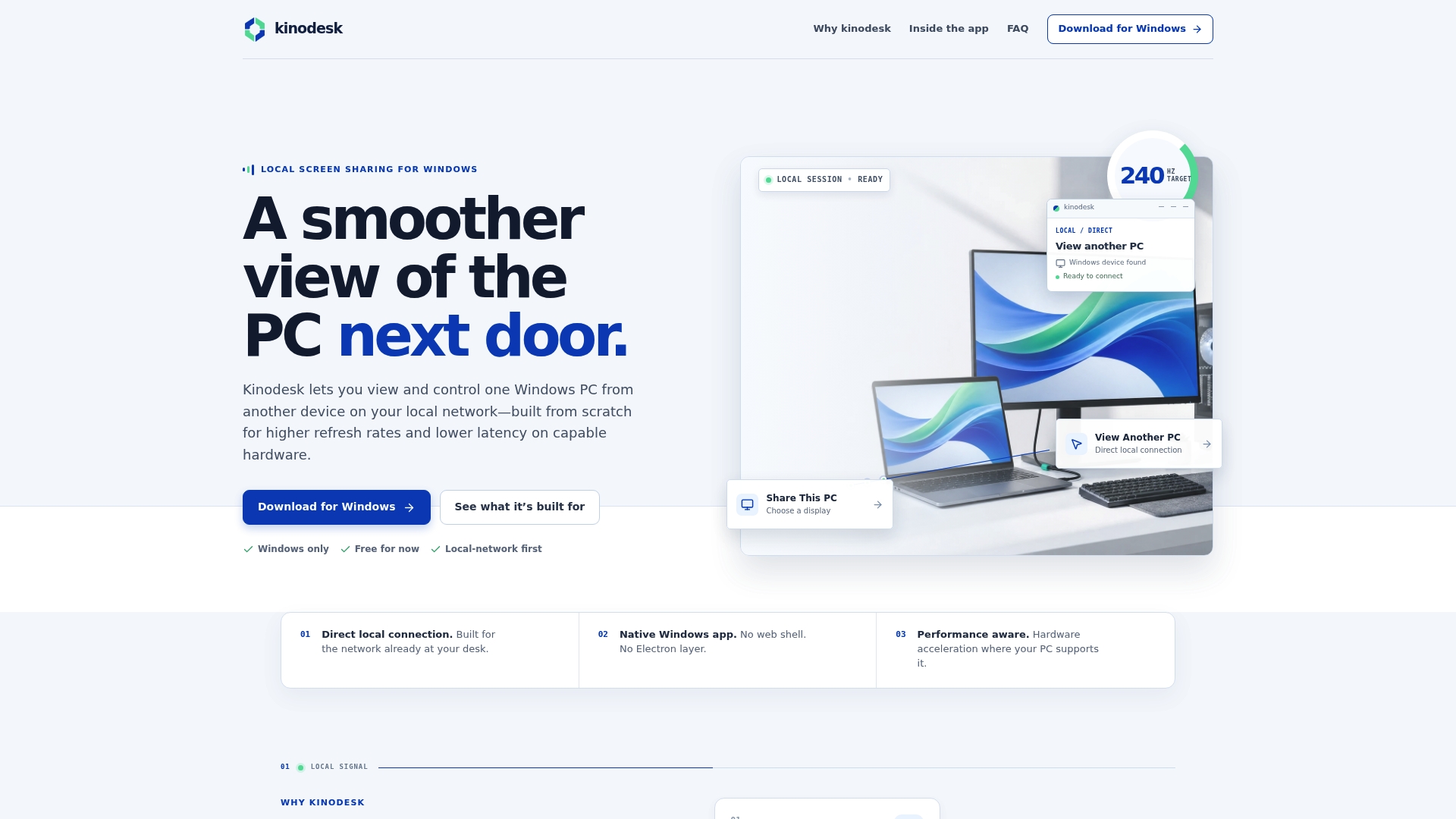
Setup takes a few minutes: install on both machines, and the app handles the connection details that usually eat up half an hour of manual configuration. It's built for Windows PCs specifically, which means no macOS compromises and no guessing whether your adapter supports the right mode. Run through the manual steps in this guide first if you're curious how the underlying network works. When you're ready for something that just stays connected, download Kinodesk and try it on your own setup.
Where These Technical Details Came From
The networking and troubleshooting steps in this guide draw on a mix of technical documentation and hands-on community problem-solving. CompTIA's explainer on ad hoc networks covers the core distinction between peer-to-peer ad hoc mode and access-point-based connections. TechTarget's wireless ad hoc network reference details the bridging and isolation issues covered in the routing section. Real-world diagnostic steps came from a detailed Superuser thread on RDP connection failures over ad hoc links, and readers exploring self-hosted alternatives can look at selfdesk, an open-source LAN-only remote desktop project.
Sources
- What is an ad hoc network? | CompTIA
- Wireless ad hoc network definition and notes | TechTarget
- Remote Desktop via Ad‑Hoc on Windows 7 | Superuser
- Network practitioner summary on ad hoc network isolation (academic paper)
FAQ
What Is Wi‑Fi Ad Hoc Mode?
Ad hoc mode is a peer-to-peer Wi‑Fi connection where two or more devices link directly without a router or access point managing the network, though most modern Windows drivers have replaced this legacy mode with software AP alternatives like Mobile Hotspot.
Is RDP Being Discontinued?
No, RDP remains a core, actively maintained feature of Windows Pro, Enterprise, and Education editions, and Microsoft continues to update it, most recently with improvements tied to its Remote Desktop and Windows App clients.
Can I Connect to Remote Desktop Using Wi‑Fi?
Yes, RDP works over any Wi‑Fi connection, including a direct hotspot link between two PCs, as long as the host has RDP enabled, the firewall allows it, and you connect using the wireless adapter's specific IP address rather than a wired or virtual adapter's address.
What Is an Ad Hoc Wi‑Fi Network?
An ad hoc Wi‑Fi network is a decentralized connection where devices talk directly to each other instead of through a central router, though for practical Windows-to-Windows remote desktop setups today, a Mobile Hotspot or USB AP adapter has largely replaced true legacy ad hoc mode.
Do I Need Kinodesk If Manual Hotspot Setup Works?
Not strictly, but Kinodesk removes the recurring driver and adapter mode checks this guide walks through, and it adds GPU-accelerated capture for smoother performance if you're sharing screens between Windows PCs regularly.